Zoom Levels in SVG
Enhancing SVG Interactivity with Zoom Levels
Zoom levels allow dynamic scaling and visibility of SVG elements, providing an interactive experience. By defining multiple zoom levels, you can control how different parts of your SVG appear as users zoom in and out.
Using Inkscape to Define Zoom Level
Steps:
Open your SVG file in Inkscape.
Create Zoom Level Layers: - For each zoom level, create a separate layer. - Name each layer using the convention zoom1, zoom2, etc.r, where the number represents the zoom level.
Place Zoom Layers Inside the Background Layer: - Ensure that all zoom layers are nested within the background layer. - This is crucial because the background layer is hidden by default, and only the corresponding zoom layer will be displayed based on the zoom level.
Set Up Labels for Zoom Layers: - Select each zoom layer and open the Layer Properties panel. - Assign a label starting with zoom followed by the level number (e.g., zoom1, zoom2).
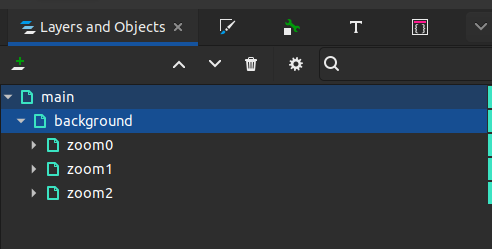
Note: Consistent labeling ensures the JavaScript code correctly identifies and manages zoom levels.
How Zoom Levels Work:
Initialization:
prepareZoom initializes zoom behavior by identifying all zoom layers (zoom1, zoom2, etc.) within the SVG. It calculates the minimum scale required to fit the SVG within the viewport.
Event Handling:
The panzoom library handles user interactions like panning and zooming. On each transform event, the current zoom level is recalculated, and the corresponding layers are shown or hidden.
Visibility Management:
The updateZoomLevel function determines the active zoom level based on the current scale. It toggles the hidden class on layers to control their visibility.
Warning
Important Notes
Nested Zoom Layers:
Zoom layers must be placed inside the background layer to function correctly. The background layer is hidden by default, allowing only the relevant zoom layer to be displayed.
Consistent Labeling:
Each zoom layer’s label must start with zoom followed by its level number (e.g., zoom1, zoom2).
Visibility in Synoptics:
Layers managed by zoom rules will not appear in the synoptics > thumbnail section.
Conclusion
Implementing zoom levels in your SVG enhances interactivity and provides a more engaging user experience.
By defining clear zoom layers in Inkscape and managing them through the provided JavaScript utilities, you can create dynamic and responsive SVG graphics that adapt to user interactions and real-time data conditions.
Follow the steps and guidelines outlined in this documentation to effectively incorporate zoom levels into your SVG projects.