SVG Format a model
Using Inkscape to Apply SVG Text Format
You can assign custom formatting using XPath syntax to SVG components with Inkscape. This allows for advanced manipulation and presentation of data directly within your SVG elements.
Steps:
Open your SVG file in Inkscape.
Select the component you want to add custom formatting to.
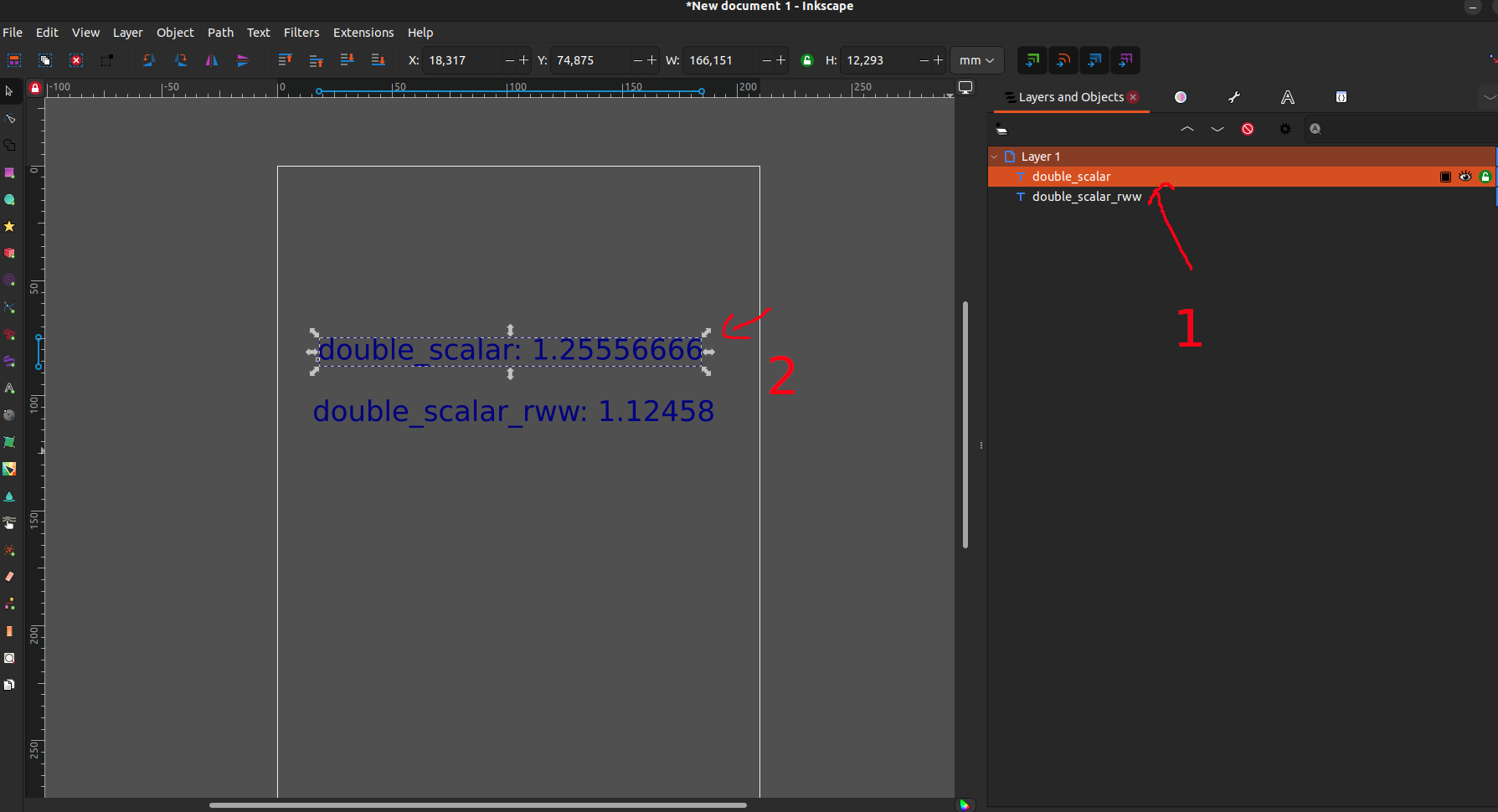
Right-click on the object and select Object Properties. A new panel will appear on the right with the object’s properties.
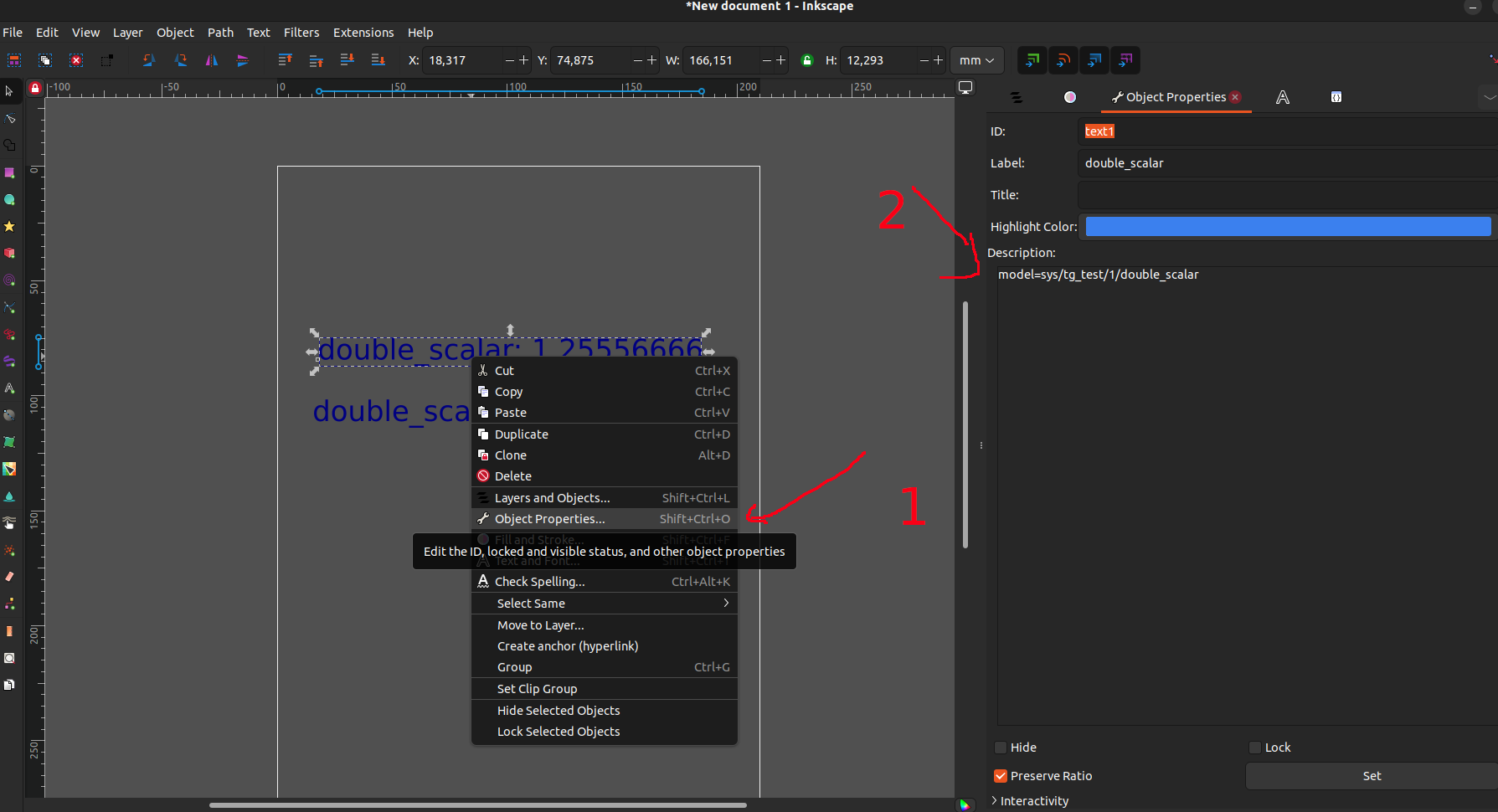
In a Taranta SVG, you will typically see a `model=` field that defines which attribute is assigned to the component. Now, you can also use the `format` field.
Using XPath annotations, you can format the values, such as cherry-picking a key from a JSON string value. The format specifies what type of formatting is to applied.
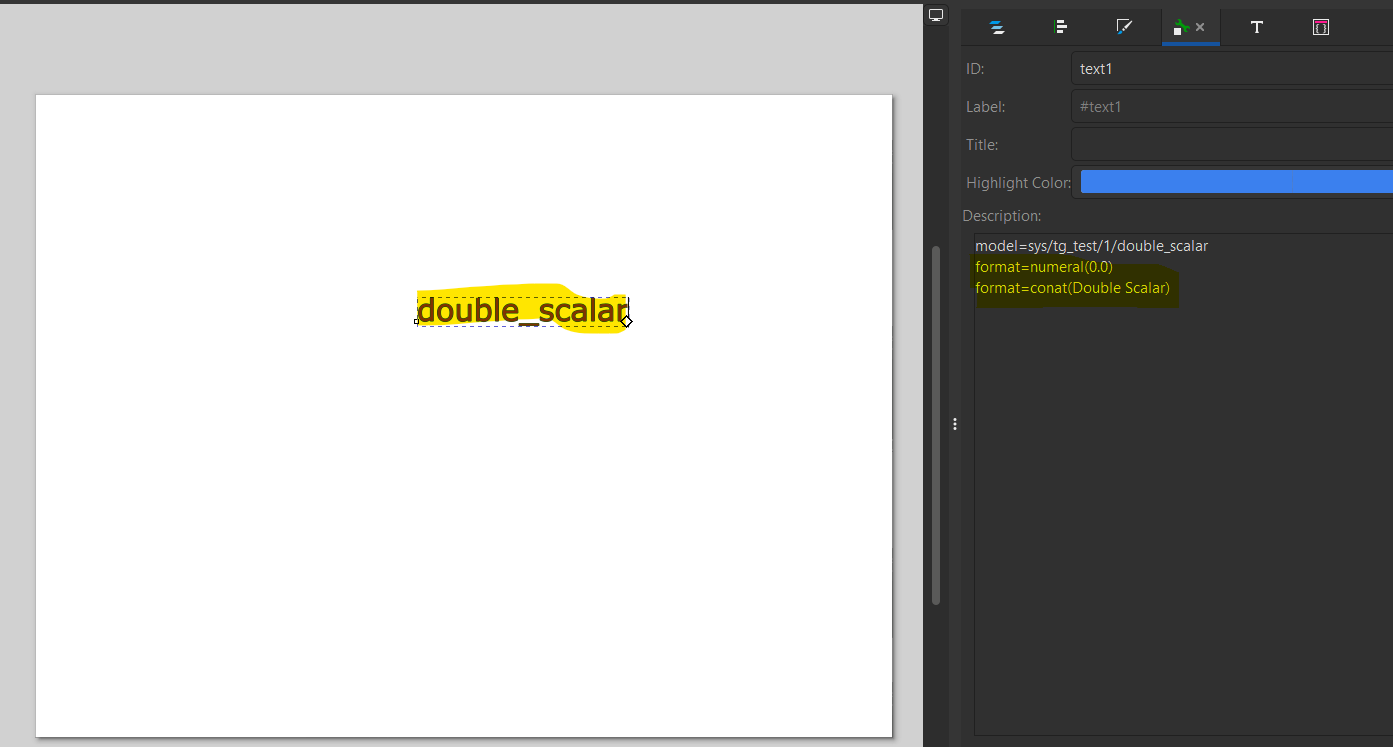
Multiple formats
There can be multiple formatting rules applied on a single SVG element. The formats are applied in the order they are specified in Object Properties section. For Example: In above image, lets assume double_scalar value is 46.4163 and format is like below:
format=numeral(0.0)
format=concat(Double Scalar)
The numeral format input value: 46.4163 and will return 46.42 The concat format input value: 46.42 and will return Double Scalar46.42
Note: Use multiple format rules catiously.
The formats that are available are as below:
Note: All formats are case sensitive
index
Purpose: Extracts a specific element from a list or array.
Format: format=index(n)
Example: To display index 2 of an array [1,6,4,2,9], use format=index(2) Result: 4.
Assume you have an array containing 7 values as below:
[
    12,
    124,
    121,
    54,
    65,
    76,
    97
]
If you want to display only the last value in your SVG component, you can use the following in the format field:
format=index(6)
Note: array index start from 0
substr
Purpose: This is an extension to index formatting. substr extracts a subset from a larger array, or list.
Syntax: format=substr(start_index, end_index)
Example: To extract the subset of the list between`1,5` from [1,7,3,6,5,7,3,1], use format=substr(1,5). Result: [7,3,6,5].
concat
Purpose: This is used to prepend a string to the SVG component.
Syntax: format=concat(Temperature)
Example: To concatenate “Temperature”, use concat(Temperature:). Result: Temperature: […]
path
Purpose: Extracts data from a JSON object by specifying a path.
Syntax: format=/jsonPath/to/data
Example: To display the temperature value from the JSON { “temperature”: 22 }, use format=/temperature.
For nested objects, assume you have a JSON object value like this:
{
    "status": "active",
    "details": {
        "name": "Device tg_test",
        "location": "AB Street, Palk View.."
        "temperature": 22,
    },
    "humidity": 45
}
If you want to display only the temperature value in your SVG component, you can use the following XPath expression in the format field:
format=/details/temperature
numeral
Purpose: Formats numbers according to specified patterns (e.g., decimal places, currency).
Syntax: format=numeral(format_rule)
Example: To format 12345.678 as “12,345.68”, use format: format=numeral(0,0.00).
Note: Use multiple formats catiously. In such case each format is executed with the formatted value returned from the previous format.
For example, lets assume an SVG component configured with sys/tg_test/1/double_scalar. And has below formattings
model=sys/tg_test/1/double_scalar
format=concat(Value:)
format=numeral(0.00)
If double_scalar value is 26.75474, then after first format rule, value would be Value:26.75474.
The second format would not work because the value returned from concat is invalid input to numeral format.
This will work if we reverse the order of the two formats.
model=sys/tg_test/1/double_scalar
format=numeral(0.00)
format=concat(Value:)