Team Page
Once on the team page, see Figure 6, you can move between pages by clicking on the page name or the page navigation buttons at the bottom of the page.
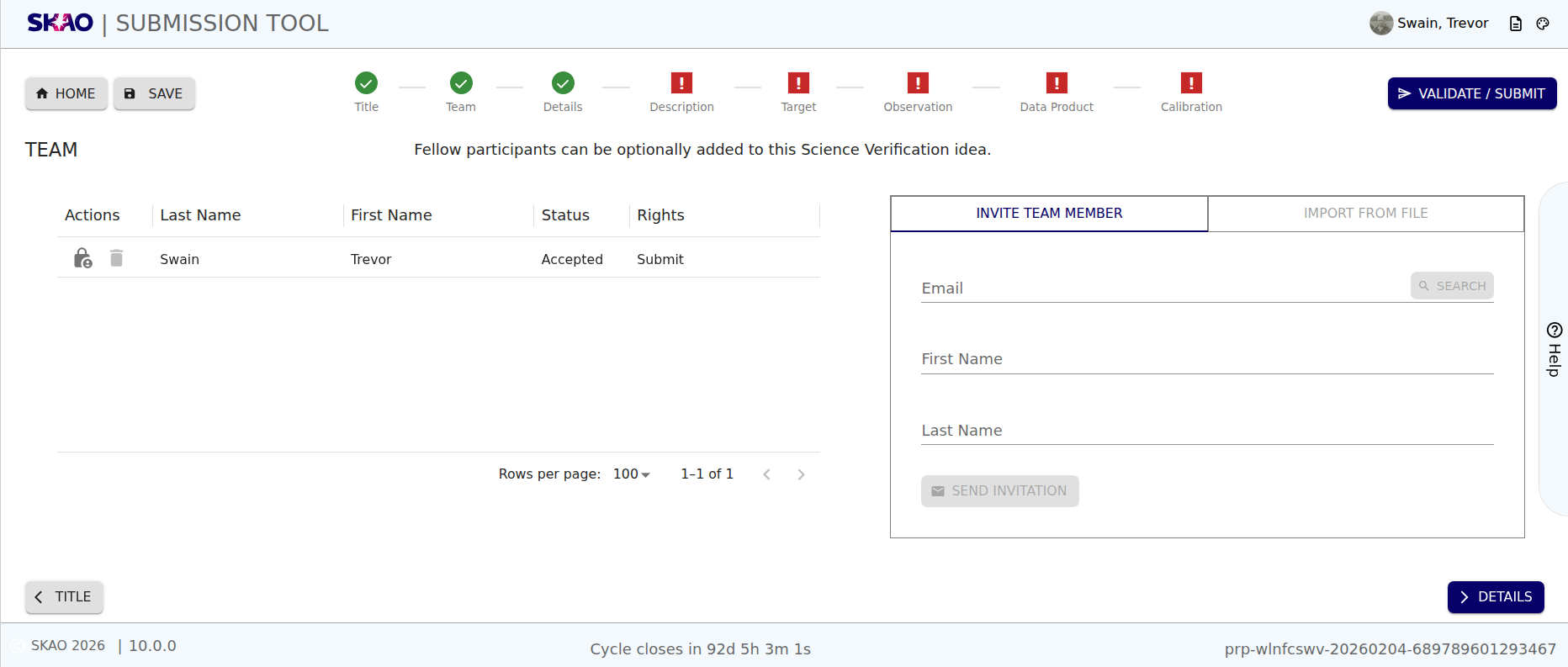
Figure 6 : The Team page.
Layout and Navigation
The Team Page has two sections:
A list of Team Members (Left)
Displays a table with information about each team member:
Actions (
 : Removes a team member from the submission.)
Last Name
First Name
Status: Indicates the invitation status of the member when an invitation of participation is sent (e.g., Pending, Accepted).
Rights: INdicates the access rights of the team member (e.g., Submit, Edit or View).
Team Management Options (Right)
Invite Team Members: Presents a form to invite team members to collaborate on the submission as seen in Figure 6. This section presents a form with the details below:
Email : Valid email address of the team member.
First Name : First Name of the team member.
Last Name : Last Name of the team member. -
Once the required fields are filled the
 button will become active and once clicked will populate the table on the left with the appropriate status.
Import from File: Not available at the moment.
Have questions or need technical assistance? Contact SKAO Help desk ·