Description Page
The Description Page (see Figure 8) enables a submission document to be uploaded in a portable document format (PDF).
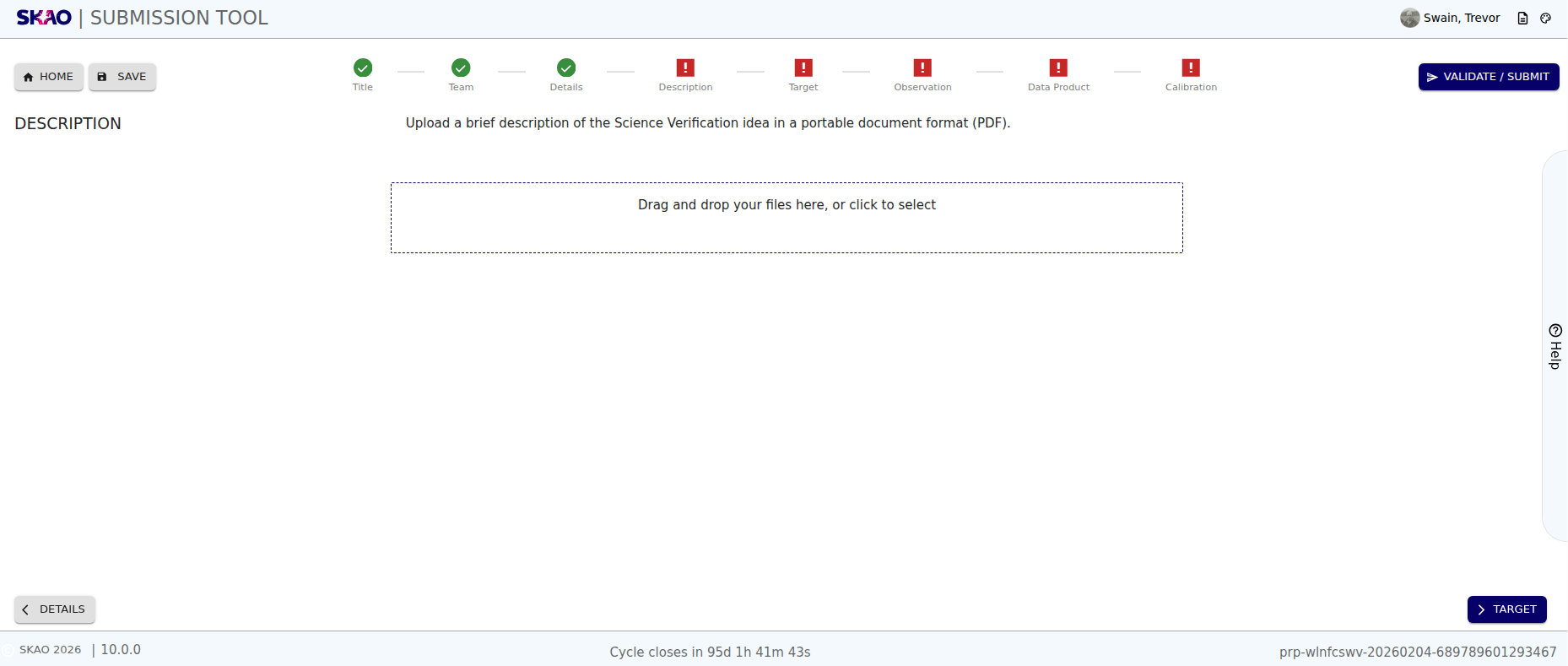
Figure 8 : Description page before uploading a file.
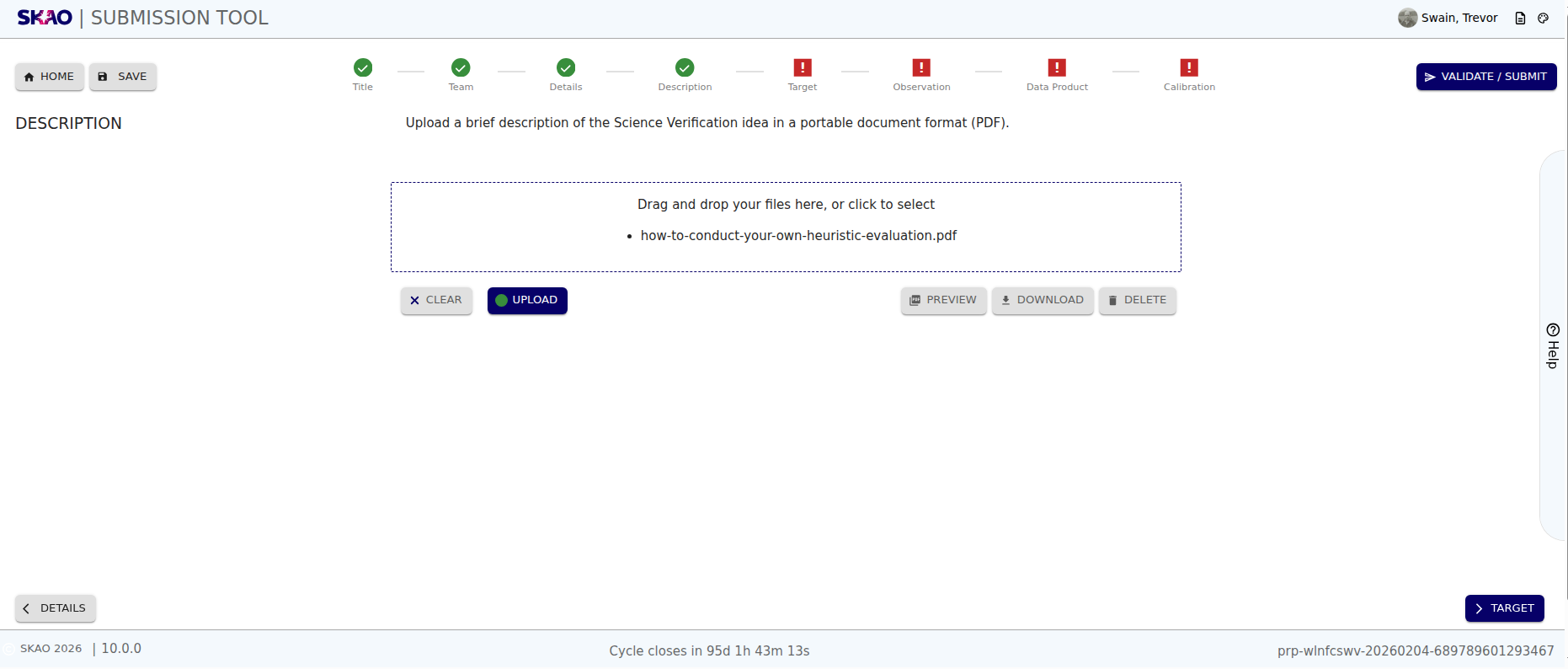
Figure 9 : Description page after uploading a file.
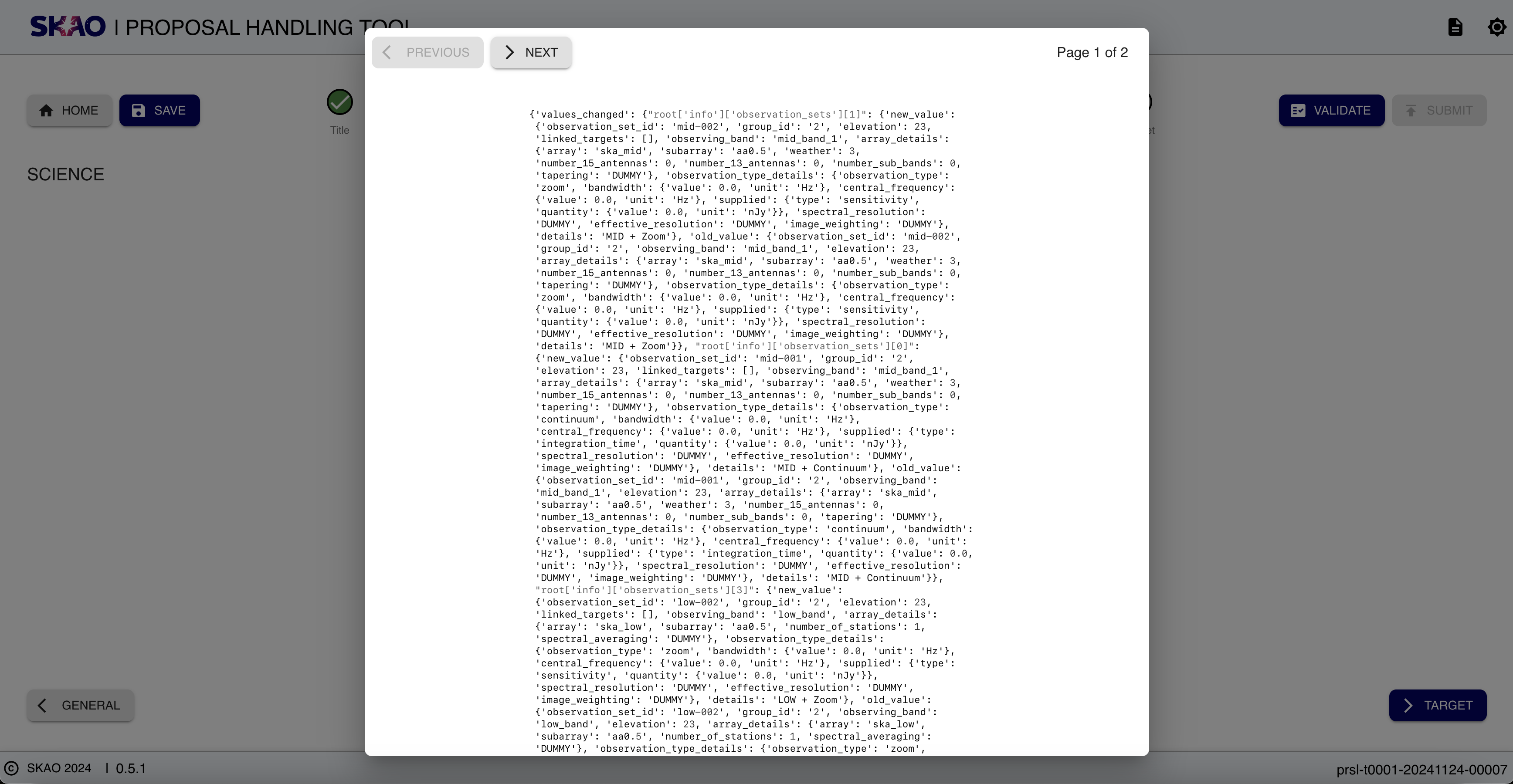
Figure 10 : Description file preview.
Layout and Navigation
The Description Page has clear and consistent options as outlined on the table below:
Click the selection area to select a file from a local device. Once a file is selected, the
 and
and  buttons become visible.
Click
to clear the selected file and start again or to upload the selected file.Once the file is uploaded, the description page will look like Figure 9.
In Figure 9, the
 deletes the uploaded file and the
  button downloads a copy of the uploaded file to a local device.
The
 brings up a modal that views the uploaded file as shown in Figure 10. To exit the preview modal, click outside the modal.
Key Information and Actions
Upload description document in PDF format.
Currently, only one PDF upload is allowed for the description.
Delete uploaded PDF
Preview uploaded PDF
Have questions or need technical assistance? Contact SKAO Help desk ·