Starting a Science Verification
Landing Page
On the landing page is a summary table of the submissions associated with you, either as a creator, or as a contributor. The table in Figure 3 lists submissions with the following information:
Actions (
 ) on each submission. See Table 2.
Submission ID : Unique identifier for each submission.
Cycle Selection : SKAO observing cycle associated with the submission.
Title : The title of the submission.
Type : The type of submission. This can be either a proposal or a Science Verification.
Status : Current status of the submission (e.g., draft, submitted, Under Review, Accepted, Withdrawn, Rejected).
Last Updated : Date and time the submission was last modified.
Call Closes : Date when the cycle associated with the submission will close.
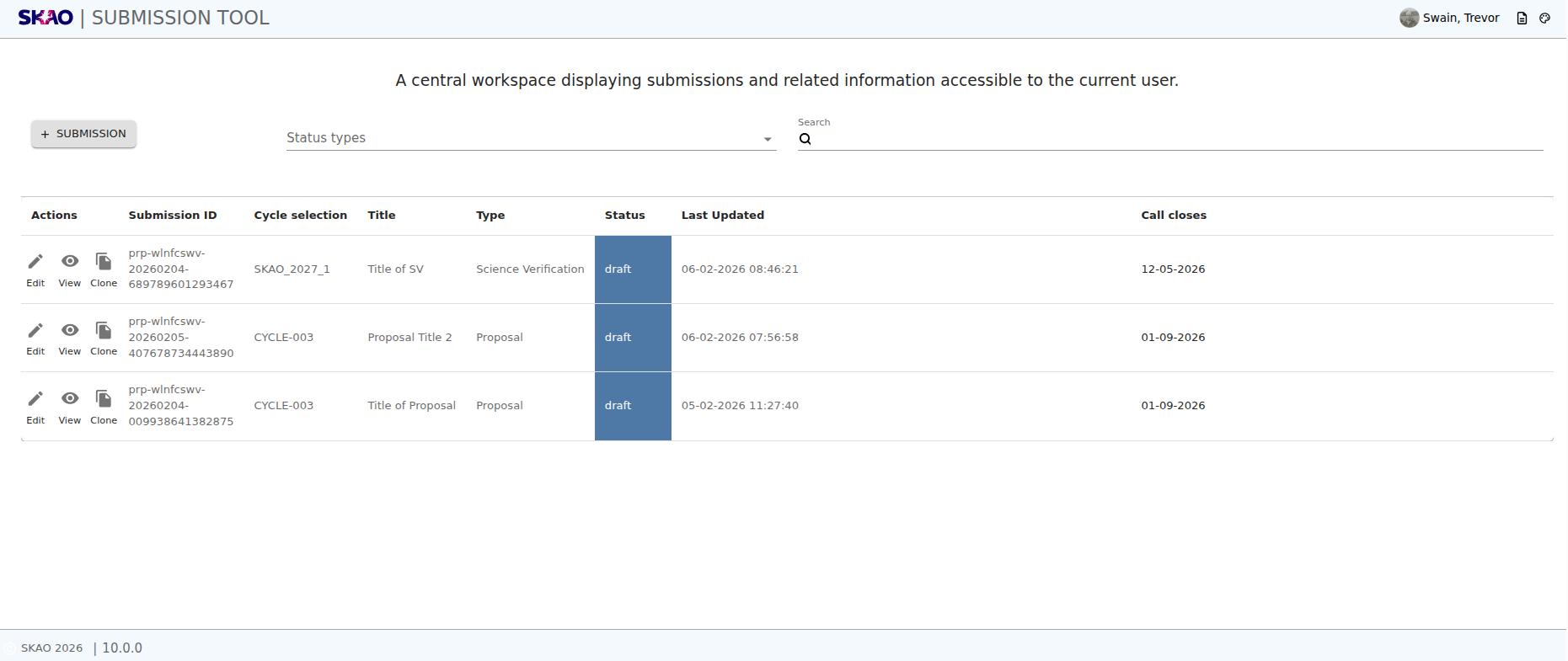
Figure 3 : Image of the landing page.
Icon |
Purpose |
|---|---|
|
Edits the details of a submission. This is only active for submissions in “Draft” status. |
|
Views the summary of a submission. |
|
Creates an exact copy of a submission. This can be useful for creating new submissions based on similar submissions already created. |



Key Information and Actions
Click
 to create a new submission.
Use the drop down
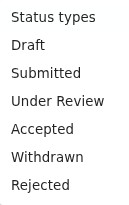 to filter submissions by status.
The search bar
 allows you to search submissions by title and submission ID.
The table is sortable by clicking on the column headers
Next Steps
- opens up a cycle selection modal.
Select the appropriate cycle for the submission and click
 to proceed
The application progresses to the Title Page.
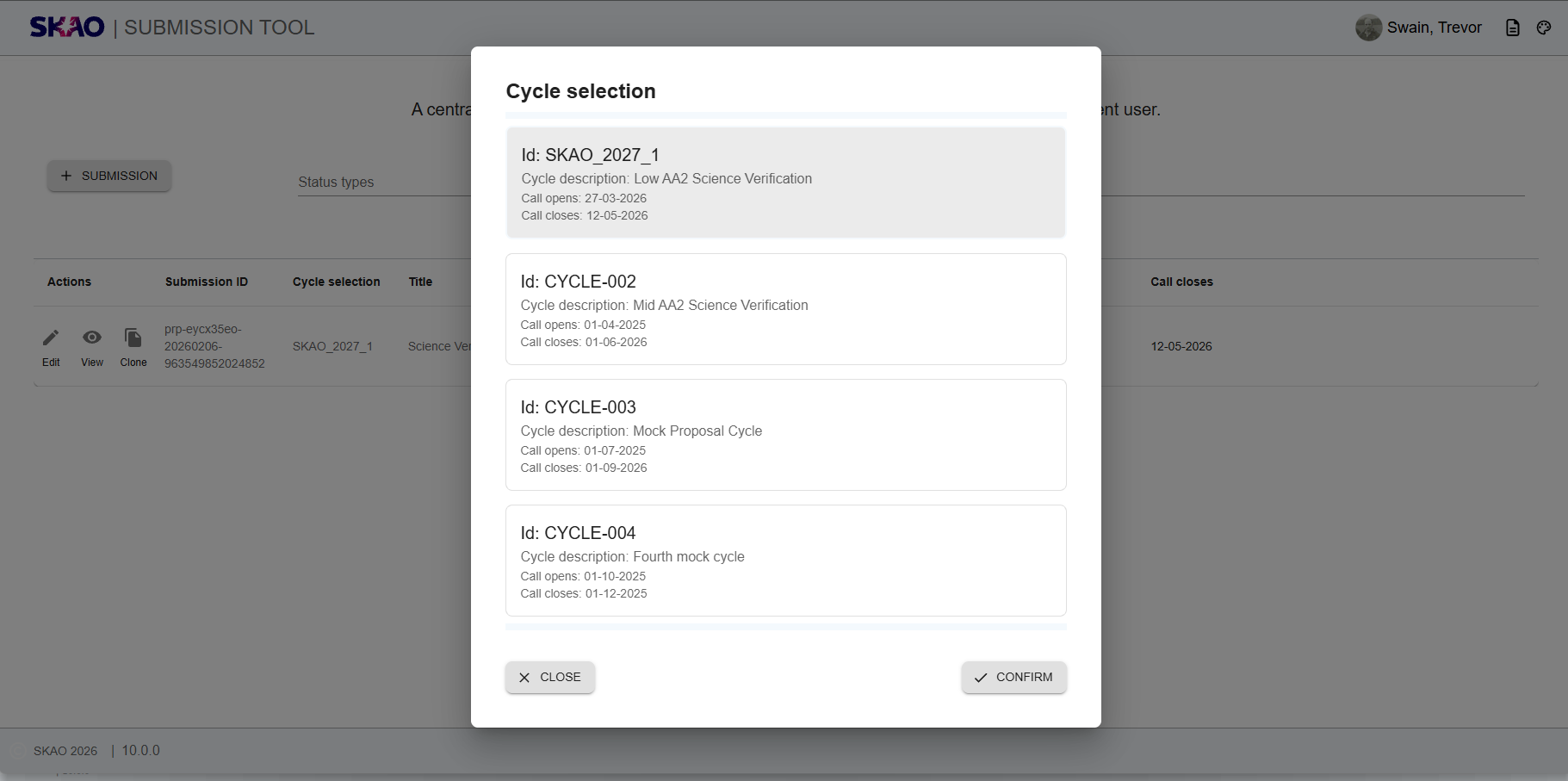
Figure 4 : Image of the Cycle Selection Modal.
Have questions or need technical assistance? Contact SKAO Help desk ·