Panel Review
This page displays reviews assigned assigned based on the signed-in user as shown in Figure 59. If the user has no proposals assigned to them then the table on this page will be empty. Where the reviewers are added to a panel and proposals assigned to that panel, then the user can see those proposals and based on if they are science or technical reviewers then they can either review the technical feasibility of the proposal, science of the proposal or both.
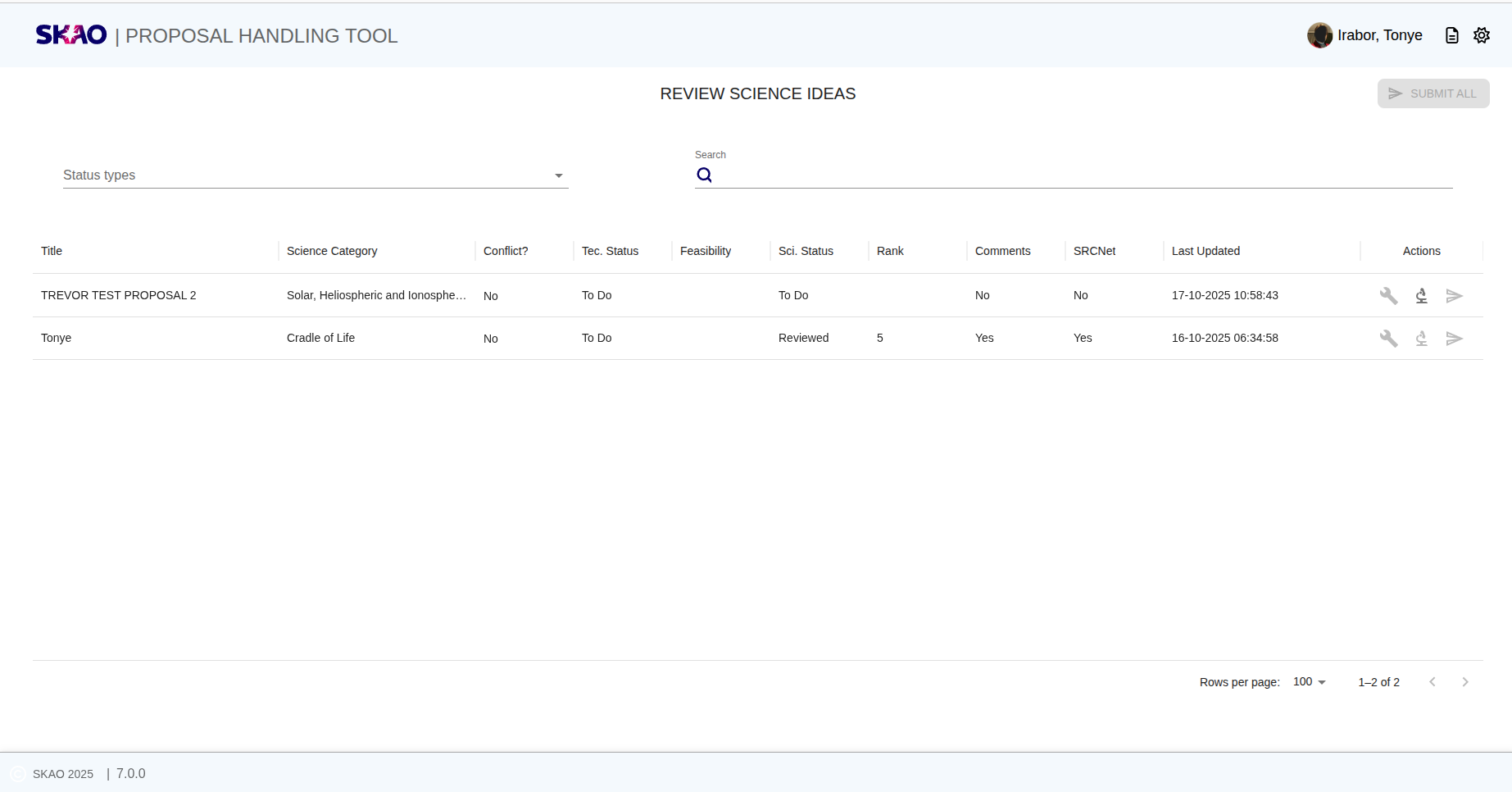
Figure 59 : Overview of the Panel review landing page.
Key Information and Actions
This section describes the core actions available to a Science/Technical Reviewer when performing proposal reviews.
Search and Filter Proposals
Use the search bar at the top of the page to quickly locate proposals by Title. You can also use the Status drop-down menu to filter proposals based on their current Science Review status.
Tip
Combine both the title search and status filter to narrow down proposals efficiently.
Conflict of Interest Declaration
When a Science Reviewer clicks the  icon for the first time,
a Conflict of Interest Declaration dialog appears, as shown in Figure 60.
icon for the first time,
a Conflict of Interest Declaration dialog appears, as shown in Figure 60.
Select the most appropriate declaration and click Submit. The available options are:
I have no conflict of interest
I am an investigator on this science idea
I am a current / recent collaborator of the author(s)
Other reasons prevent me from rendering a fair and impartial judgement
Note
You must complete the Conflict of Interest Declaration before proceeding to the science review screen.
If a conflict is declared, the system will restrict access to the review form for that proposal. For
technical review via the  icon, no conflict declaration is needed.
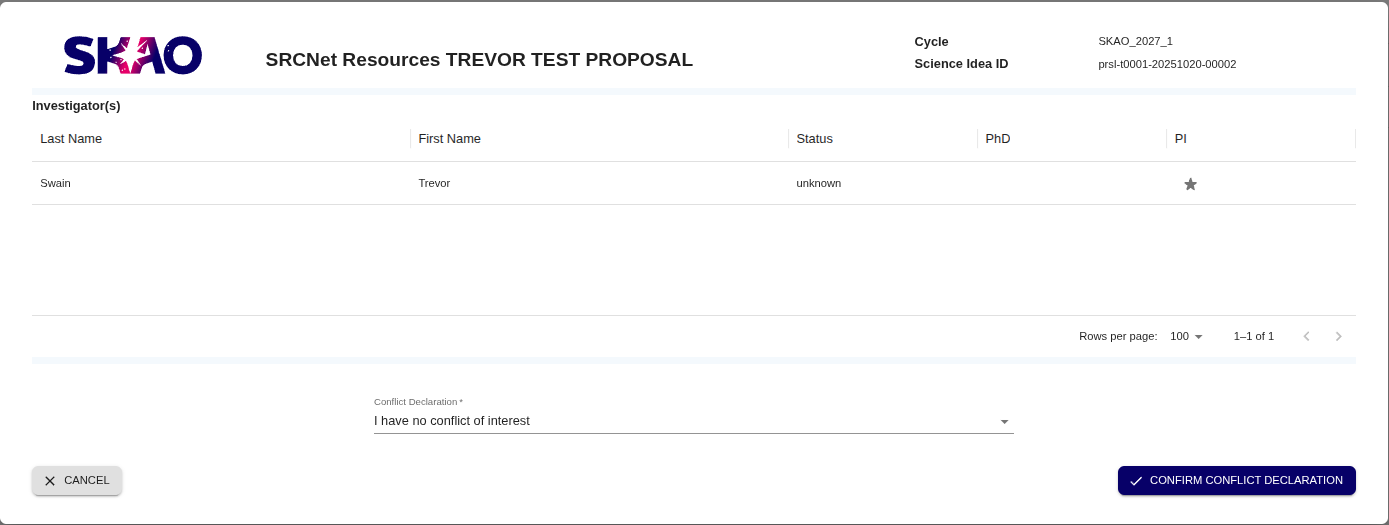
Figure 60 : Conflict of Interest declaration.
Reviewing a Proposal
Ranking Proposals and Adding Comments
On the right-hand side of each proposal in read-only mode:
Click the corresponding rank field to assign your score for science review or one of Yes, Maybe, No for technical review.
Open the Comments tab to provide written feedback or justifications.
Choose to either Save (to edit later) or Submit (to finalise).
Tip
It’s recommended to save your draft frequently before final submission, especially when entering extended comments.
Submitting a Review
Once you are satisfied with your assigned rank and comments, click the |submiticon| Submit Review button to finalise your review for that proposal.
Upon submission:
The review status will update to Reviewed.
The review form becomes read-only and can no longer be modified.
Warning
Ensure your comments and ranking are complete before submitting. Once submitted, the review is locked and cannot be re-opened or edited.
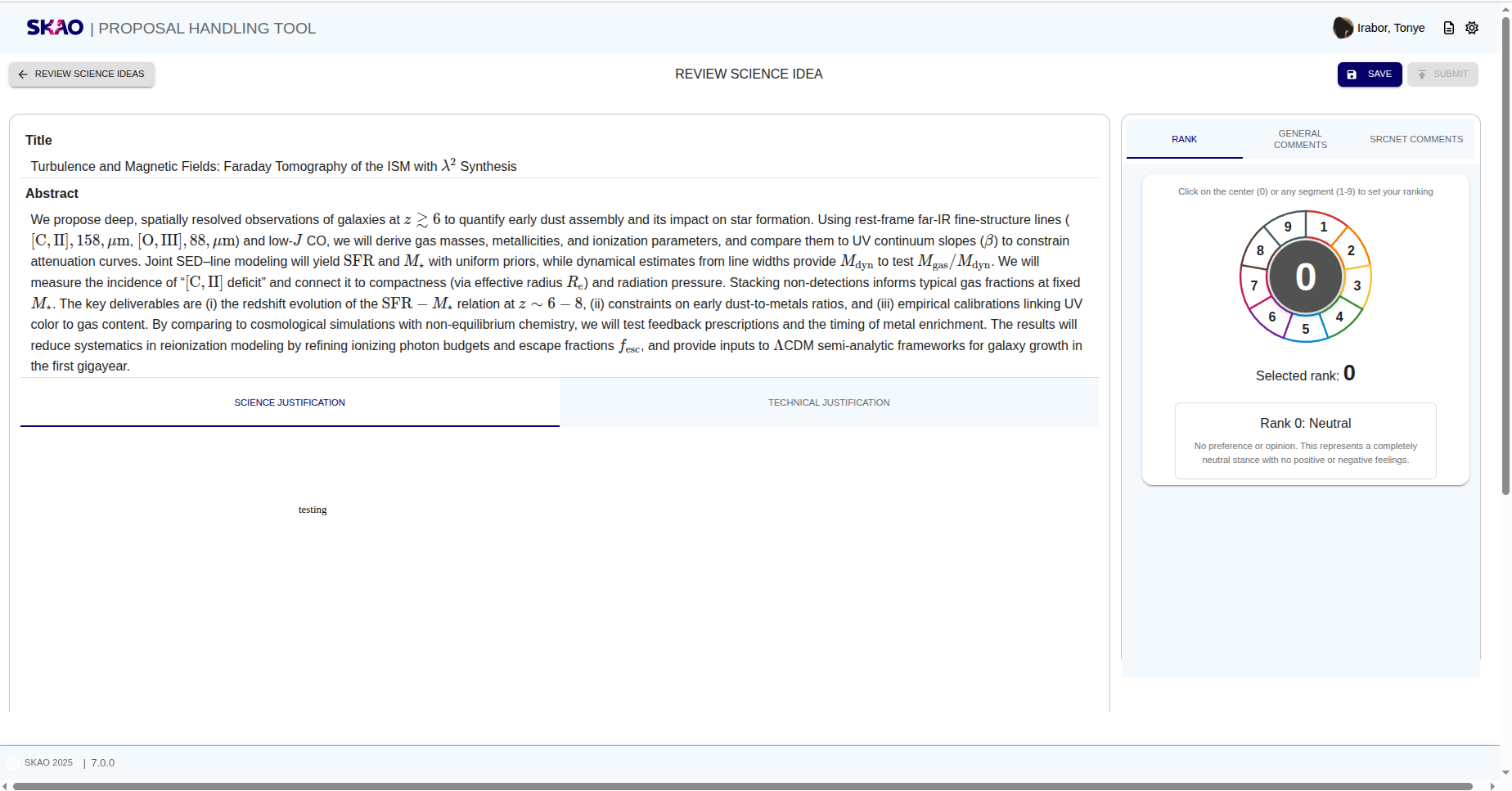
Figure 61 : Overview of the Panel Technical review page.
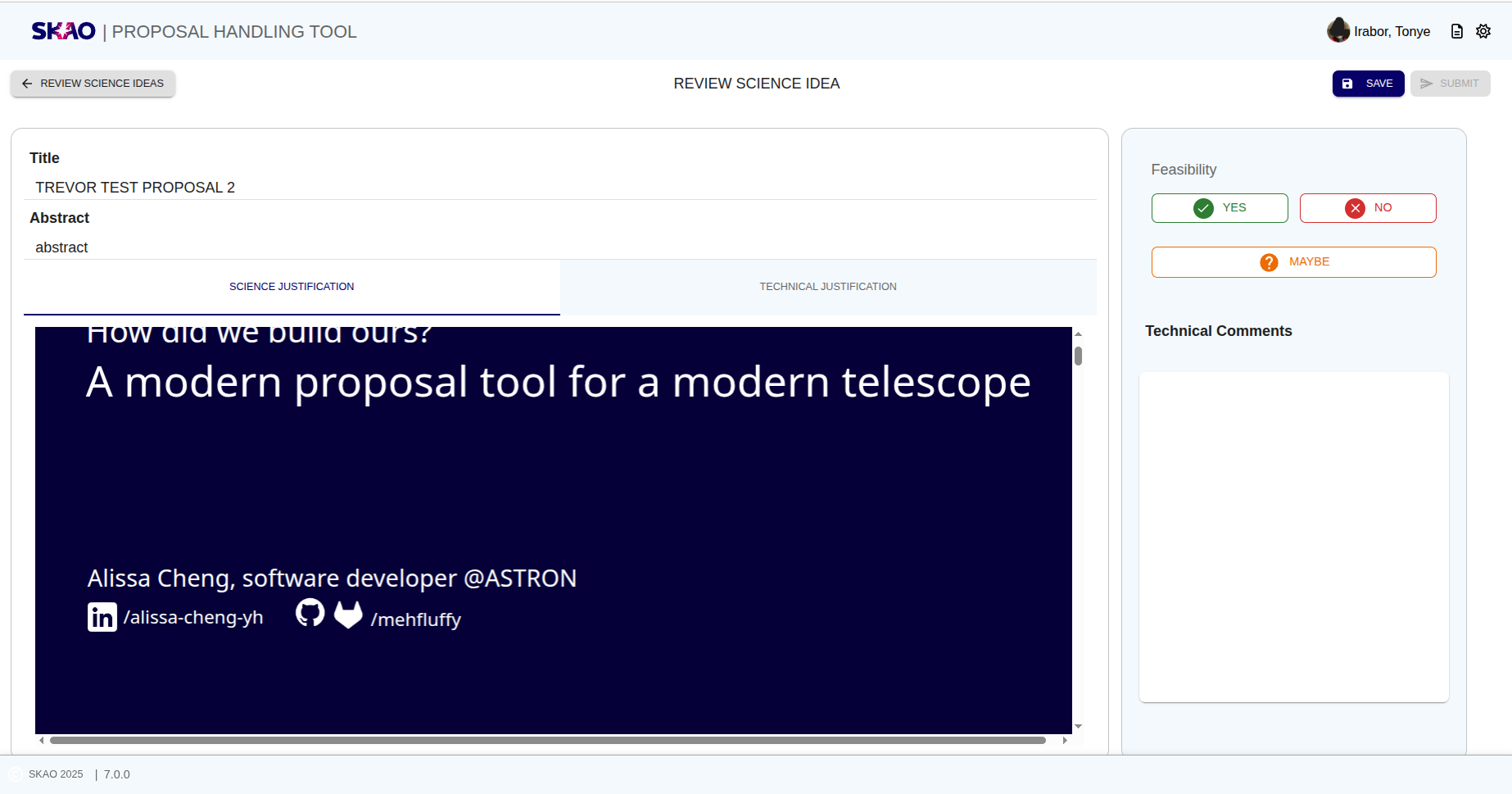
Figure 62 : Overview of the Panel Technical review page.
Have questions or need technical assistance? Contact SKAO Help desk ·