Manage Shift Page
Starting the shift
User can visits the Manage shift page by clicking on button  then user will be able to click on
  button to start the shift.
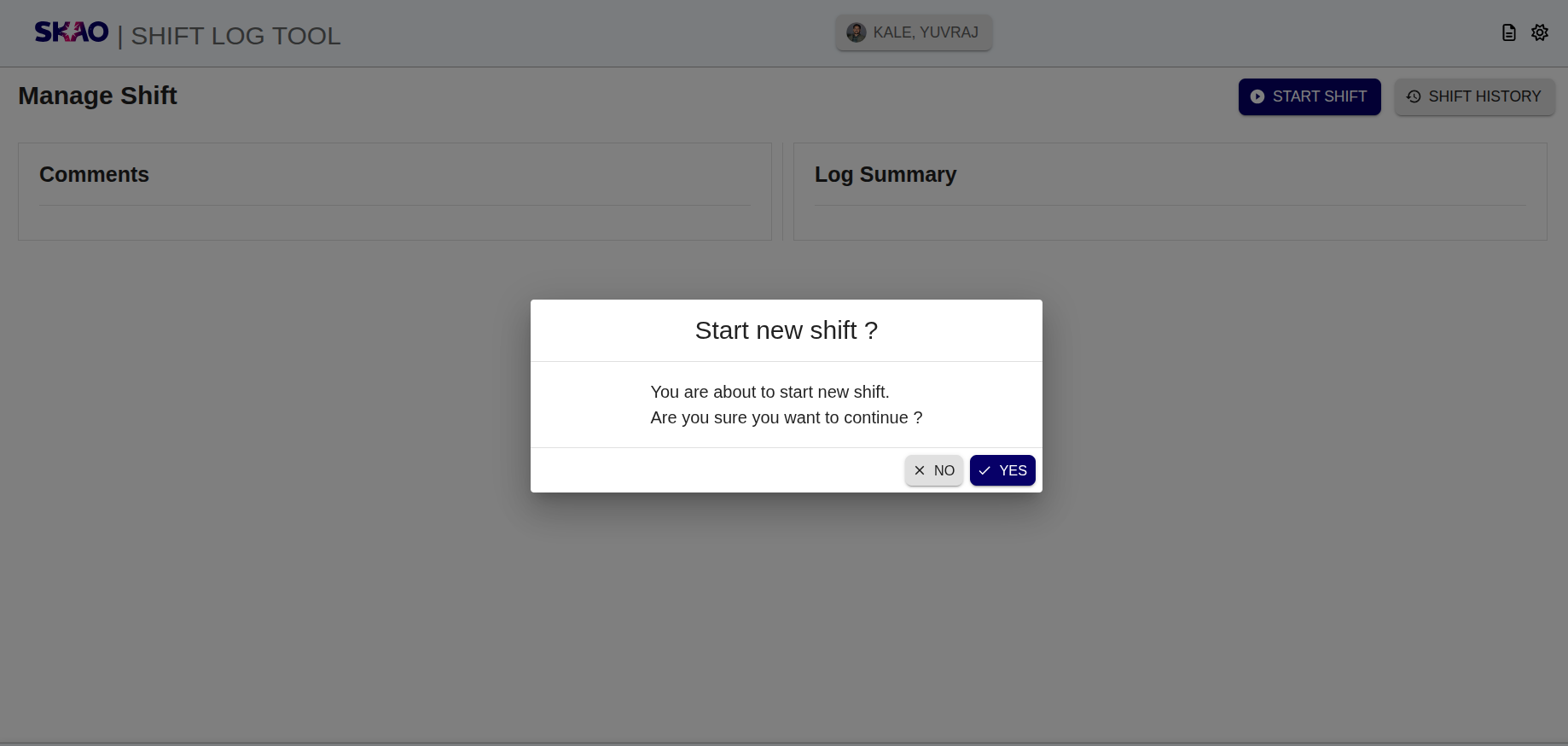
A confirmation window will pop up as shown below, user can click on  button to start new shift else click on
  button.
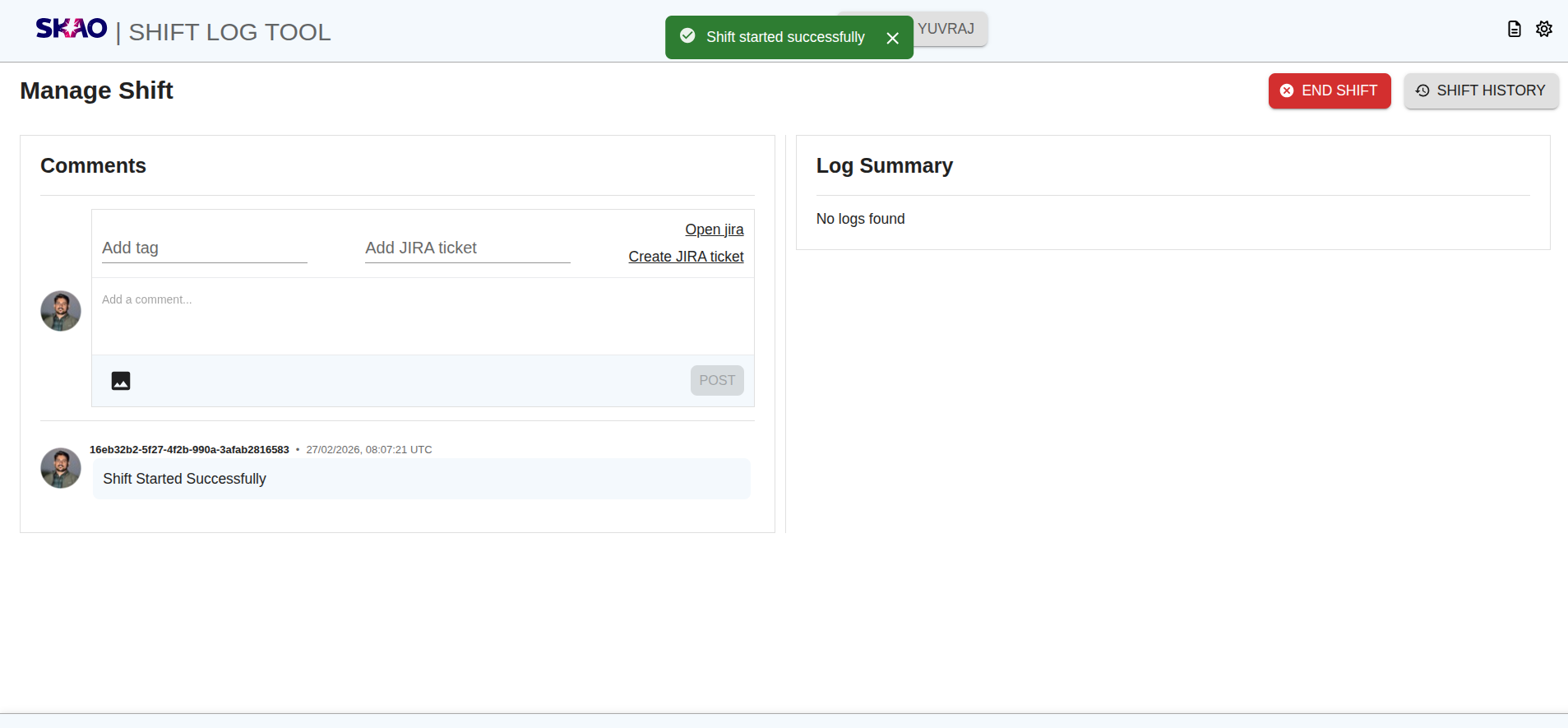
A new shift will get started as shown in below image. User will be able to view the logs in “Logs Summary” section.
Adding shift comments and images
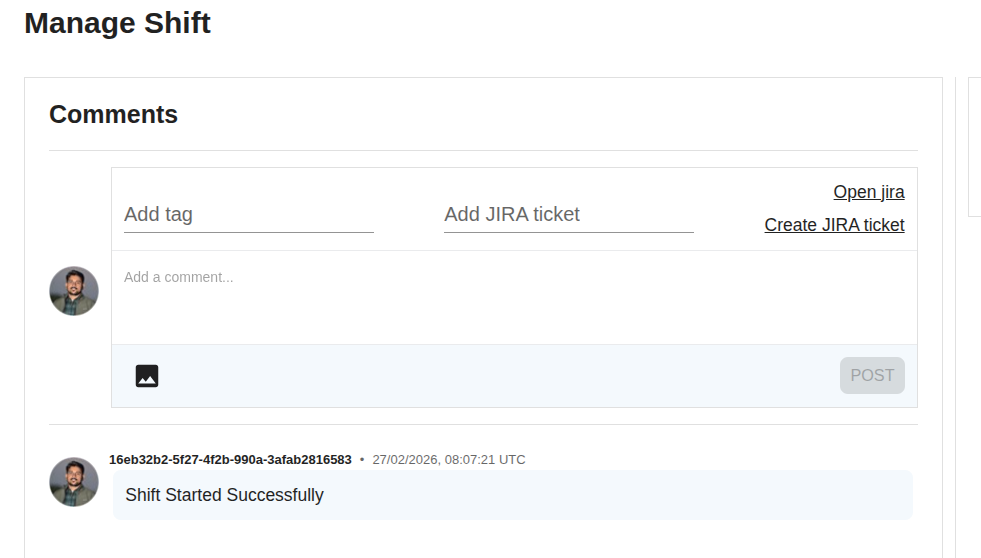
User can add shift comments from the below section:
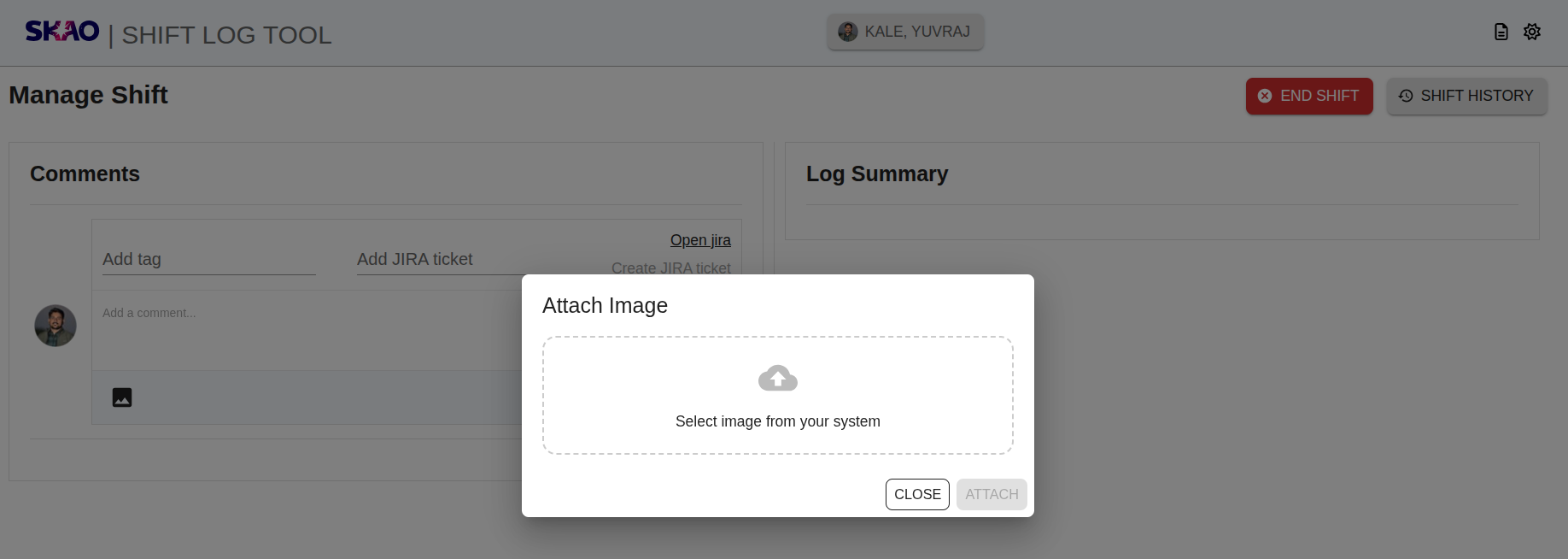
User will also be able to upload images for current active shift by using “File Upload” widget  as shown in below image.
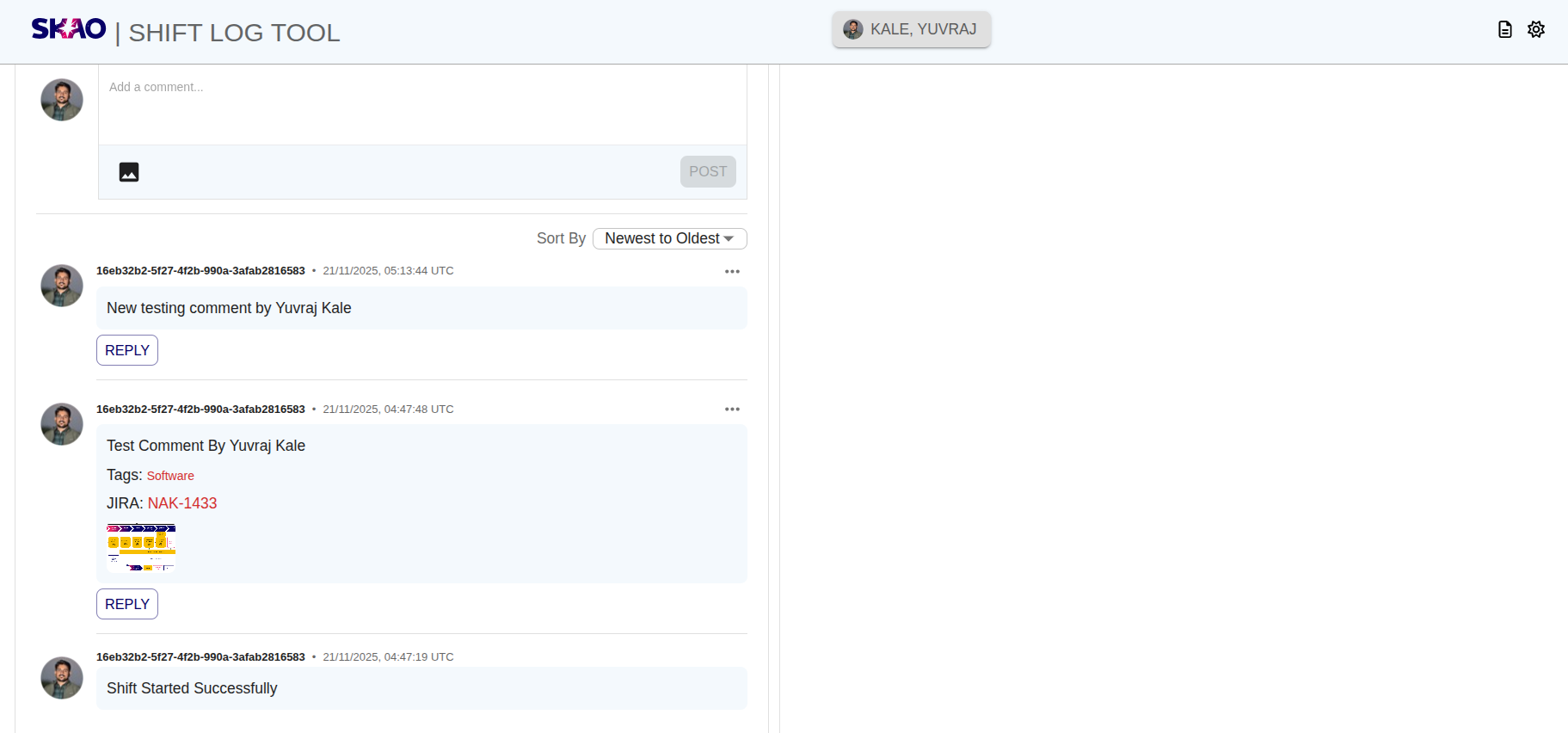
The newly added shift comment, along with its image, will appear below the comment section as illustrated in the image below.
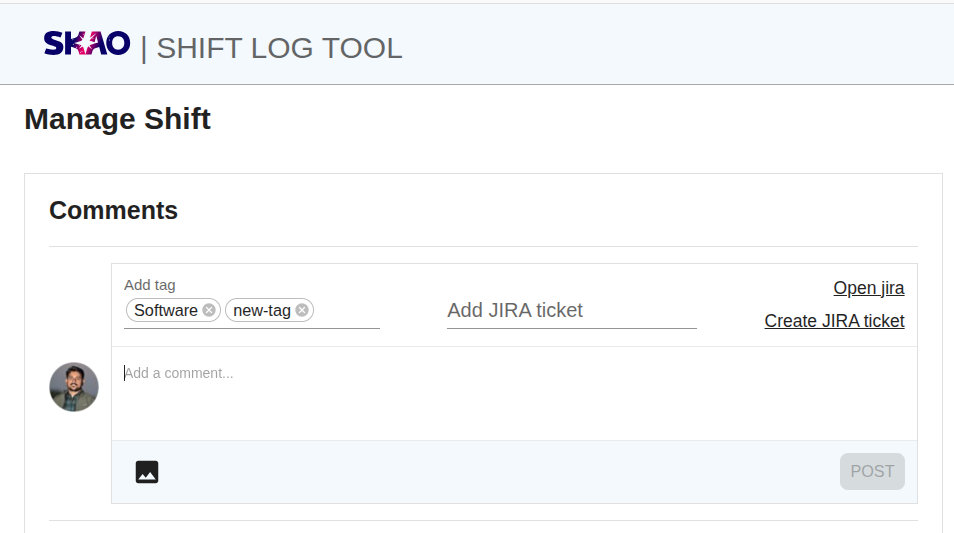
Add tags in shift comment
User can add new or existing tags from “Add tag” field in shift comment as shown in below image
Add jira links in shift comment
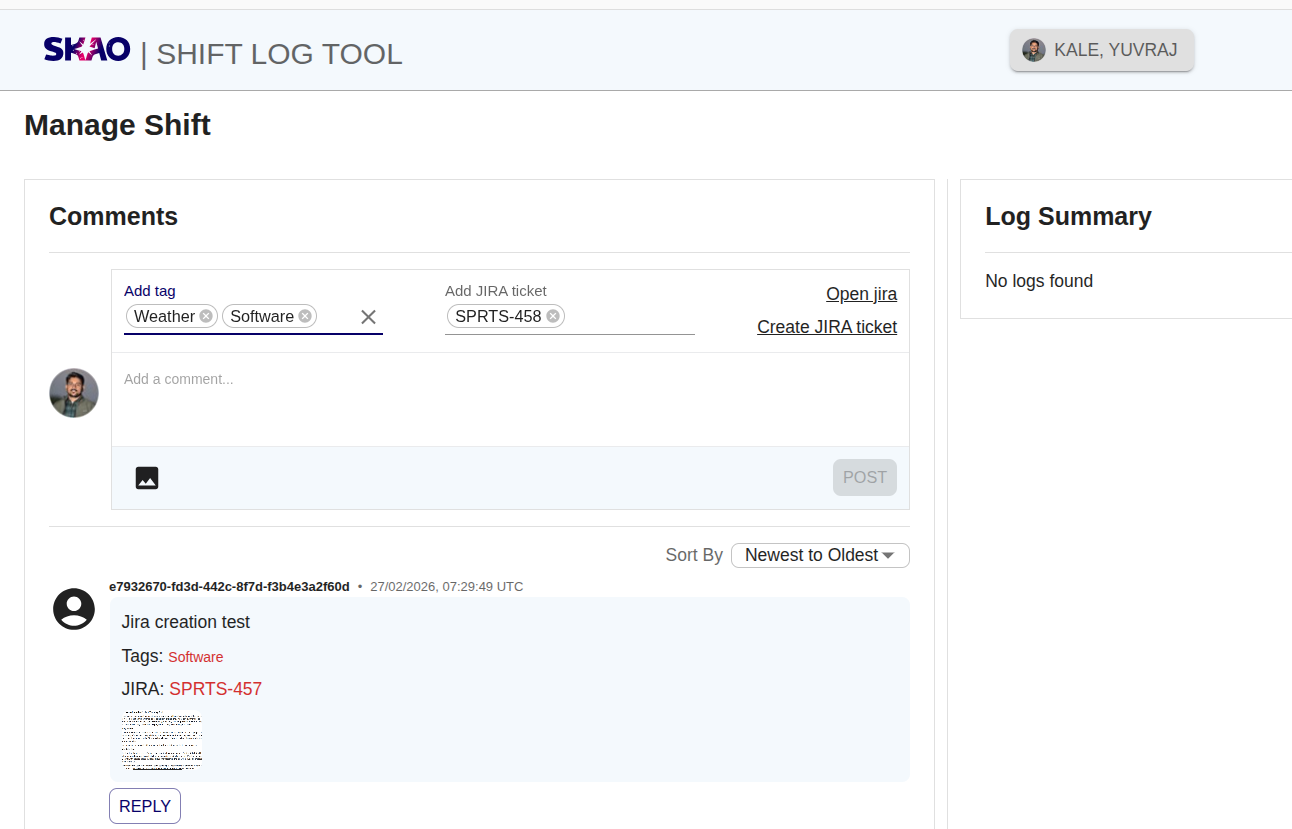
User can add/attach new or existing jira links in shift comment from “Create JIRA ticket” field as shown in below image
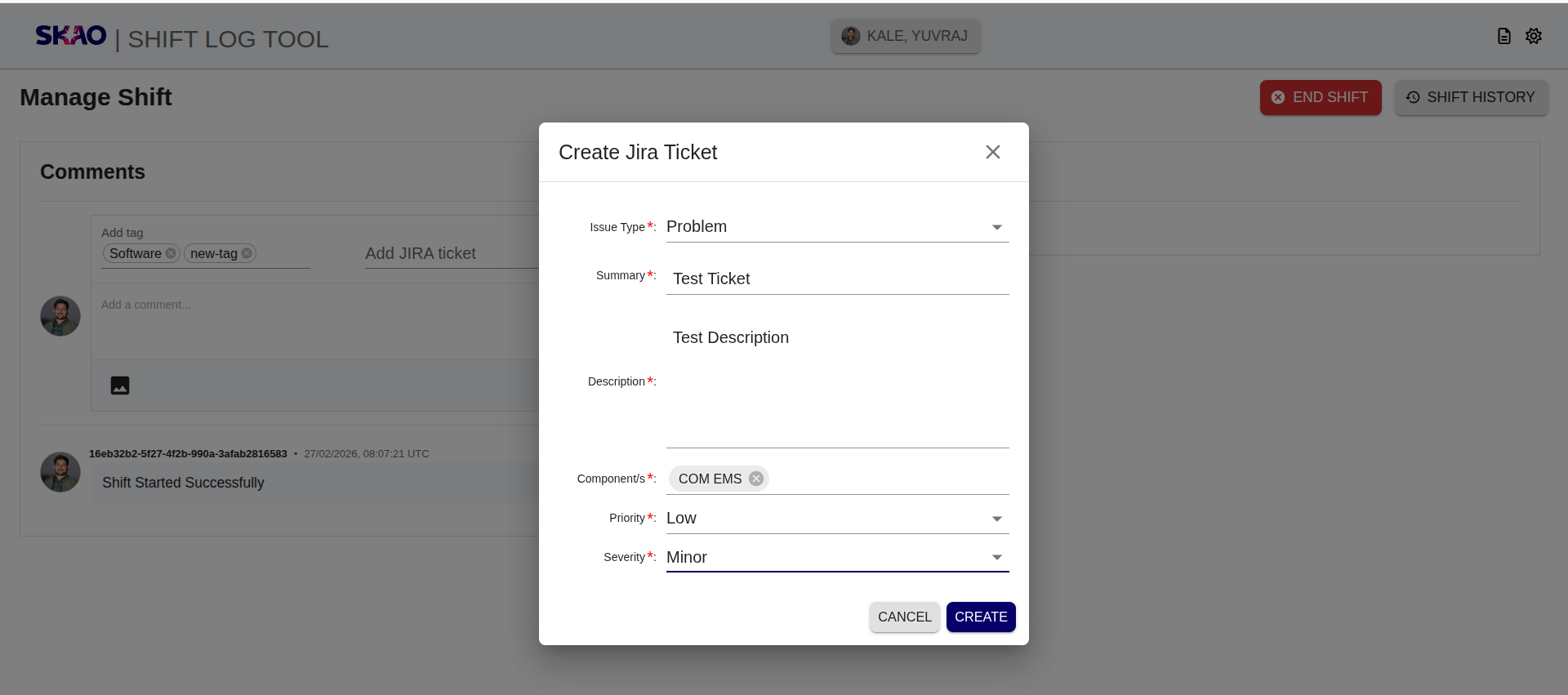
After clicking on “Create JIRA ticket” button, it will open a popup where user can add information related to jira issue as shown in below image. And it will create a jira ticket on https://jira-test-1.skatelescope.org/ domain and attach the jira link in shift comment.
Note
The “Create Jira ticket” option is now only available for https://jira-test-1.skatelescope.org/ domain.
Edit shift comment and images
User can edit shift comments by clicking on three dots (⋮) at right corner and then click on Edit button
 as shown in below image:
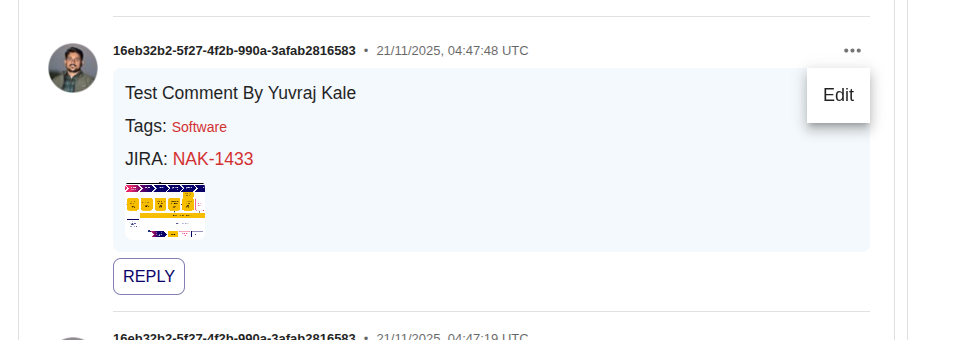
After clicking the Edit button, the Edit section will open, allowing the user to add, remove, or modify comments, tags, Jira links, or images.
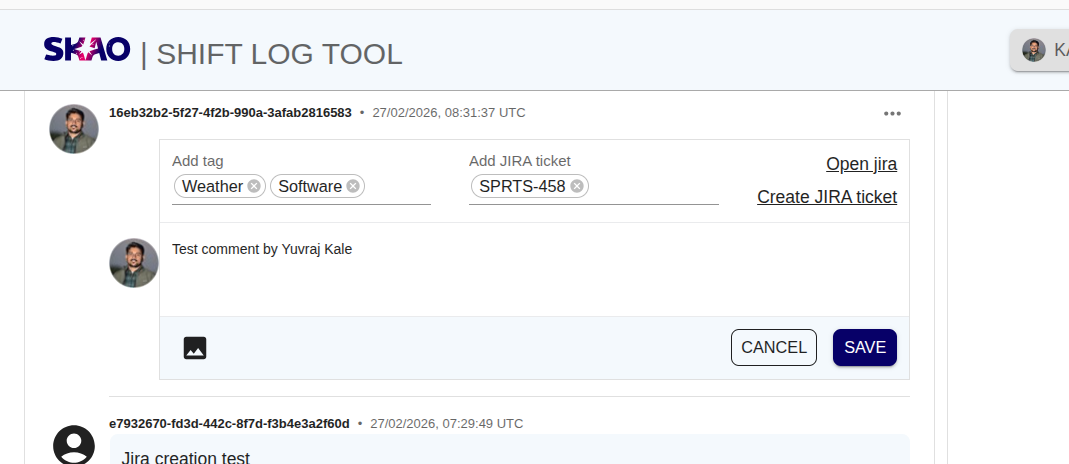
Note
Editing a comment is allowed only for the original comment owner.
When a comment is edited, a new version is created. The three-dot menu will display a ‘Version’ option to view previous versions.
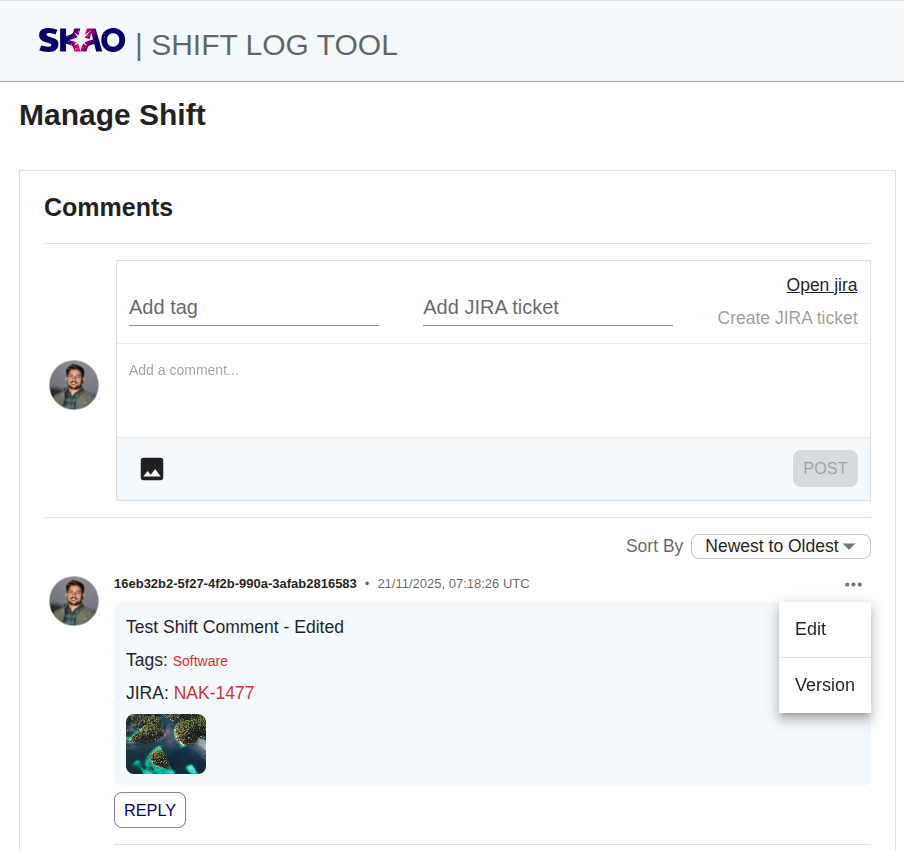
View shift comment version history
The user can view the shift comment version history by clicking the three-dot
menu (⋮) in the top-right corner and then selecting the ‘Version’  option.
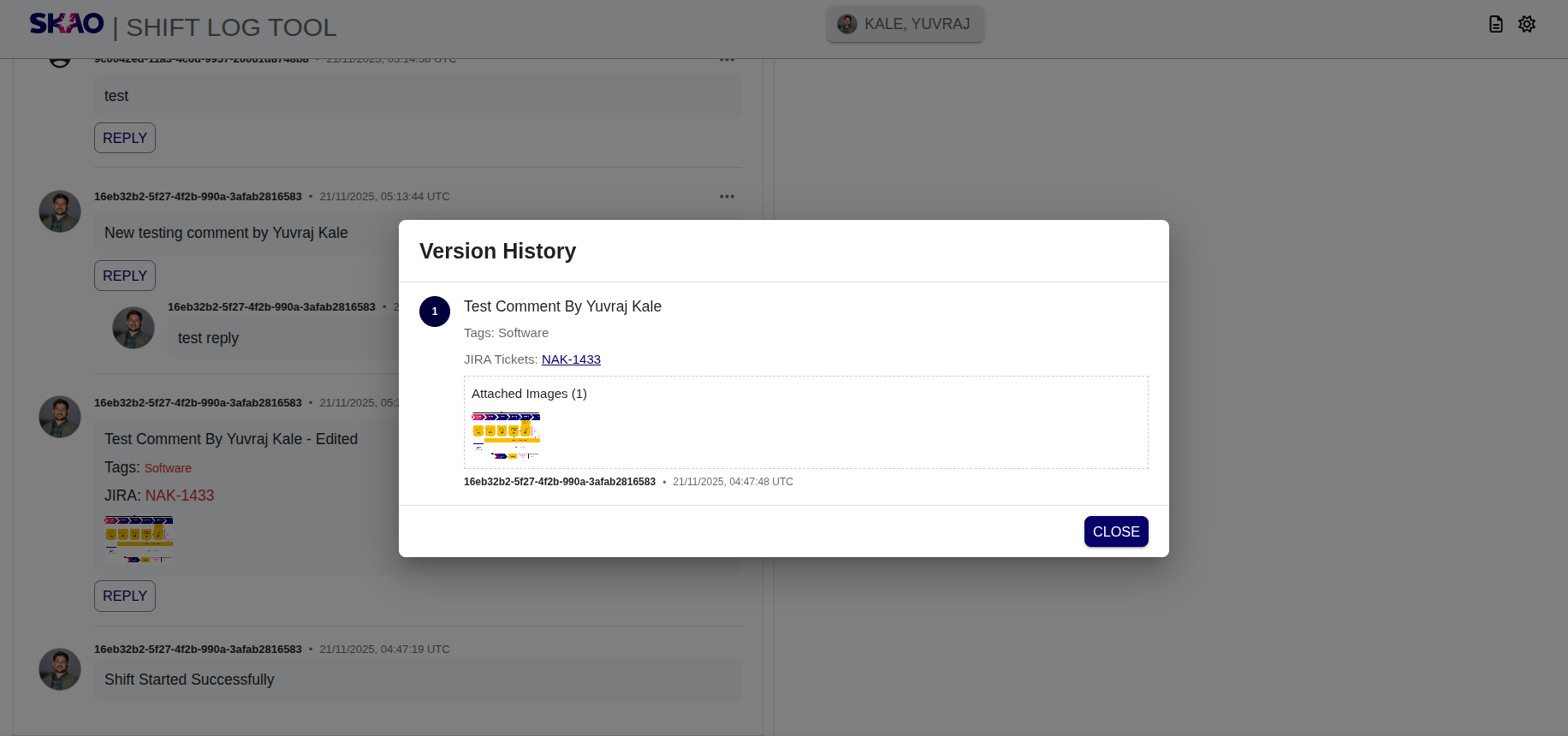
Adding reply to shift comment
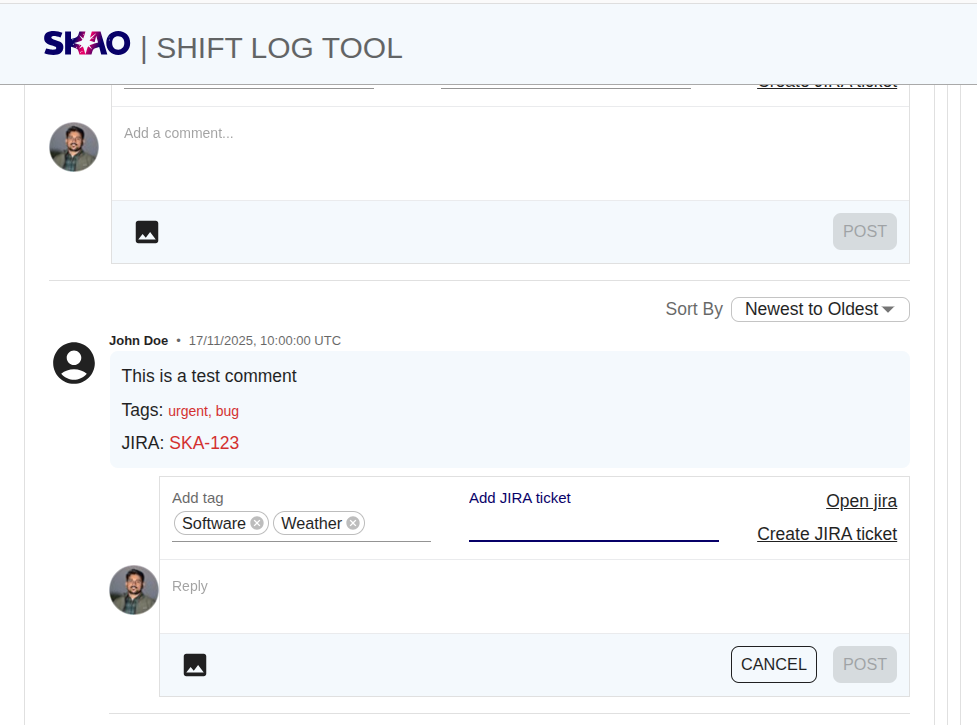
User can reply to shift comments by clicking on  Reply button it will open the
Reply section as shown in below image
Reply button it will open the
Reply section as shown in below image
View logs summary
Once the Execution Block logs are available in the ODA during the shift run, all logs will be displayed in the ‘Logs Summary’ section, as shown in the image below.
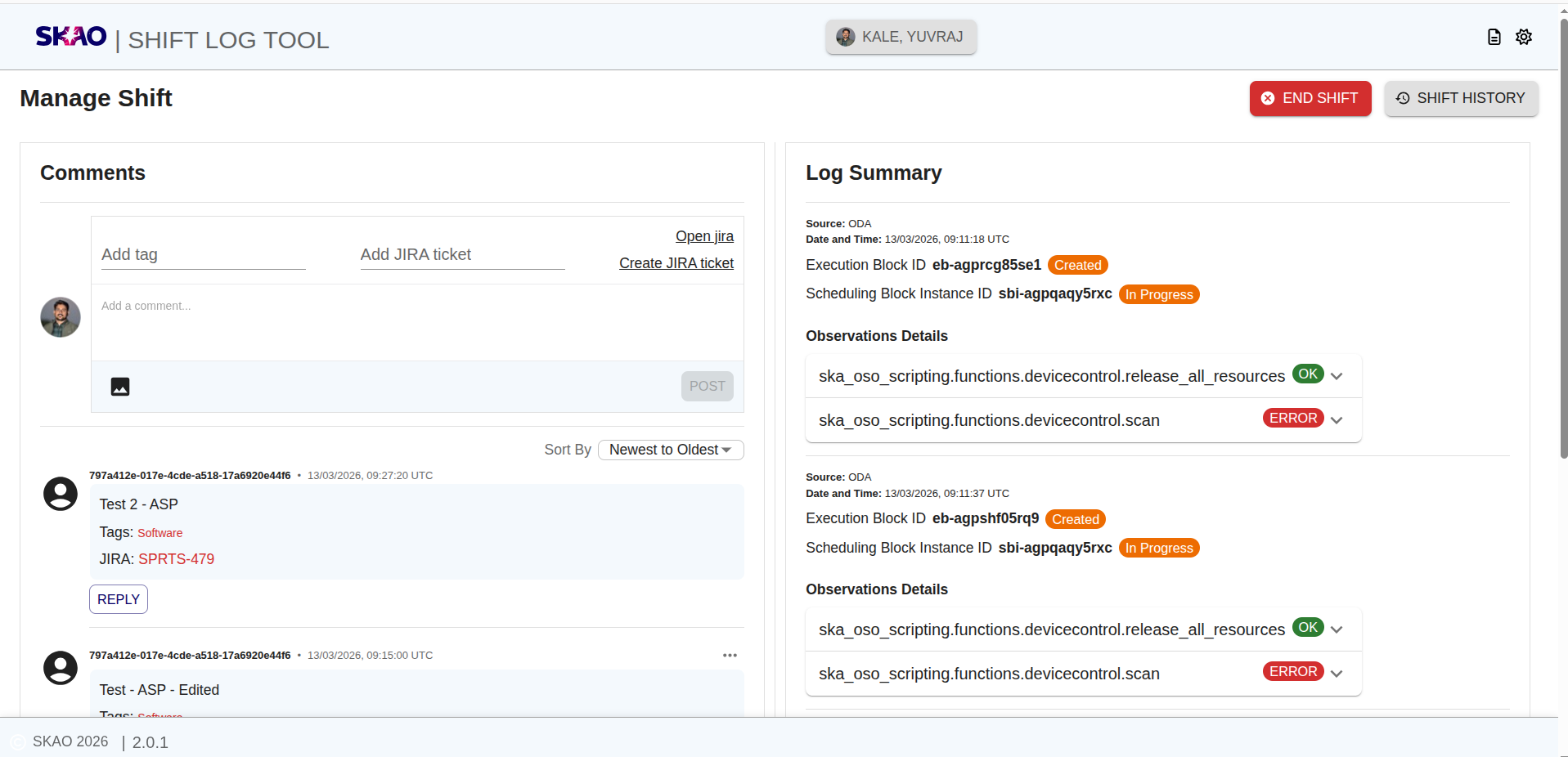
Image preview
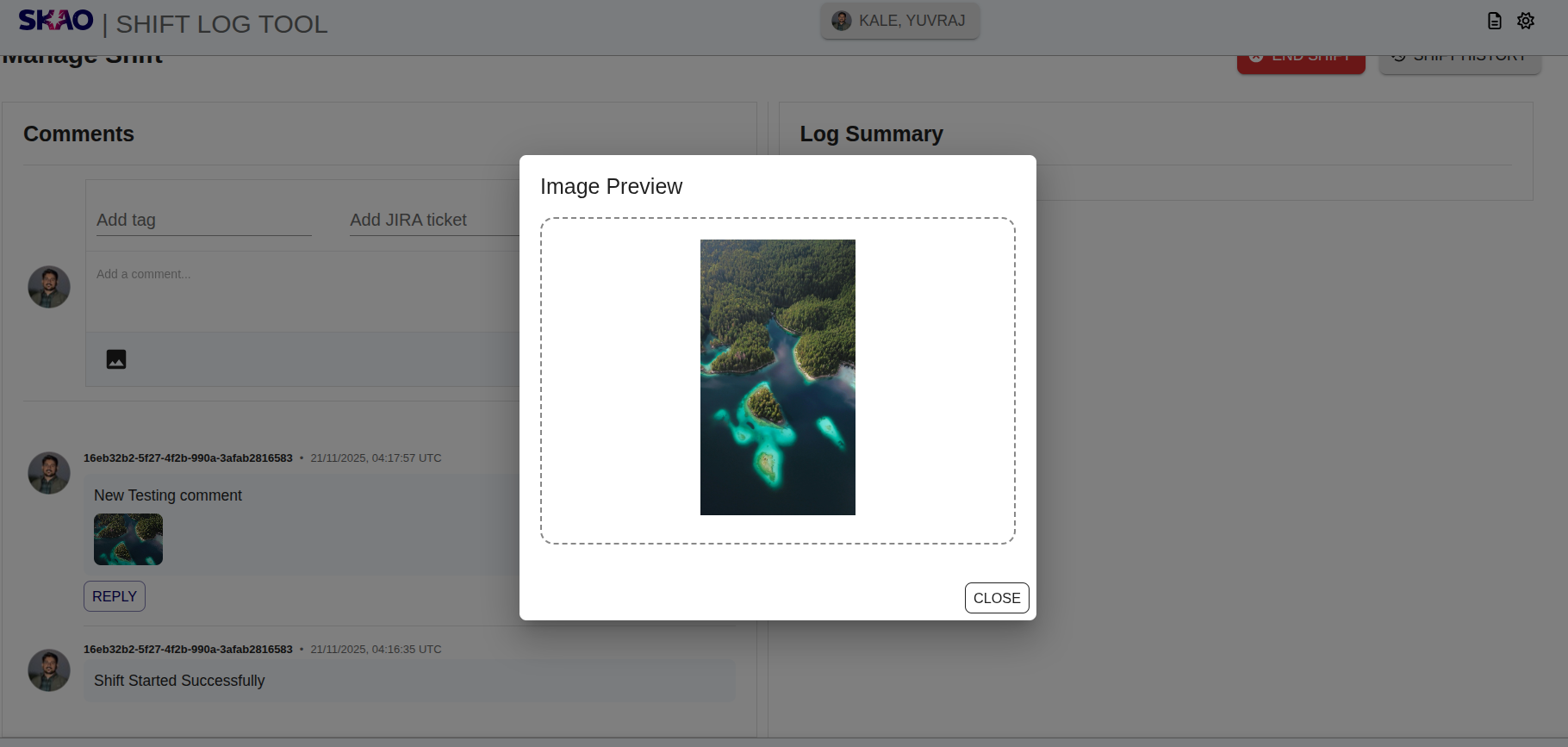
The user can click an already uploaded image to open its preview, as shown in the image below.
Ending the shift
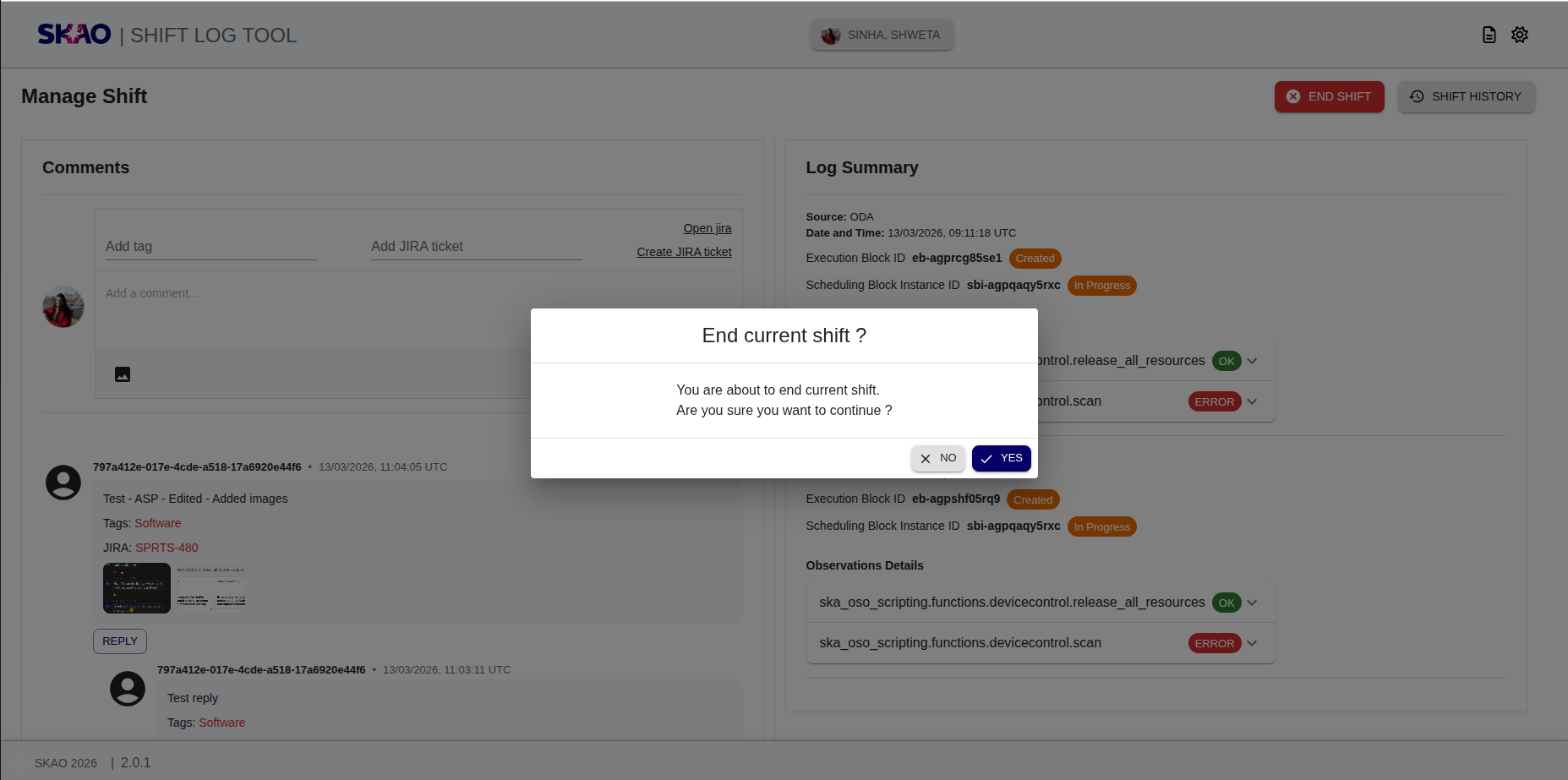
User can end the current shift by clicking on  button on UI.
A confirmation window will pop up as shown below, user can click on button to end the current shift else click on button.