Observing Queue Page
User can click on  button to visit observing queue page.
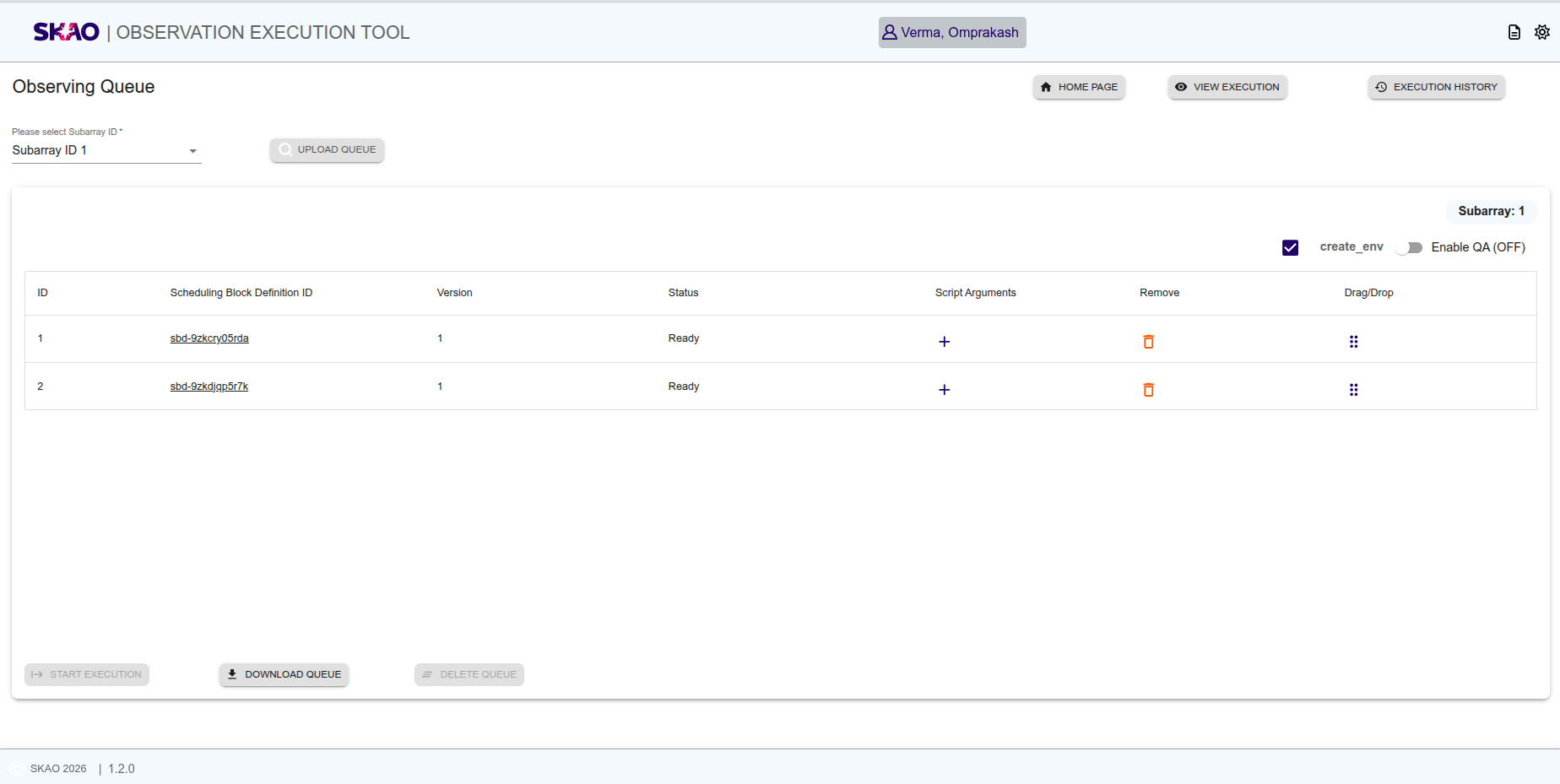
User can select subarray Id from given dropdown on UI to view observing queue for respective subarray Id.
By default subarray Id 1 will be selected from the dropdown.
User can view observing queue for all subarray Ids be selecting ‘All Subarray IDs’ option for given dropdown as shown in below image.
button to visit observing queue page.
User can select subarray Id from given dropdown on UI to view observing queue for respective subarray Id.
By default subarray Id 1 will be selected from the dropdown.
User can view observing queue for all subarray Ids be selecting ‘All Subarray IDs’ option for given dropdown as shown in below image.
User will be able to set “create_env” flag for each queue for respective subarray Id as shown in below image. User will be able to enable/disable QA by using toggle switch from the UI.
Note
By default “create_env” flag is set to true.
Add script arguments
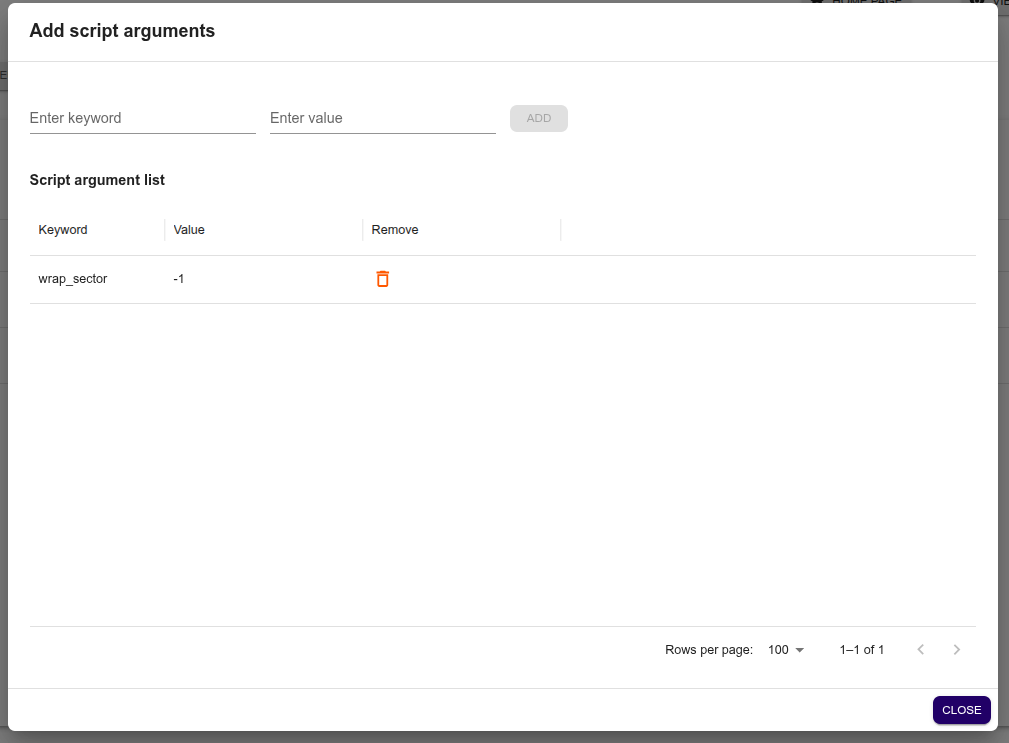
User will be able to add runtime script arguments clicking on  icon from the observing queue for respective SBD ID.
A model window will open in which user can add keyword and its value then click on  for adding the script arguments.
All keyword arguments list will be diaplyed on UI as shown in below image.
for adding the script arguments.
All keyword arguments list will be diaplyed on UI as shown in below image.
User can click on  for deleting any script arguments.
Note
User will not be able to add “subarray_id” as keyword for script arguments.
Re-arrange SBD in queue
User will be able to re-arrange the sequence for SBDs displayed in the respective observing queue for each subarray Id by using drag/drop option from UI or by dragging the selected row to desired position to update the observing queue.
Note
User will not be able to re-arrange/delete the sequence of SBD which is currently in execution for respective subarray Id observing queue.
Remove SBD form queue
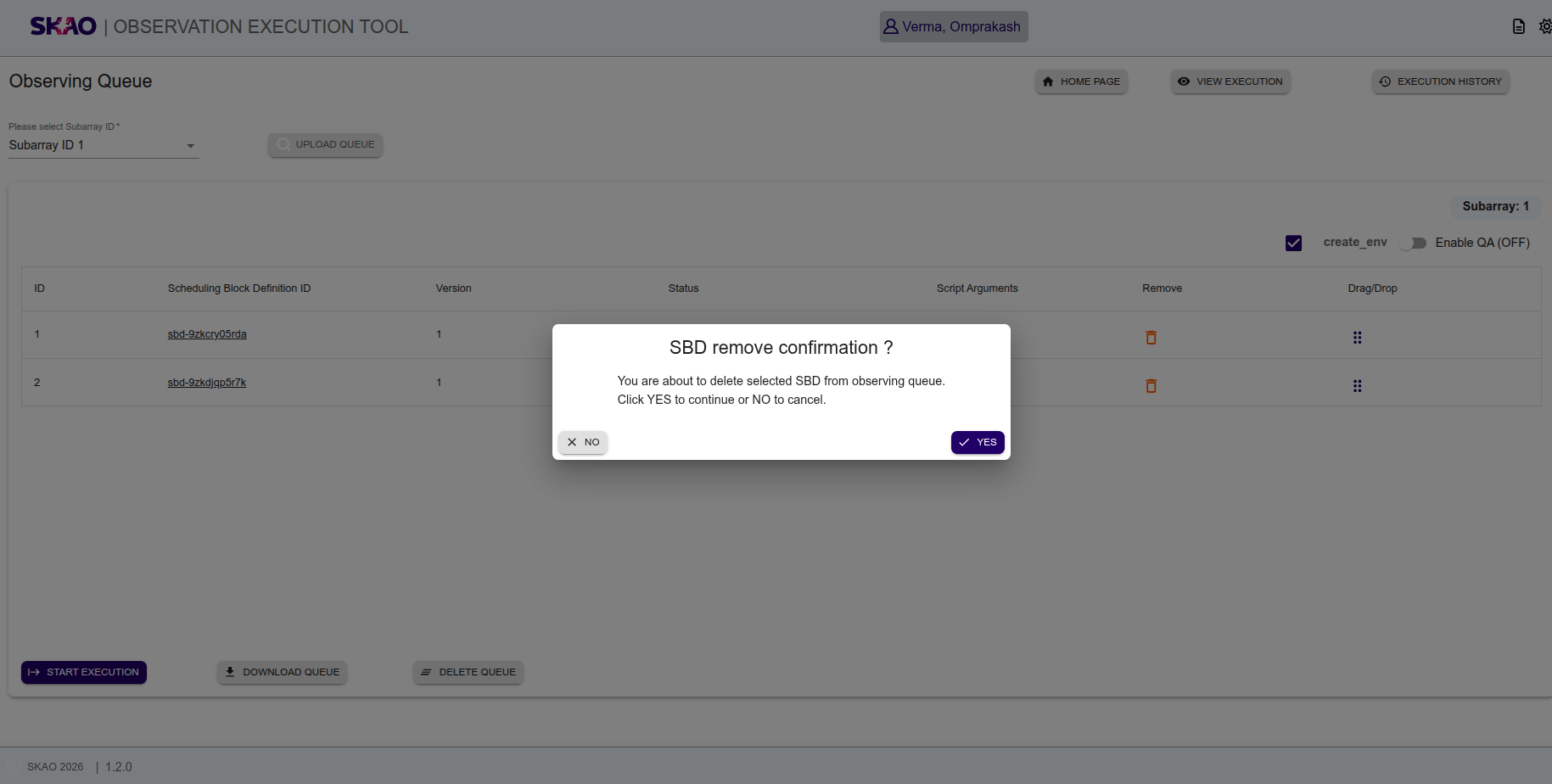
User will be able to remove SBD by clicking on icon from the observing queue for respective subarray Id queue.
A confirmation window will be displayed to the user, when clicked on ‘YES’, the selected SBD will get removed from the respective observing queue.
Delete observing queue
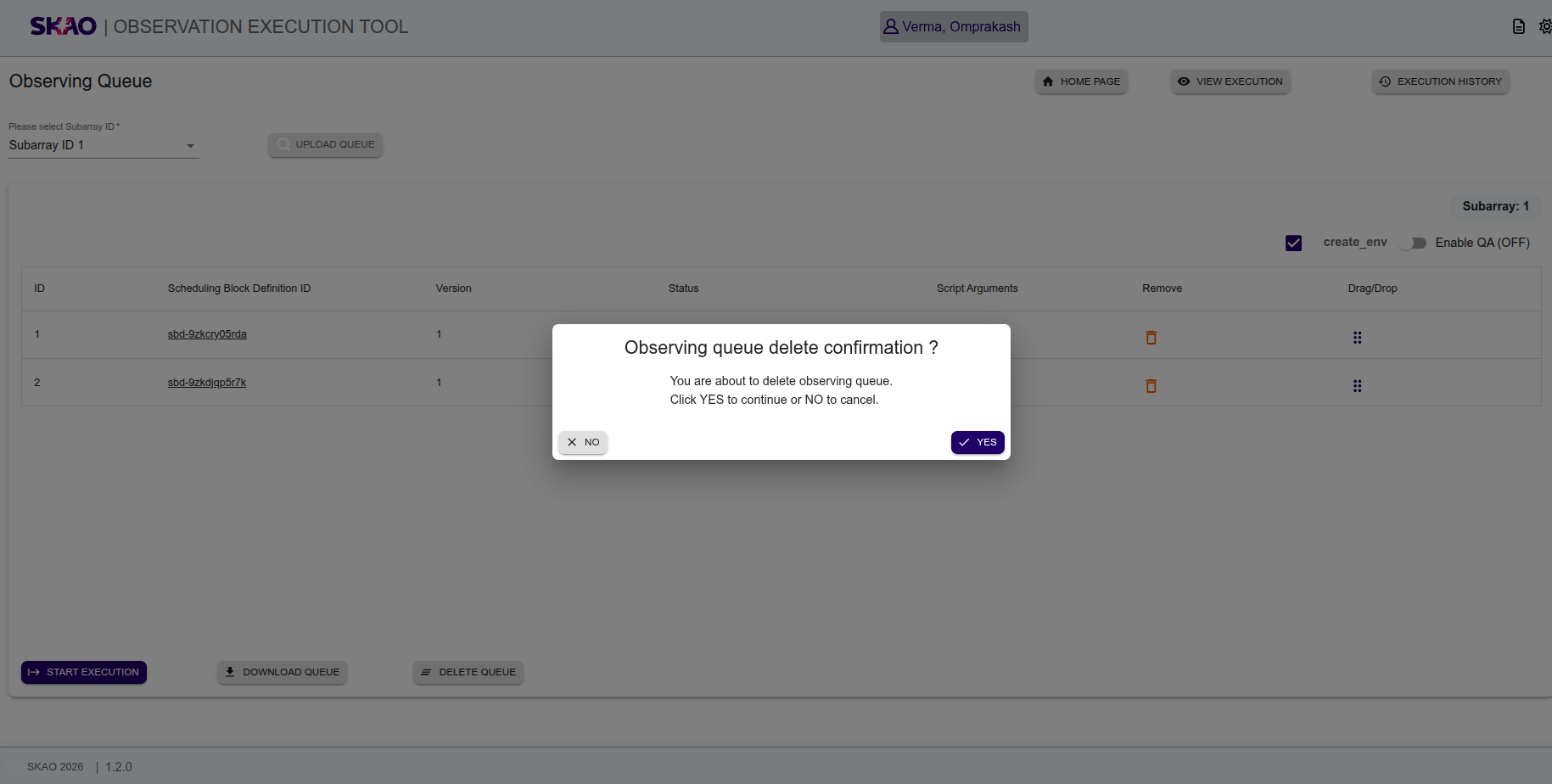
User will be able to remove all SBD form the observing queue by clicking on  icon for respective subarray Id queue.
A confirmation window will be displayed to the user, when clicked on ‘YES’, the selected SBD will get removed from observing queue.
Import observing queue
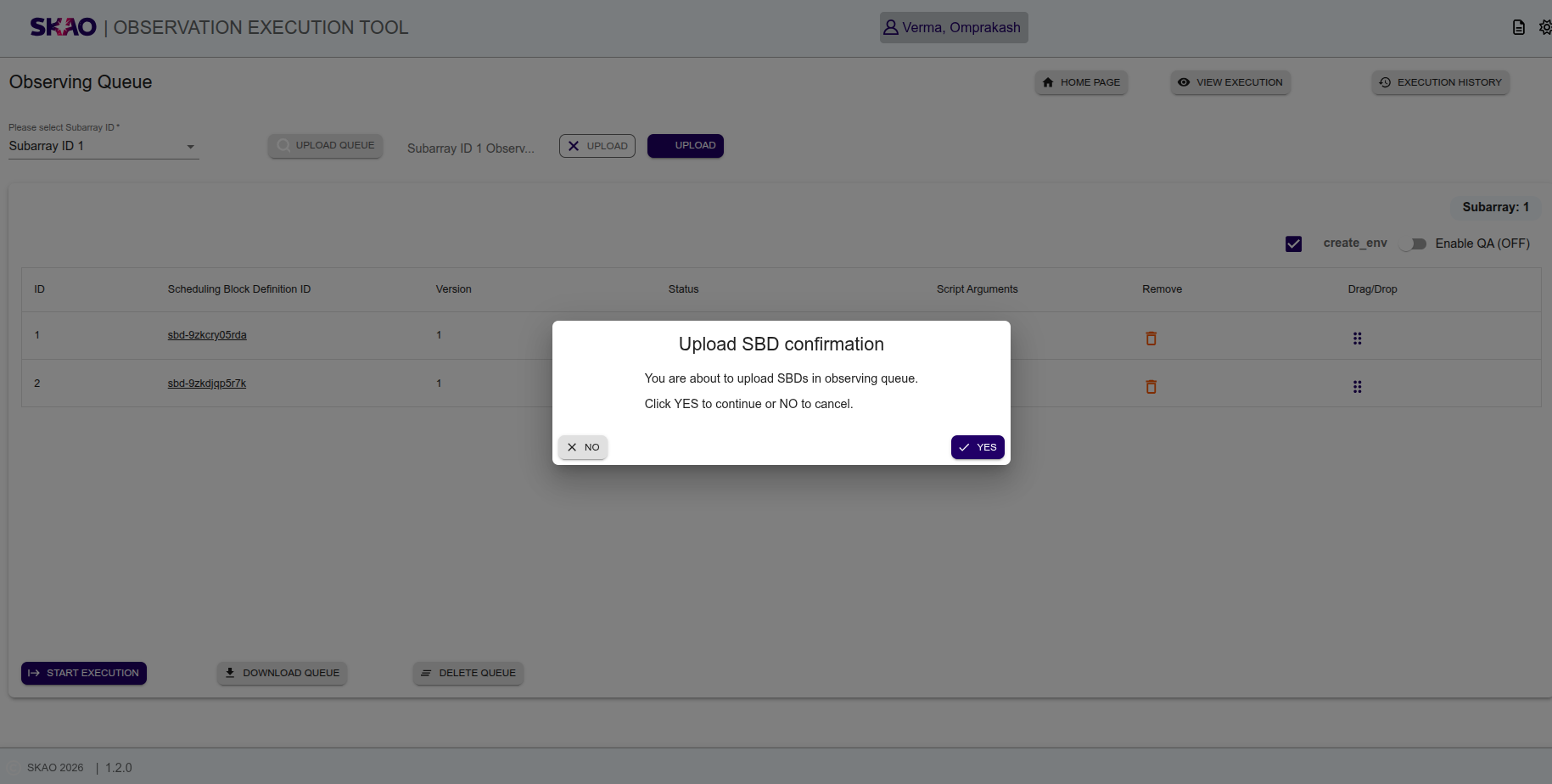
User will be able to create observing queue by importing .csv file containg single or multiple SBD IDs by using file upload widget by clicking on button  .
User should first select subarray Id from the given dropdown for which SBD IDs need to be uploaded.
.
User should first select subarray Id from the given dropdown for which SBD IDs need to be uploaded.
A confirmation window will be displayed to the user, when clicked on ‘YES’, the SBD ID in selected .csv file will get added to observing queue.
User will also be able to export the existing observing queue by clicking on button  for respective subarray Id queue.
Observing queue execution
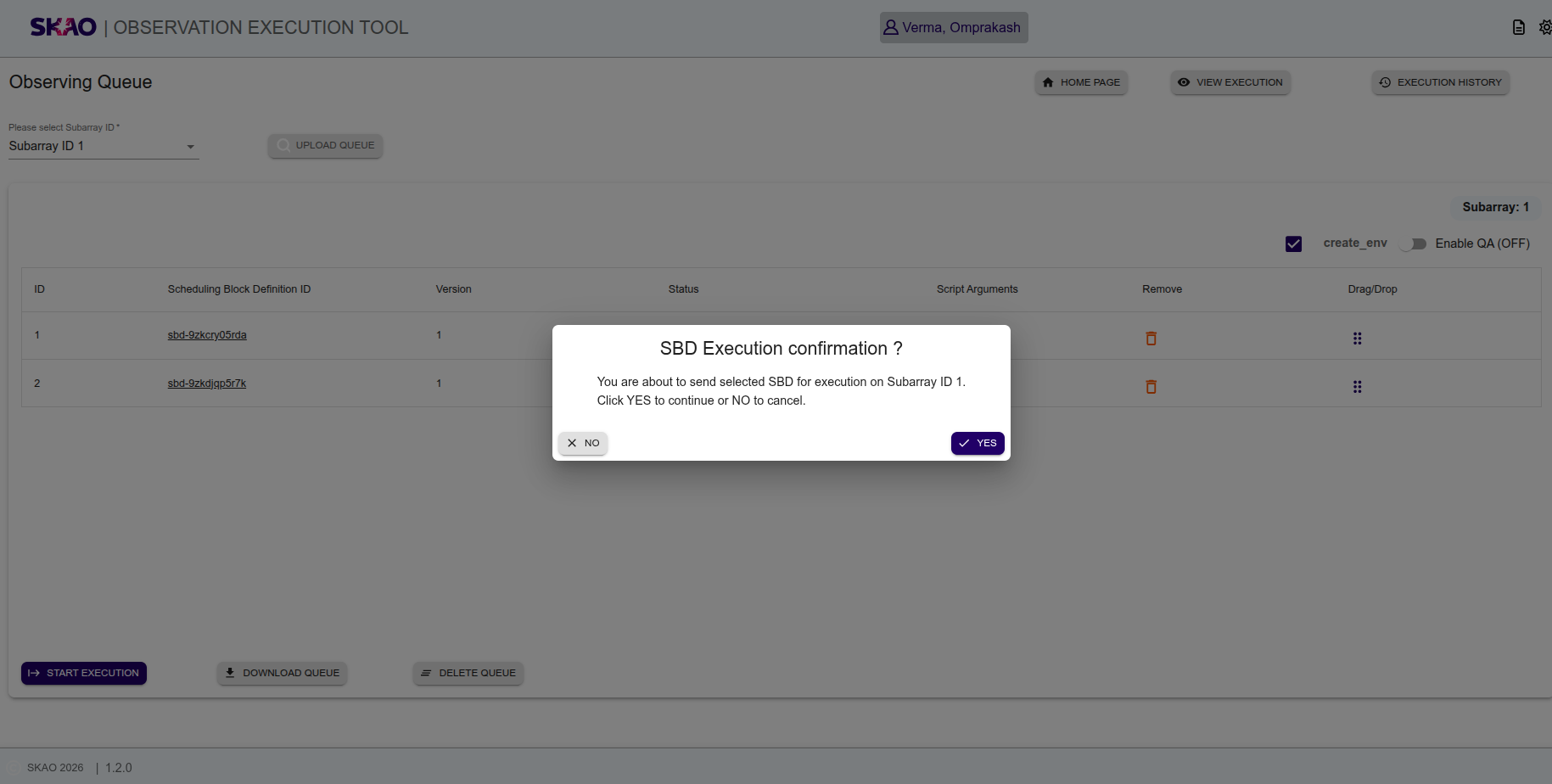
User will be able to execute SBDs in observing queue by clicking on button  for respective subarray Id queue.
A confirmation window will be displayed to the user, when clicked on ‘YES’, the SBD IDs in observing queue will start getting executed one by one in given sequence.
User can execute observing queue for each subarray Id simultaneously supporting concurrent execution of SBDs.
for respective subarray Id queue.
A confirmation window will be displayed to the user, when clicked on ‘YES’, the SBD IDs in observing queue will start getting executed one by one in given sequence.
User can execute observing queue for each subarray Id simultaneously supporting concurrent execution of SBDs.
User will be able to stop the sequencing of SBDs in observing queue by clicking on button  for respective subarray Id queue..