Authentication, Authorization and Auditing (AAA)
The OET API is secured using the MSA authentication and authorization. This means to use the API, a valid token with the correct role and scopes for the specific API resource must be included in the request.
The OET UI have ‘SIGN IN’ functionality and will include the tokens in the requests by default when signed in.
For more information on the general AAA architecture, see AAA architecture design
OET App SSO SIGN IN
User when land on OET App they will see SKAO ‘SIGN IN’ page with title ‘Observation Execution Tool’.
From the header user can click on  icon to refer OET UI documentation and
  icon to change the UI theme.
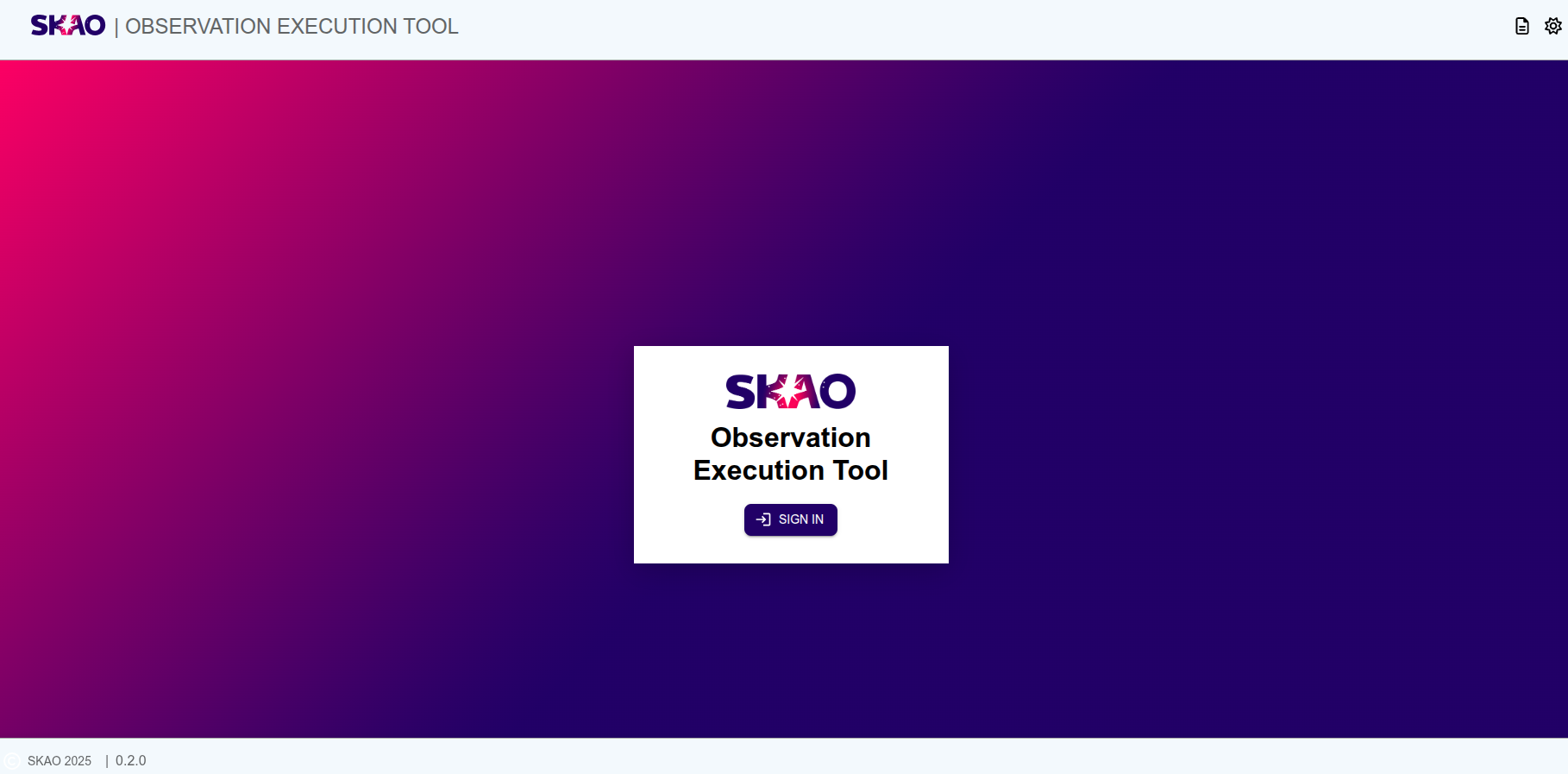
User can initiate SSO ‘SIGN IN’ by clicking  button it will invoke the Microsoft Authentication Library (MSAL) libraries to sign the user in.
MS Entra Authentication
The following prerequisites need to be in place for the MS Entra authentication to work:
The application where the user wants to sign in to need to be deployed with the needed prerequisites in place as detailed in this document’s deployment guide.
The users need to have an account on the SKAO MS Entra instance.
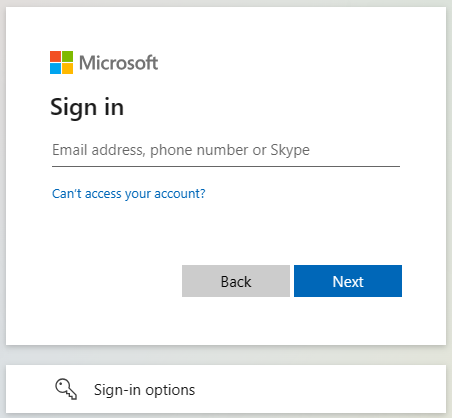
Once user has clicking on the sign in button user will be redirect to the Microsoft sign in page, where the user can enter the account name they want to use to sign in with:
User Menu and SignOut
On successful ‘SIGN IN’ user will reach landing page where in header  button is present, if user has set a profile picture in their Microsoft profile it will display user picture or by default it will show user icon.
On click of user menu button, dropdown will open with menu items like 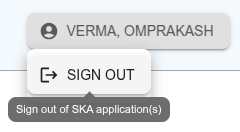 ‘SIGN OUT’.
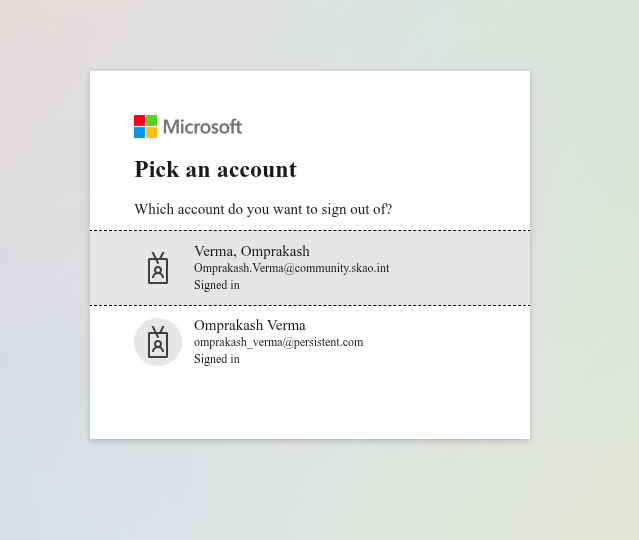
When user click on ‘SIGN OUT’ option user will be redirect to the ‘SIGN IN’ page through Microsoft.
‘SIGN OUT’.
When user click on ‘SIGN OUT’ option user will be redirect to the ‘SIGN IN’ page through Microsoft.
Authentication (401 error)
In case user do not have valid token and authentication fails user will be ‘SIGN OUT’ and redirect user to logout from the application.
Authorisation (403 error)
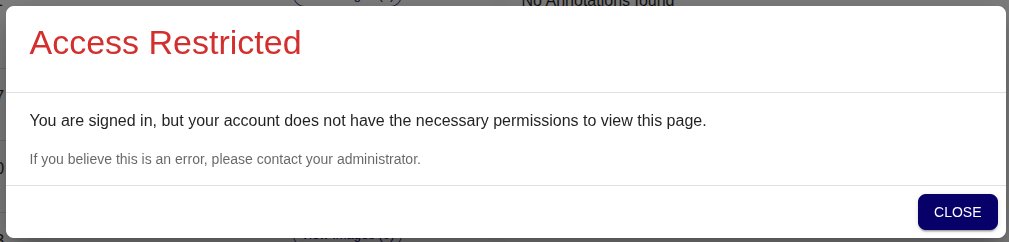
In case user do not have correct permission to access the resource they will get 403 error from API and user will be shown a modal with the error message.