Scheduling Block Instance Page
User can search for Scheduling Block Instance (SBI) by clicking on the  button and then selecting a Search Type from the dropdown.
The available search options include:
Search by Dates, Search by ID, Last 7 Days, Today, Search by Purpose and Search by Status.
Based on the selected option, the user can provide the required inputs and click the search button to view the records in a tabular format.
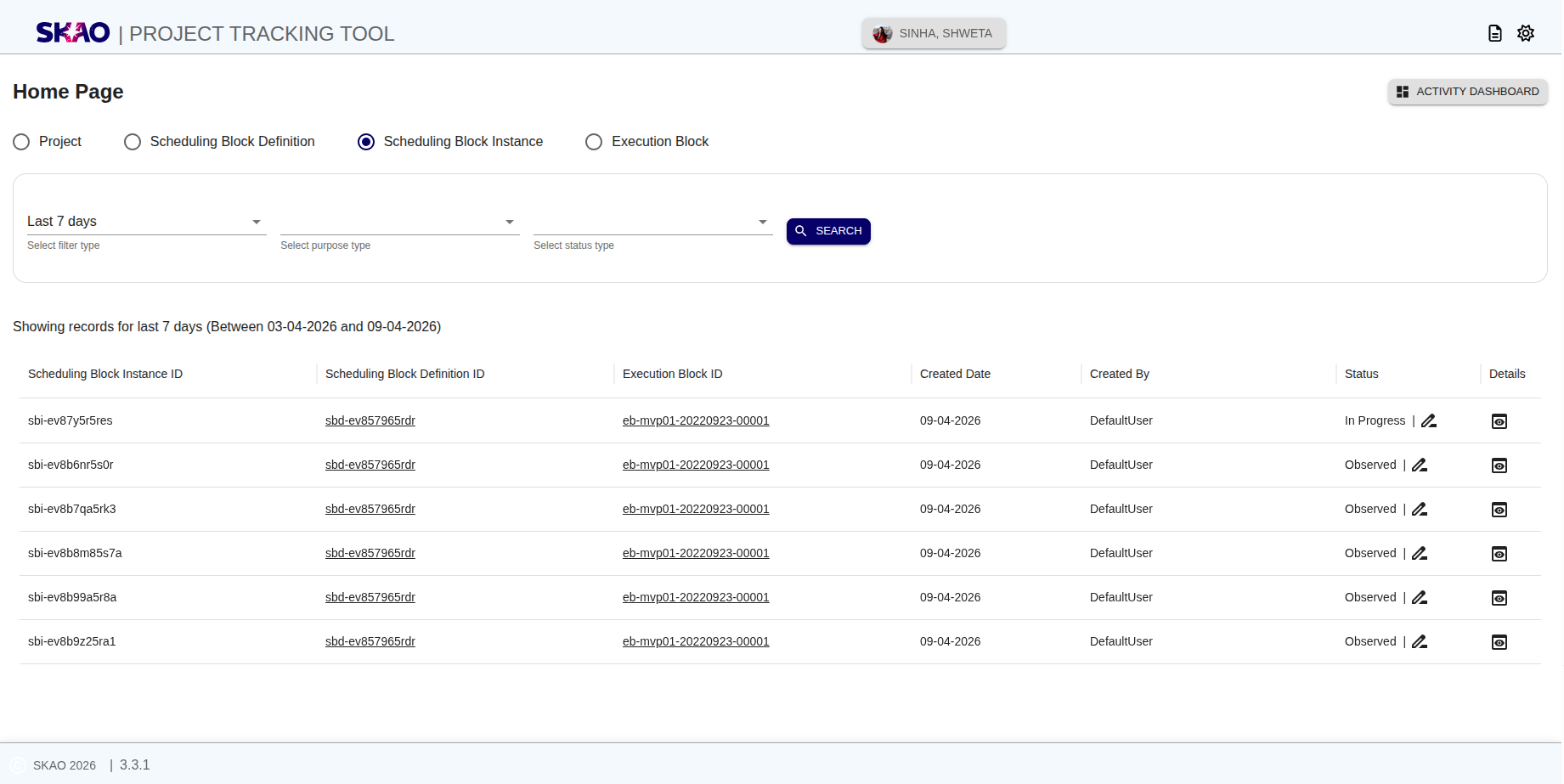
Once the entity records are visible in tabular format user can view the Scheduling Block Definition (SBD) associated with SBI ID by clicking on SBD ID from column named ‘Scheduling Block Definition ID’ in the table as shown in below image.
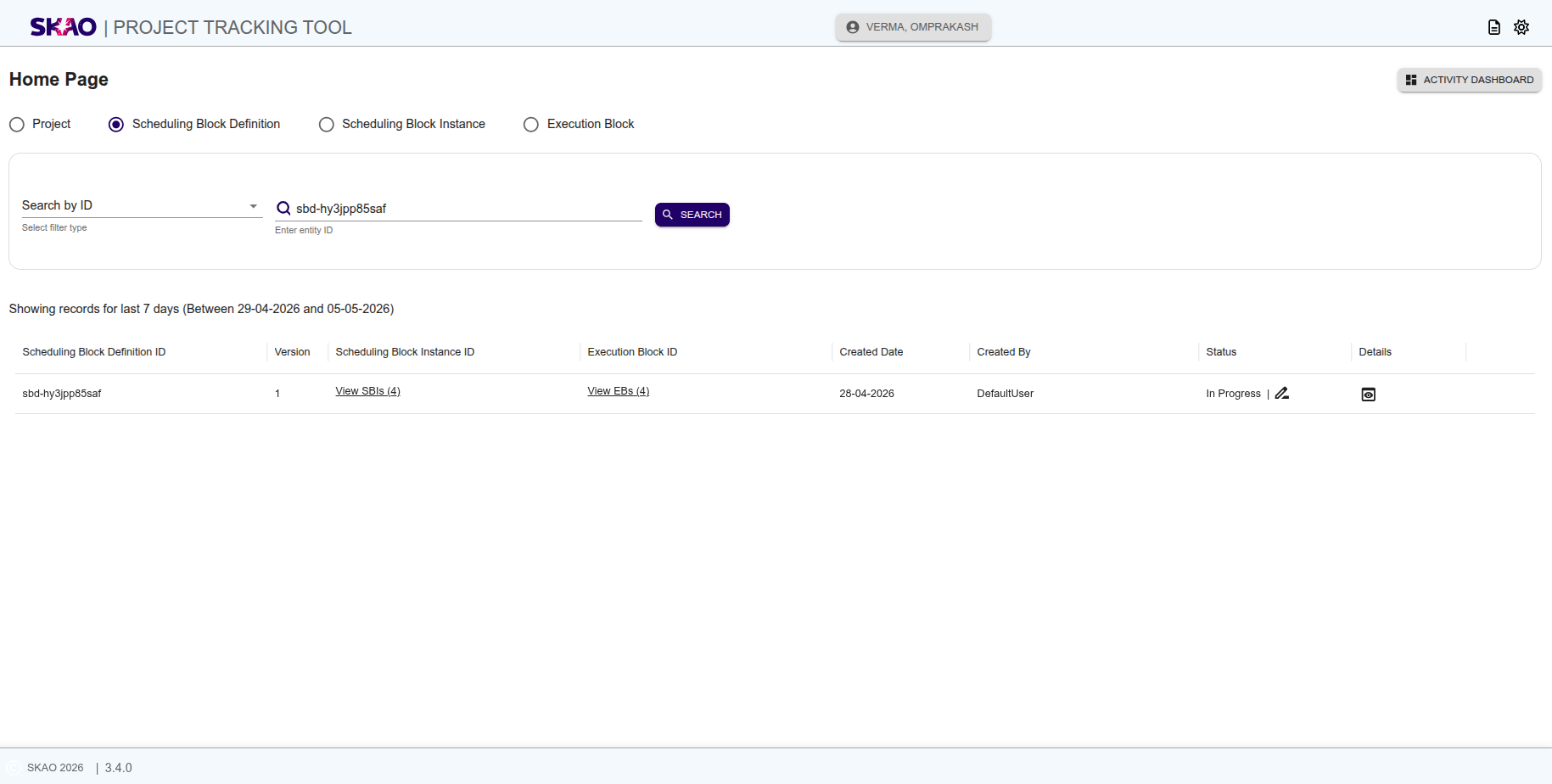
This action will navigate user to Scheduling Block Definition (SBD) page as shown in below image.
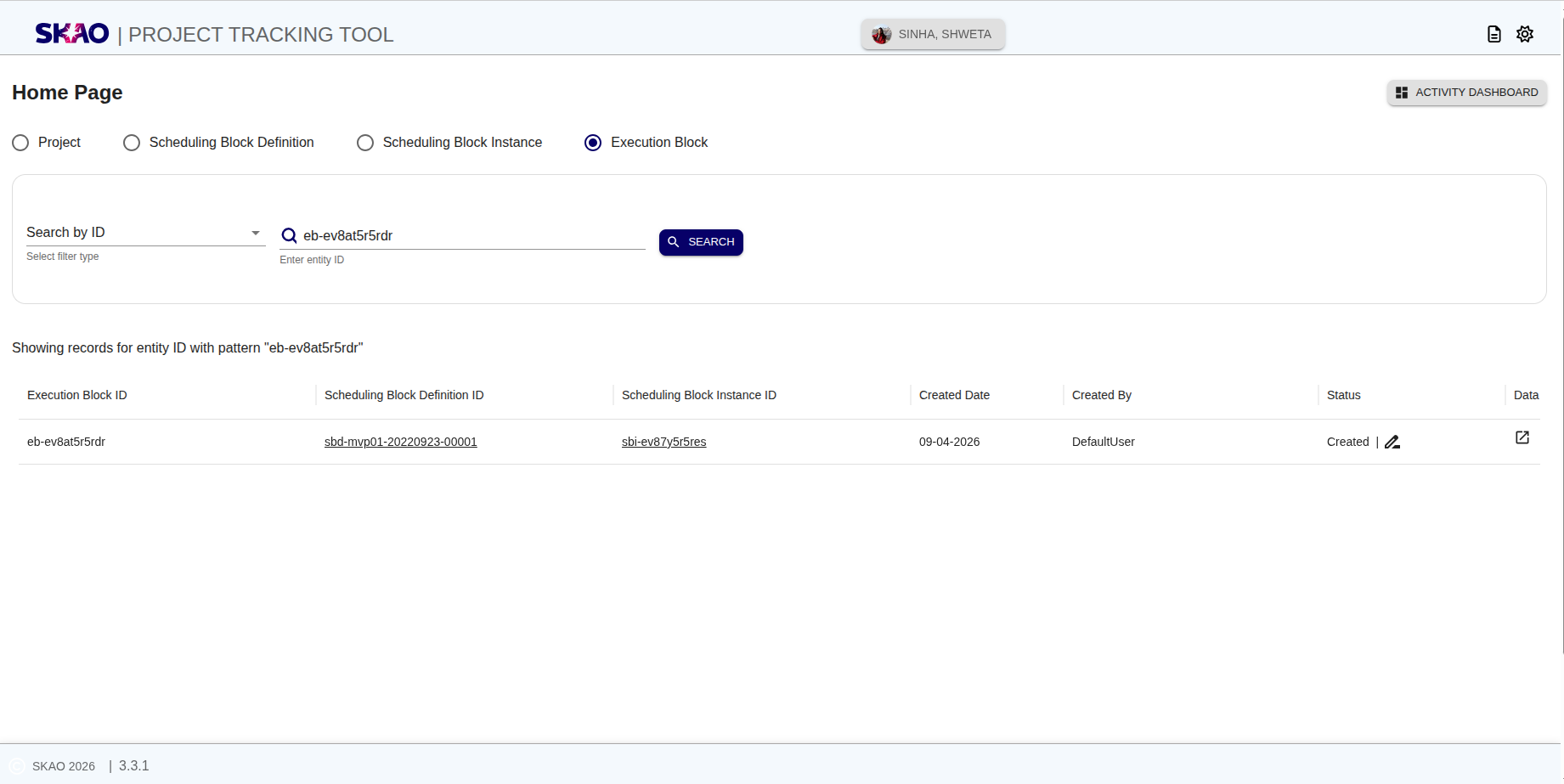
User can also view the Execution Block (EB) associated with SBI ID by clicking on EB ID from column named ‘Execution Block ID’ in the table as shown in below image.
This action will navigate user to Execution Block (EB) page as shown in below image.
View SBI details
Users can click the  icon to see the entity details.
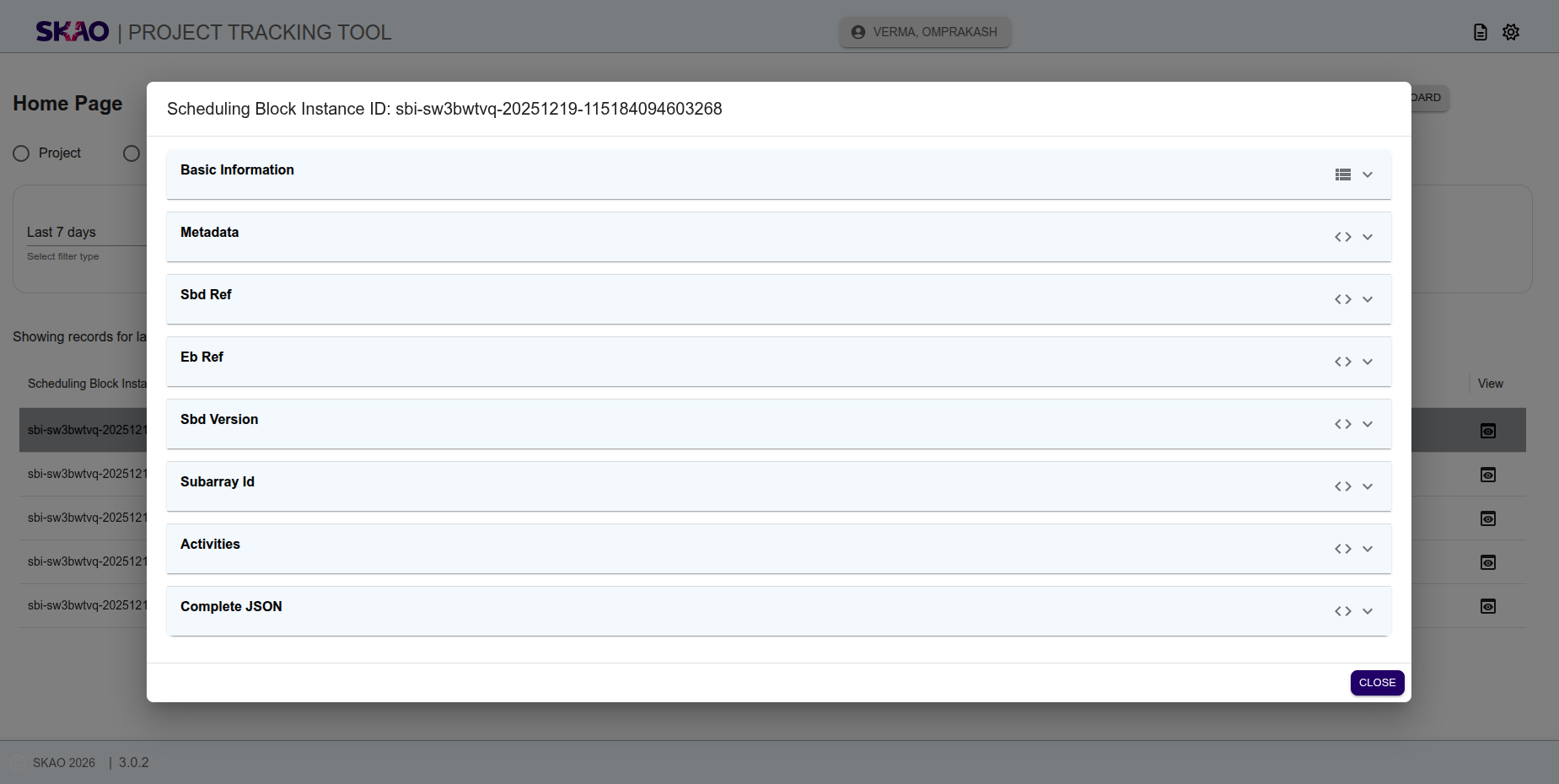
Each panel is interactive and can be clicked to open and view its corresponding details.
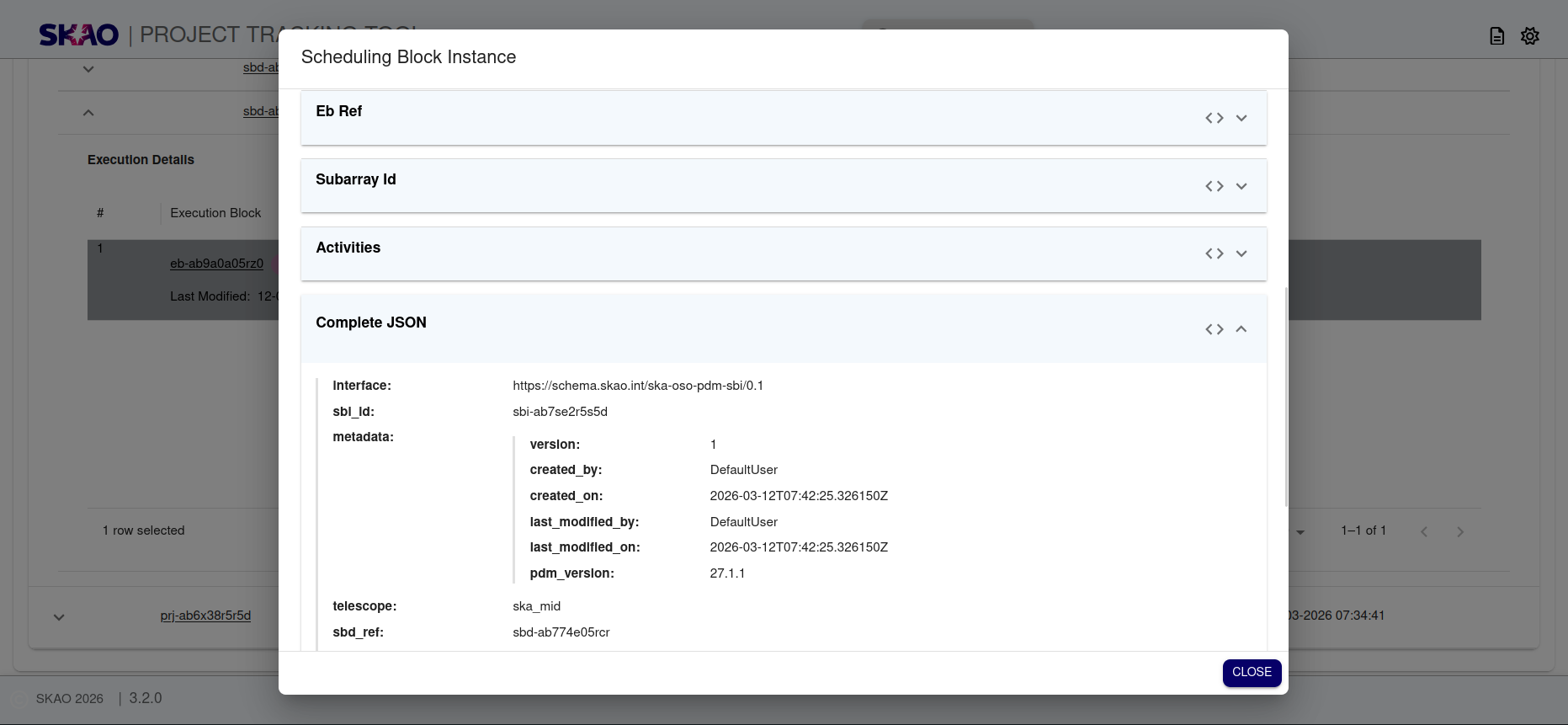
Users can also toggle between GUI mode and JSON mode to view the data in their preferred format.
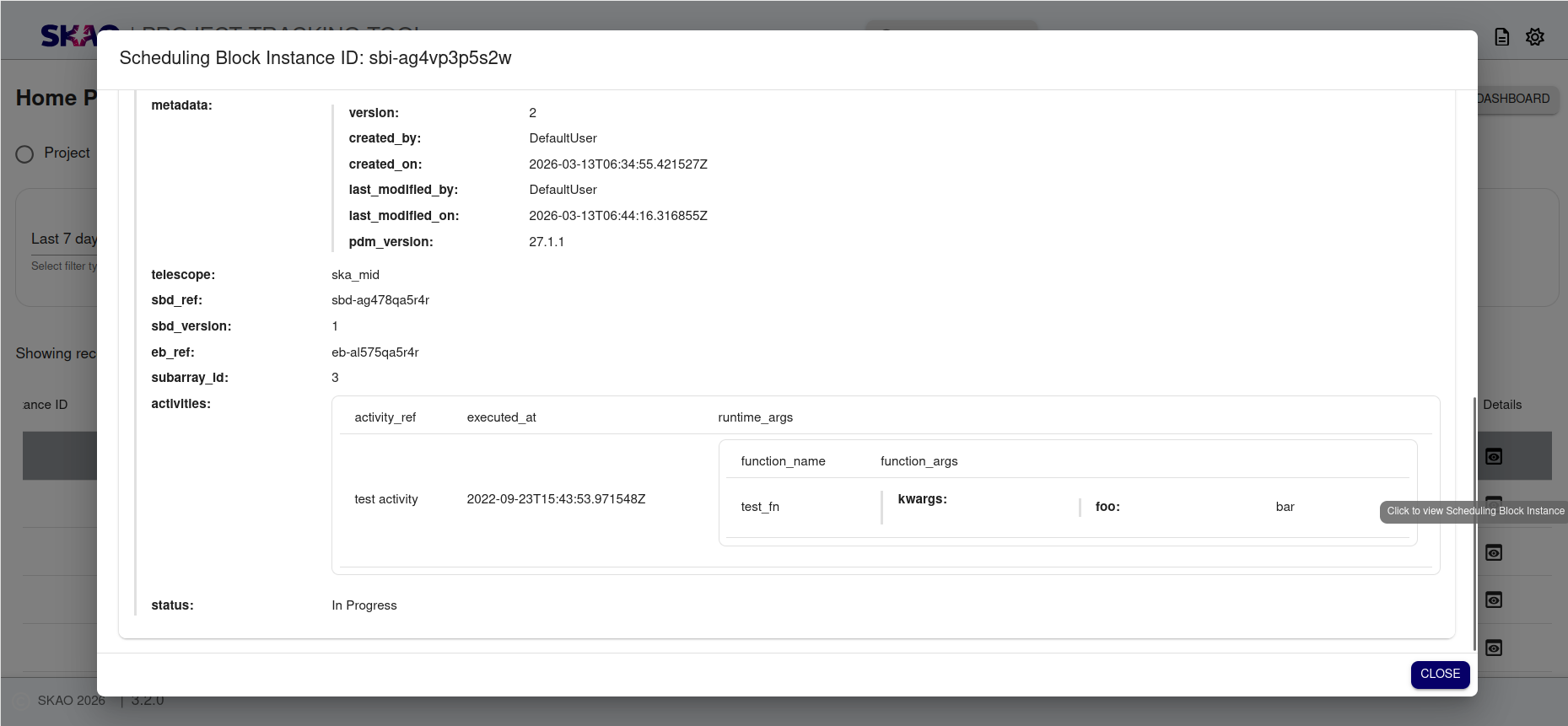
Update SBI status
Once the entity records are visible in tabular format as shown below image user can update status of the entity by clicking on edit icon displayed in column named ‘Status’ in the table.
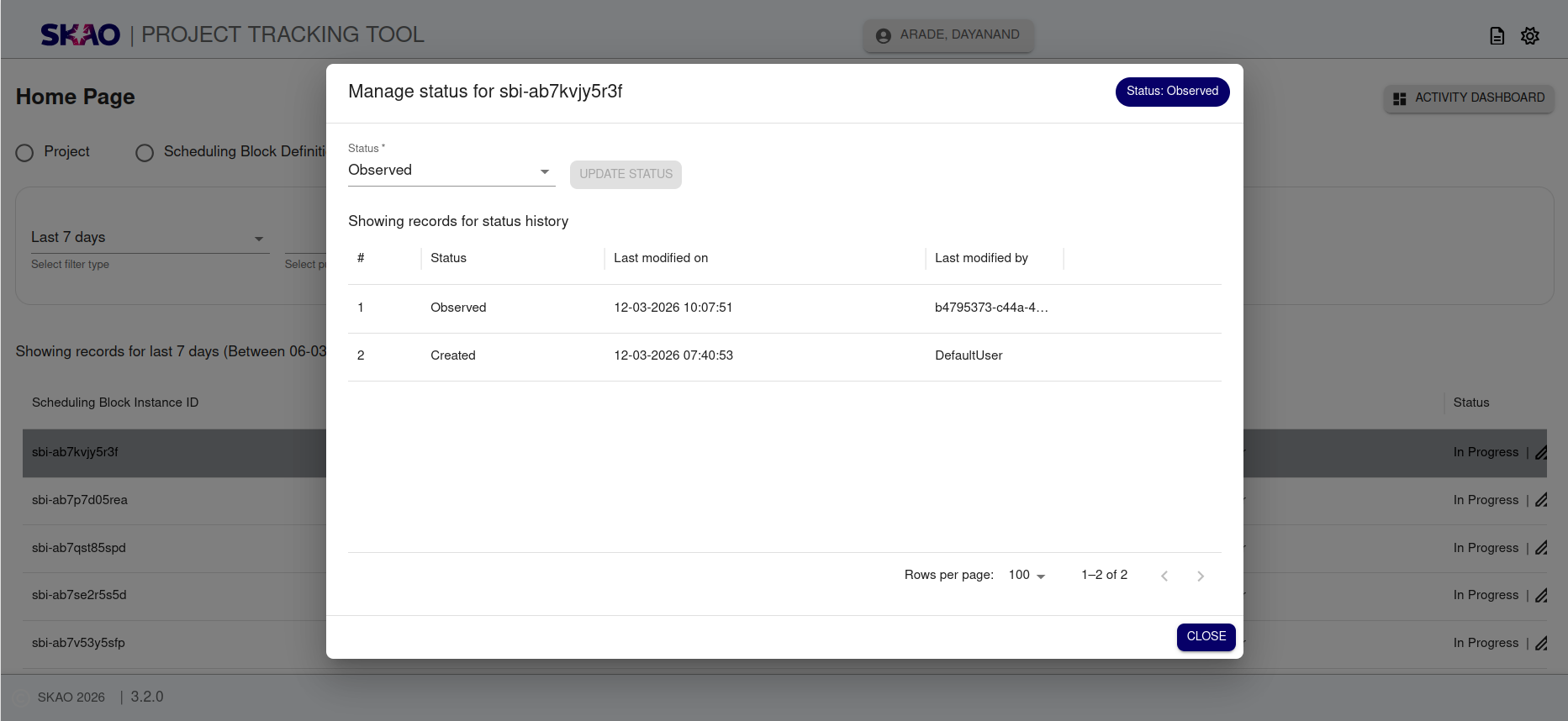
Then a model will open in which user can select the status value from the dropdown widget and click on the  button this will update the status of the entity.
User will also be able to view the status history for selected entity in tabular format as shown in below image.
button this will update the status of the entity.
User will also be able to view the status history for selected entity in tabular format as shown in below image.