Observing Queue Page
User can click on  button to visit observing queue page.
User can select subarray Id from given dropdown on UI to view observing queue for respective subarray Id.
By default subarray Id 1 will be selected from the dropdown.
User can view observing queue for other subarray Id by selecting option for given dropdown as shown in below image.
button to visit observing queue page.
User can select subarray Id from given dropdown on UI to view observing queue for respective subarray Id.
By default subarray Id 1 will be selected from the dropdown.
User can view observing queue for other subarray Id by selecting option for given dropdown as shown in below image.
User will be able to set “create_env” flag for each queue for respective subarray Id as shown in below image.
Note
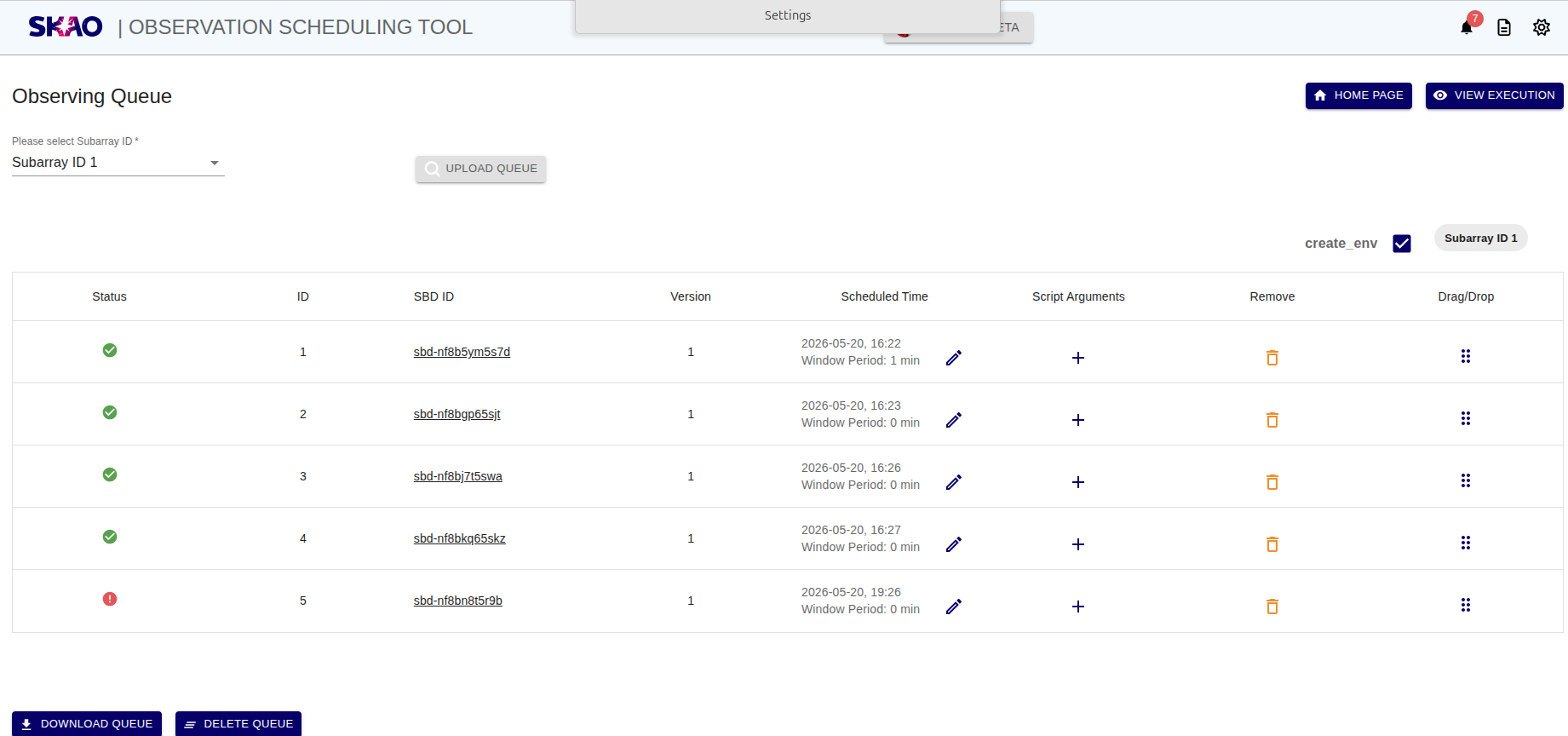
Scheduled Time Model
User will be able to add start time and window period for each SBD in observing queue for respective subarray Id by clicking edit button under Scheduled Time column.
A ‘Scheduled Time’ model window will open in which user can add start time and window period for respective SBD ID. Window period will be in minutes.
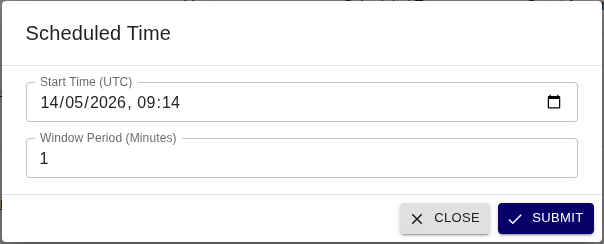
Note
The start time must be unique for each SBD in the observing queue. Duplicate start times are not allowed.
Add Script Arguments
User will be able to add runtime script arguments clicking on  icon from the observing queue for respective SBD ID.
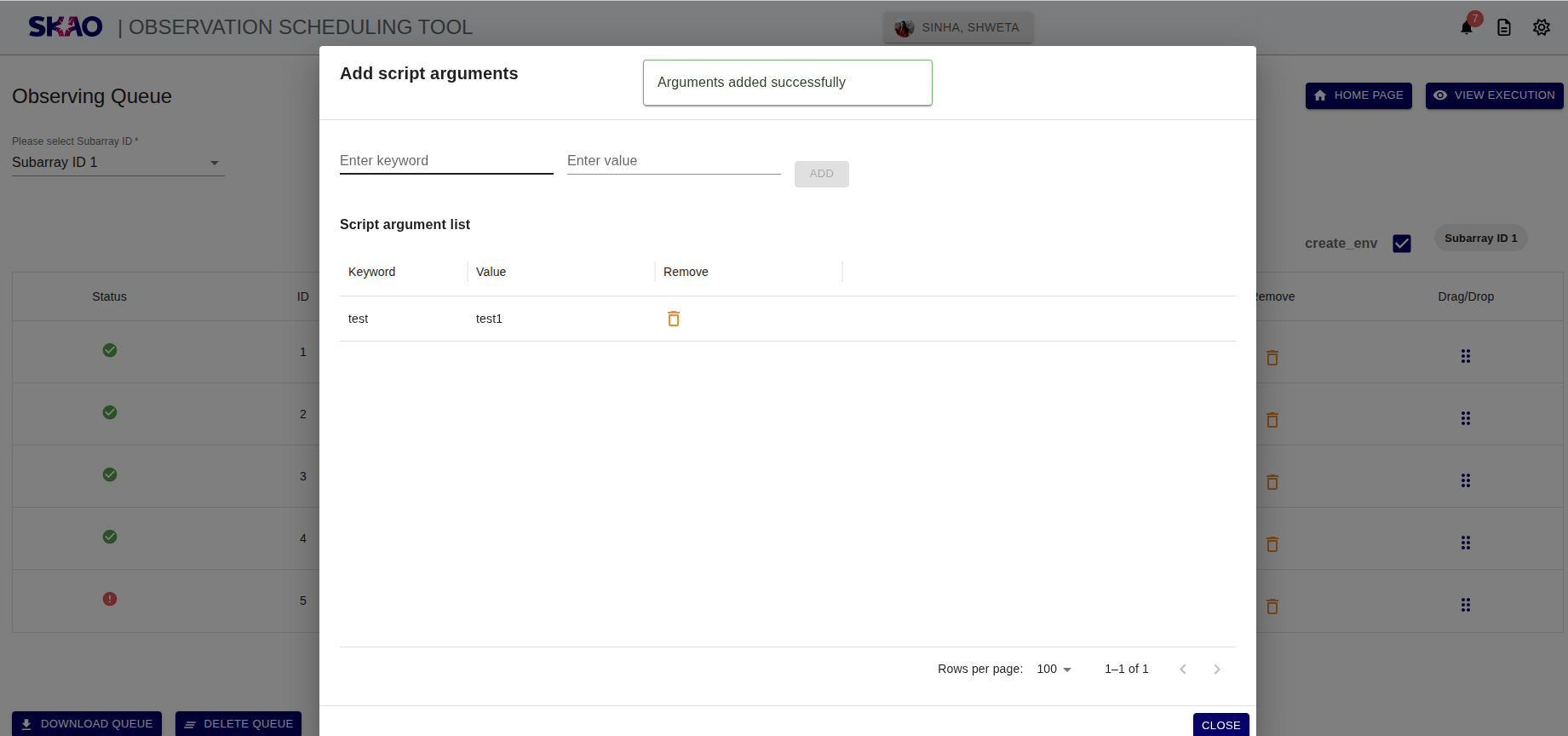
A model window will open in which user can add keyword and its value then click on  for adding the script arguments.
All keyword arguments list will be diaplyed on UI as shown in below image.
for adding the script arguments.
All keyword arguments list will be diaplyed on UI as shown in below image.
User can click on  for deleting any script arguments.
Note
User will not be able to add “subarray_id” as keyword for script arguments.
Re-arrange SBD in queue
User will be able to re-arrange the sequence for SBDs displayed in the respective observing queue for each subarray Id by using drag/drop option from UI or by dragging the selected row to desired position to update the observing queue.
Note
User will not be able to re-arrange/delete the sequence of SBD which is currently in execution for respective subarray Id observing queue.
Remove SBD from queue
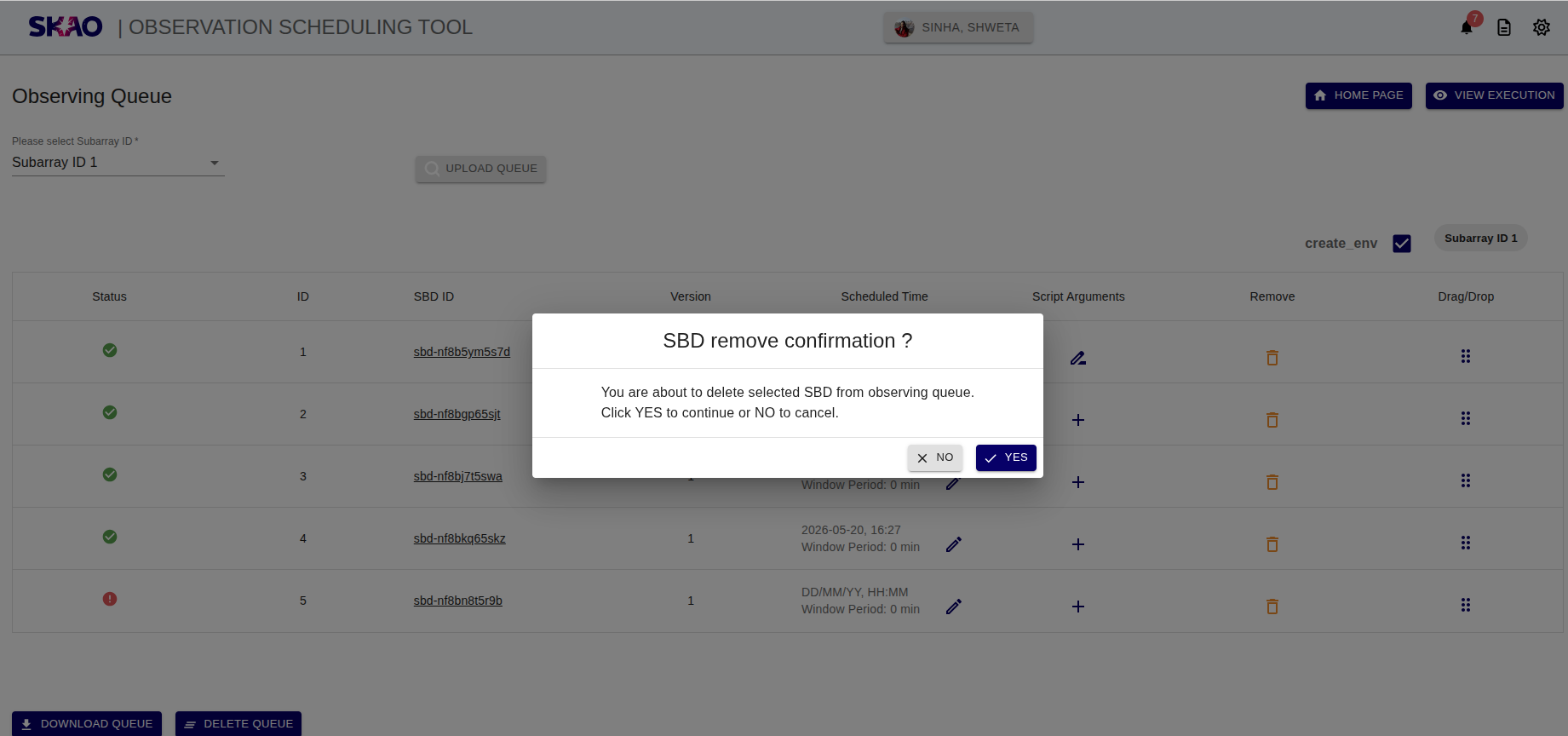
User will be able to remove SBD by clicking on icon from the observing queue for respective subarray Id queue.
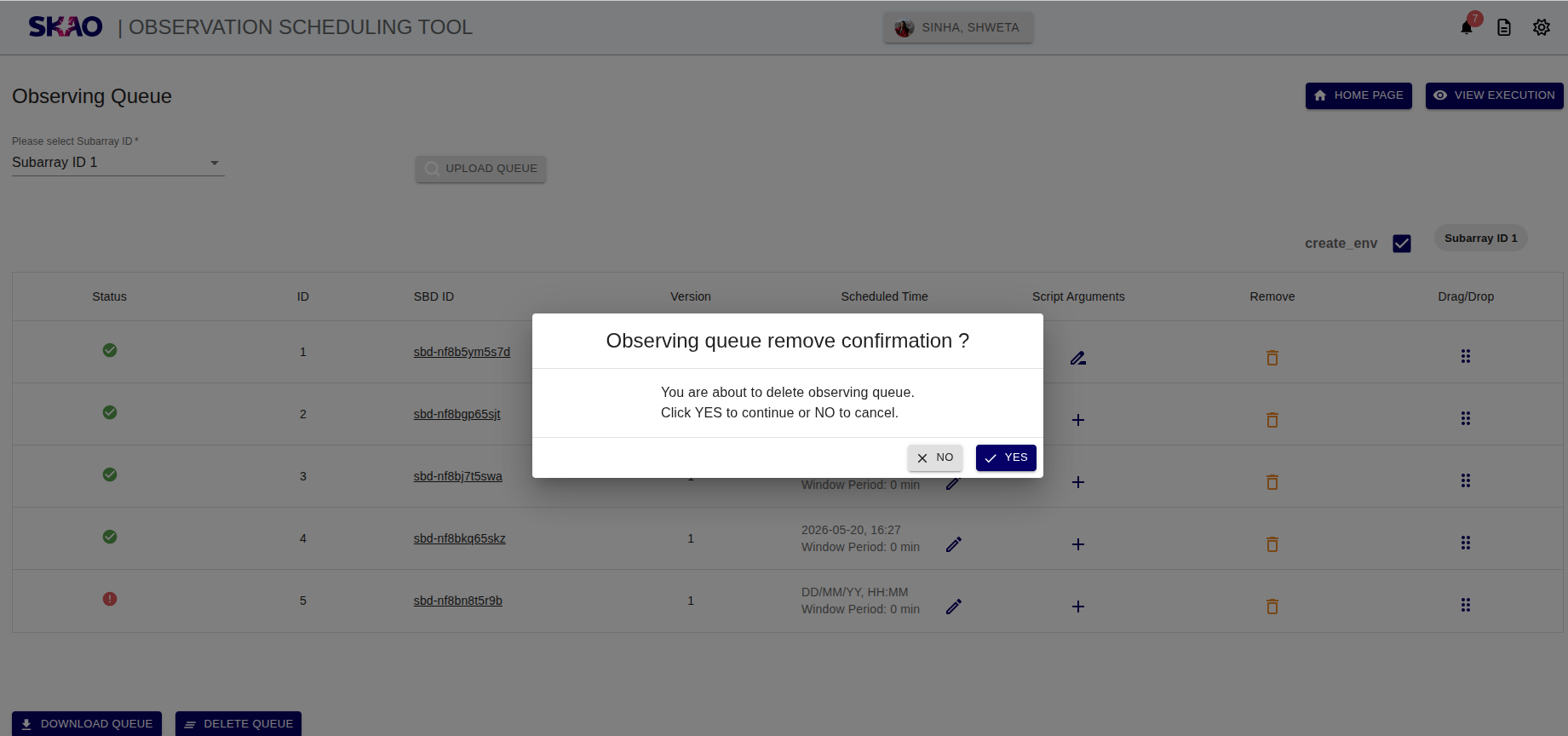
A confirmation window will be displayed to the user, when clicked on ‘YES’, the selected SBD will get removed from the respective observing queue.
Delete observing queue
User will be able to delete all SBD form the observing queue by clicking on  icon for subarray Id queue.
A confirmation window will be displayed to the user, when clicked on ‘YES’, all SBD’s from observing queue will get deleted.
Import observing queue
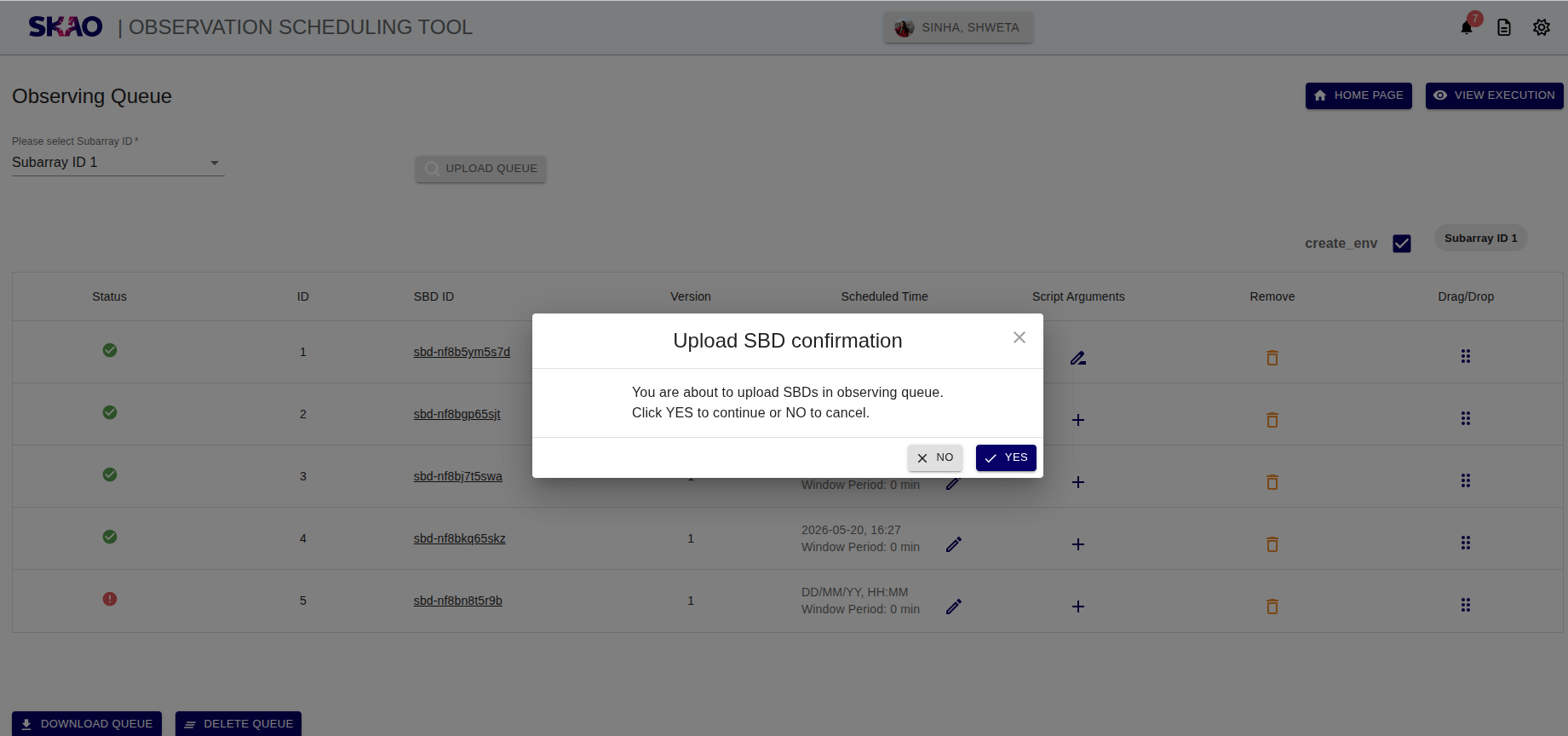
User will be able to create observing queue by importing .csv file containg single or multiple SBD IDs by using file upload widget by clicking on button  .
.
A confirmation window will be displayed to the user, when clicked on ‘YES’, the SBD ID in selected .csv file will get added to observing queue.
User will also be able to export the existing observing queue by clicking on button  for respective subarray Id queue.
Observing queue constraints validation
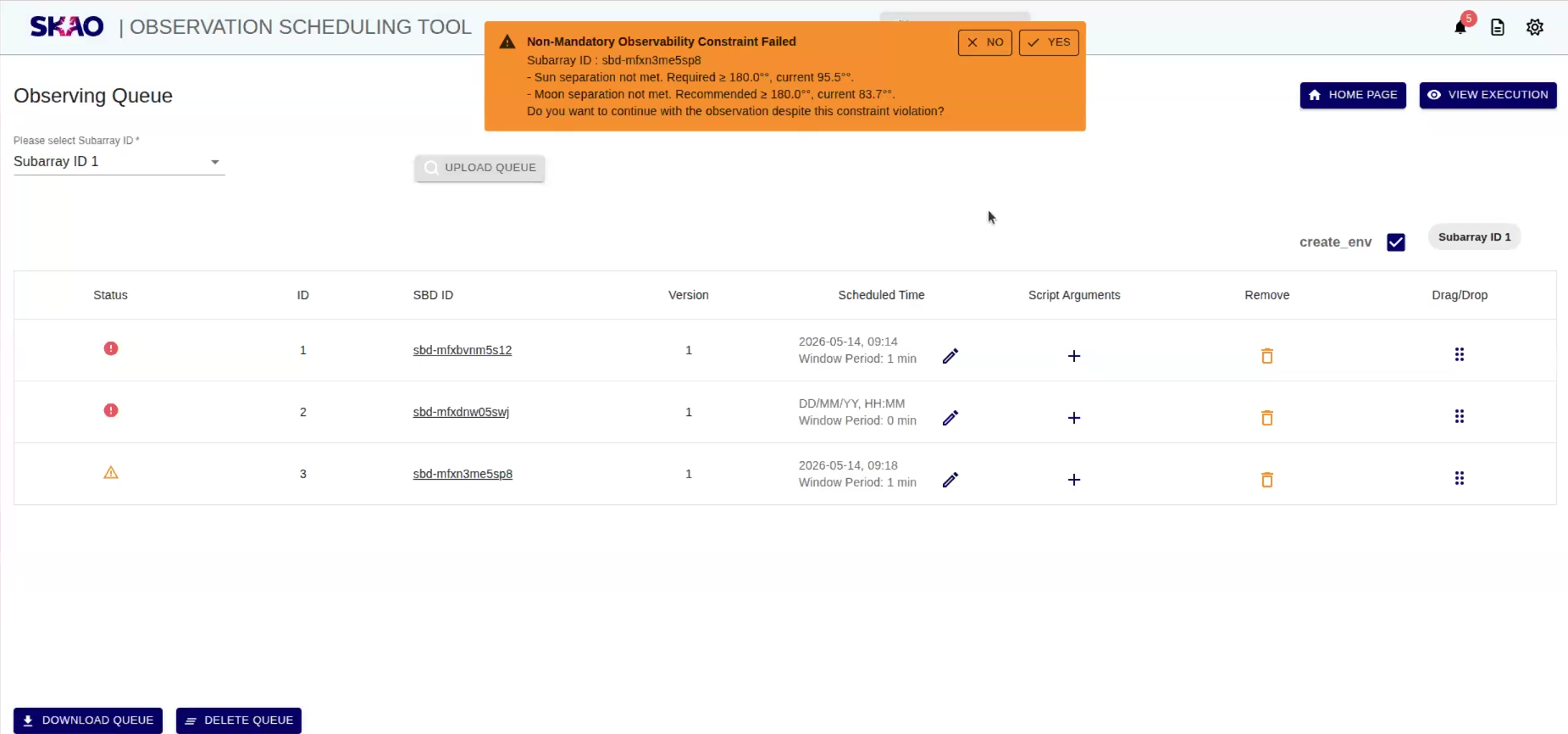
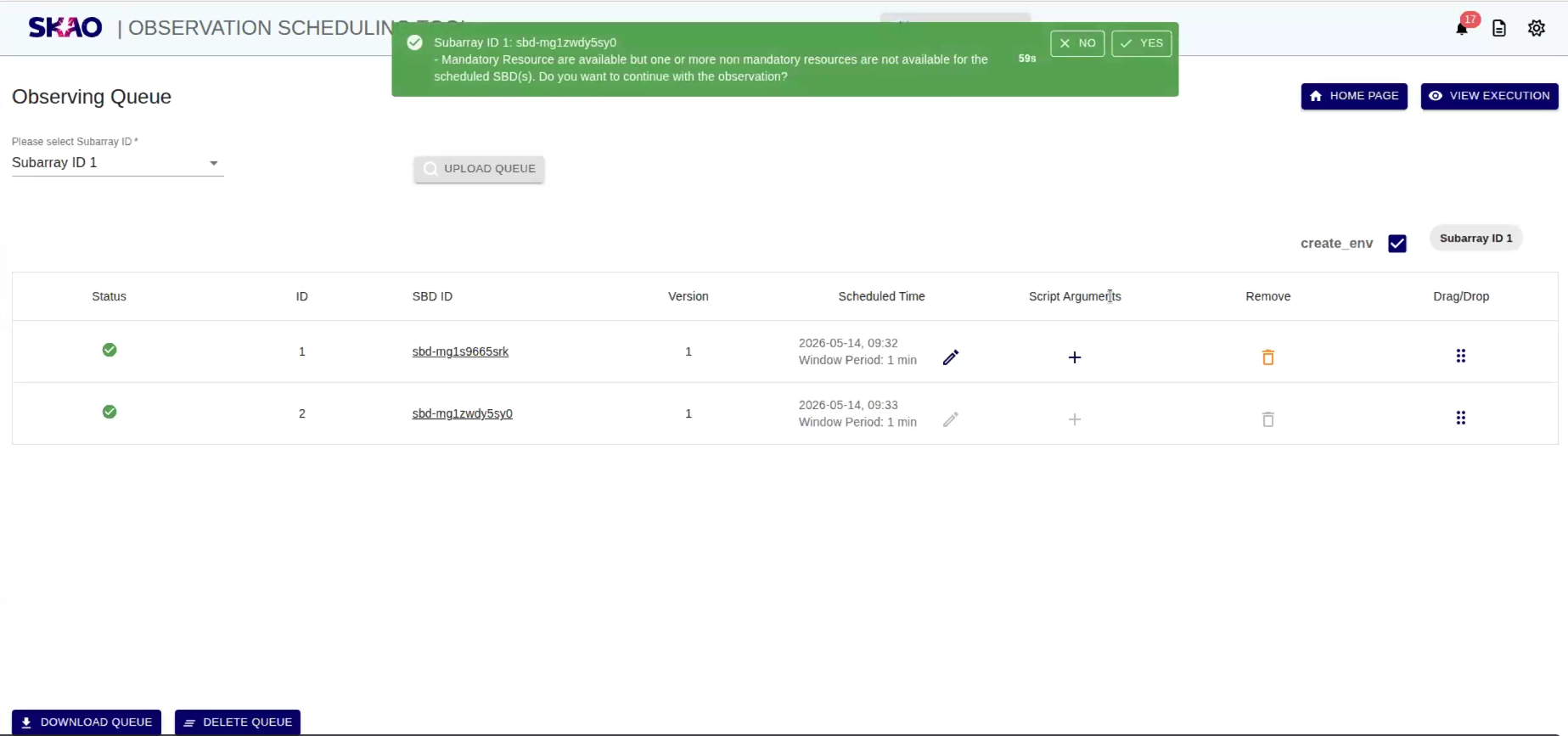
The OST is able to use any observing constraints defined in a Scheduling Block as an input to define when an SB can be scheduled. There are some constraints that are checked at the time of adding SBD to the observing queue and if any of the constraint is not satisfied then user will get notification for the same on UI as shown in below image.
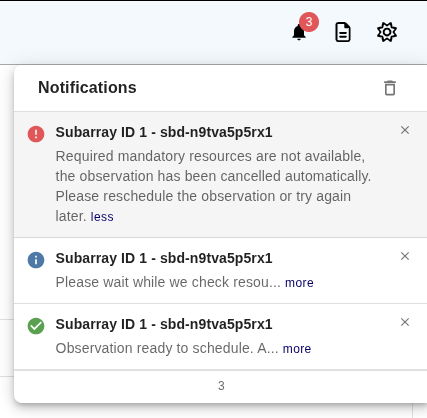
The constraints are as follows:
Observation constraints: The system will check if the target is visible at the scheduled time for the SBD. If the target is not visible, the user will receive a notification.
Resource constraints: The system will check if the necessary resources (e.g., antennas, instruments) are available at the scheduled time for the SBD. If the required resources are not available, the user will receive a notification.
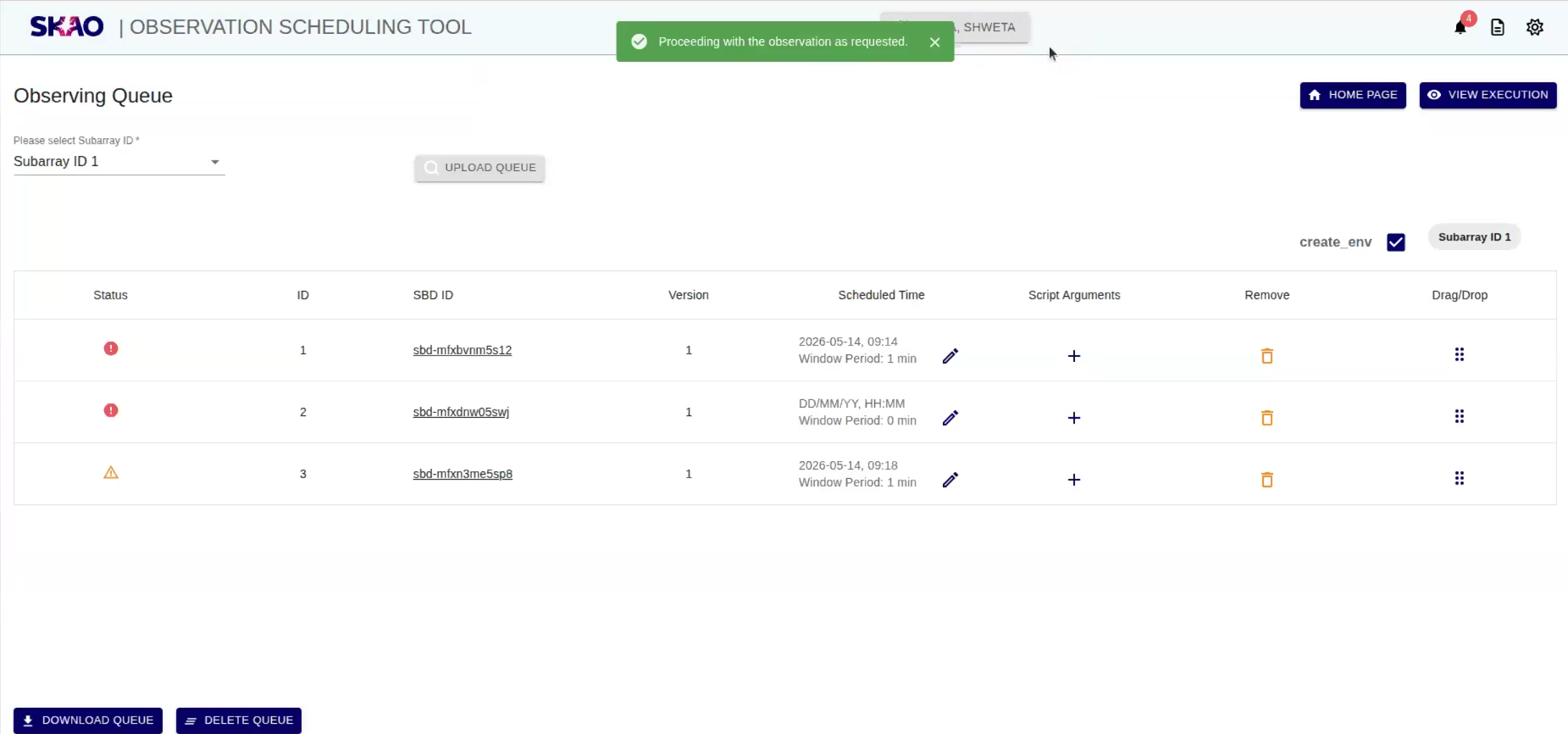
For both constraints, the system will automatically recheck the target visibility and resource availability during the defined window period for that SBD. If the constraints are still not satisfied after the window period, the user will receive a notification prompting them to confirm whether they want to continue with the observation or not.
Observation constraints:
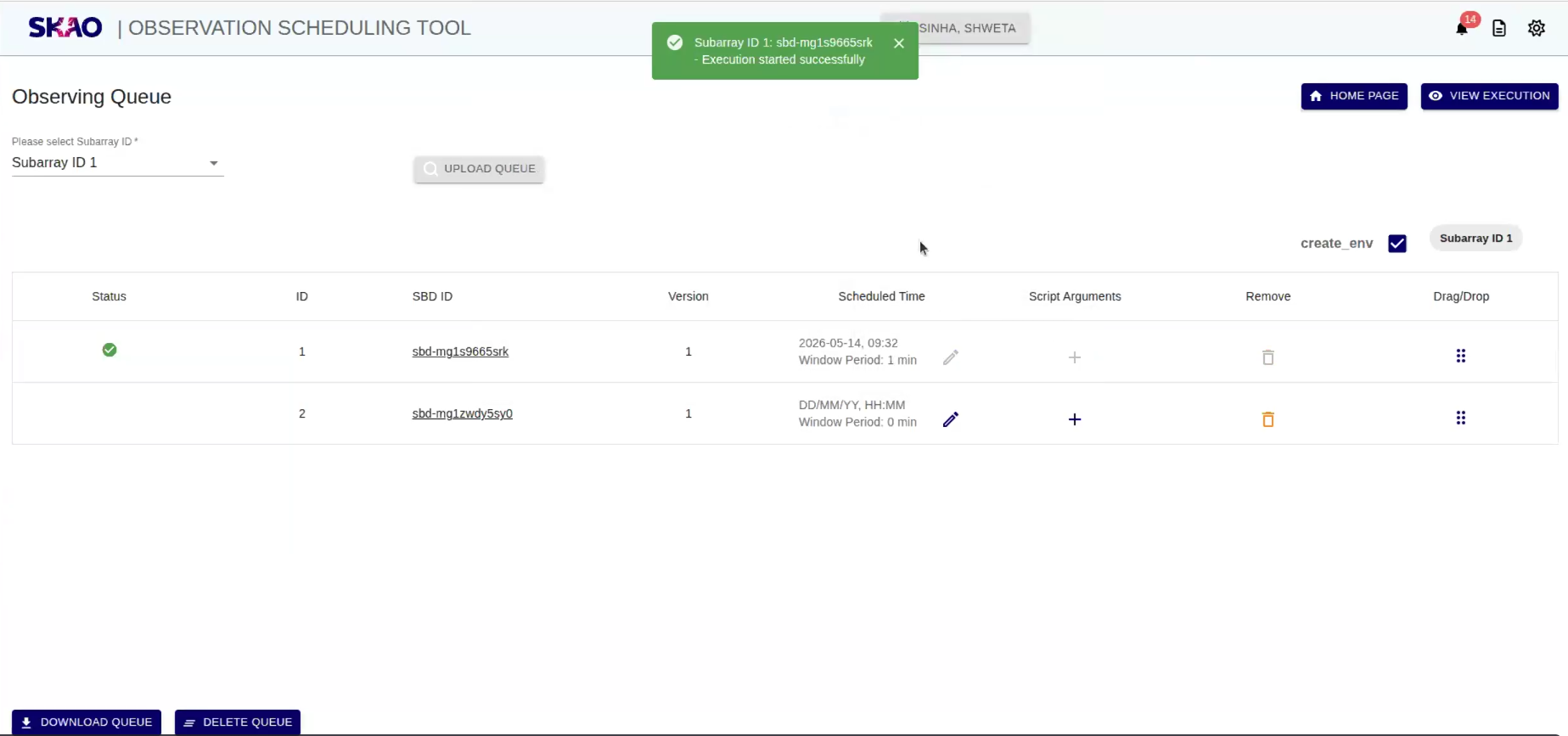
In case of all observation constraints are satisfied, the user will receive notification that the execution has started successfully.
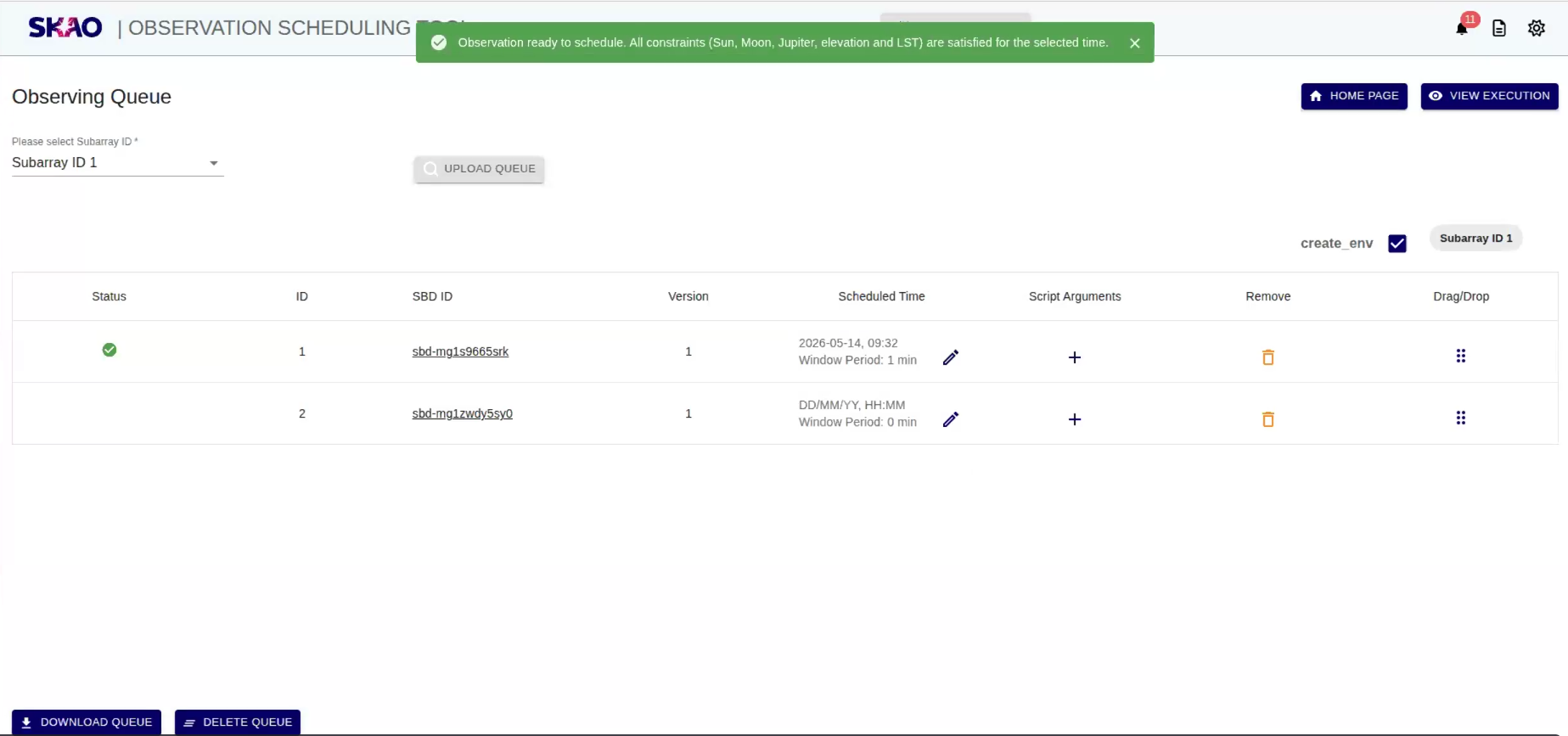
In case of any observation constraints validation failure, the user can modify the start time or window period for the SBD to meet the constraints and add it back to the observing queue.
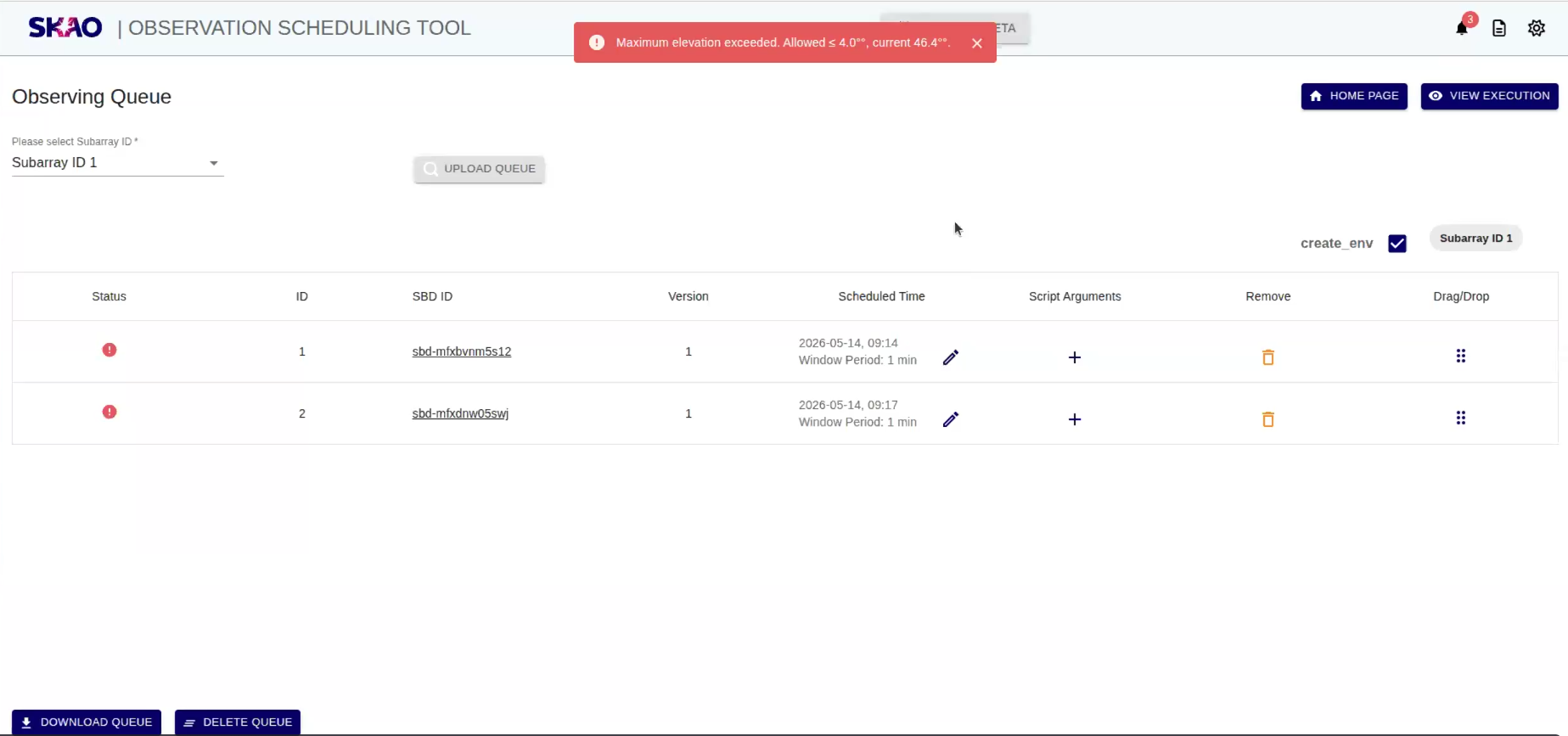
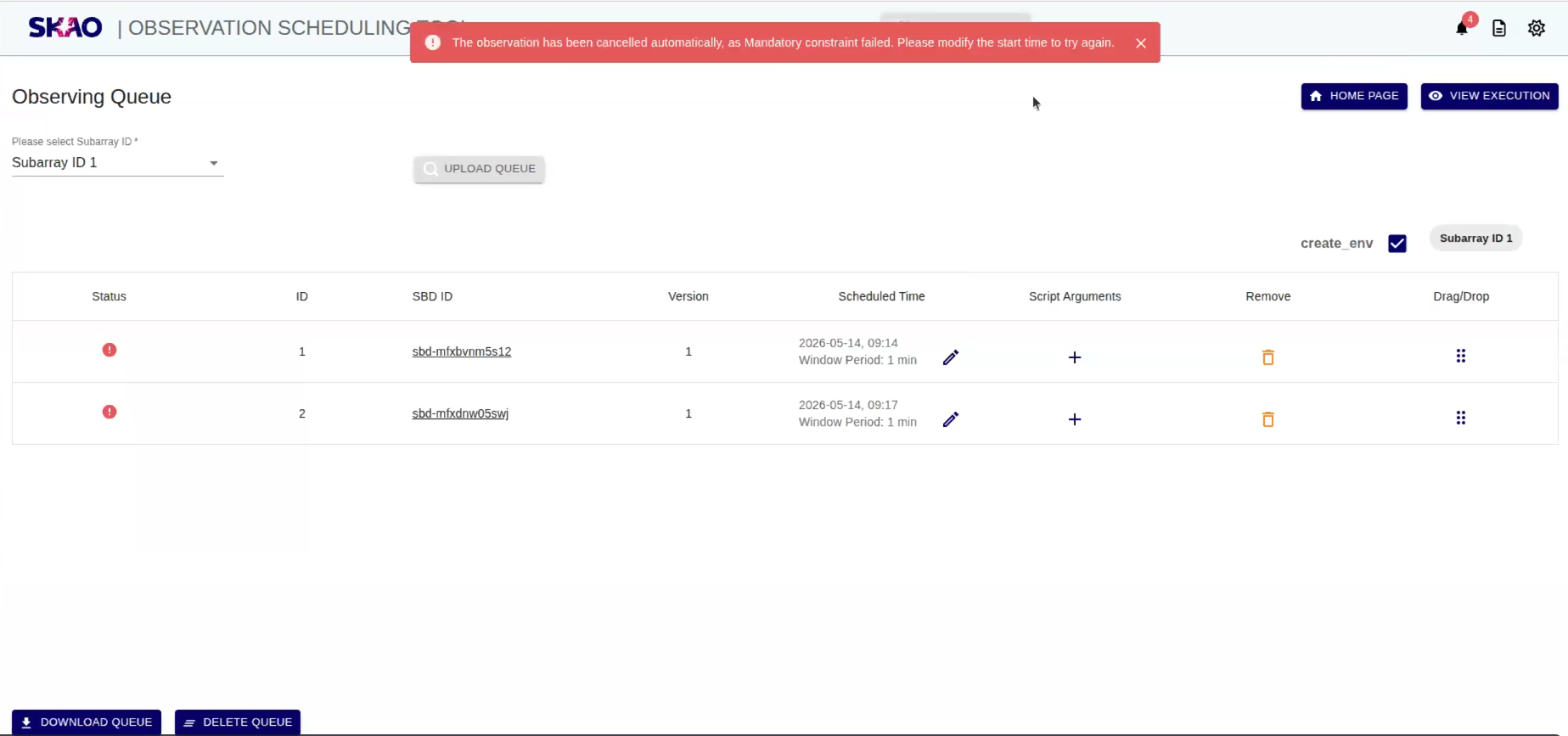
In cases of non-mandatory observability constraints, users may choose to proceed with the scheduling SBD for observation by ignoring these constraints. However, this may increase the likelihood of unsuccessful execution of the SBD.
Resource constraints:
In case of all resource constraints are satisfied, the user will receive notification that the execution has started successfully.
In case of any resource constraints validation failure, the user can modify the start time or window period for the SBD to meet the constraints and add it back to the observing queue.
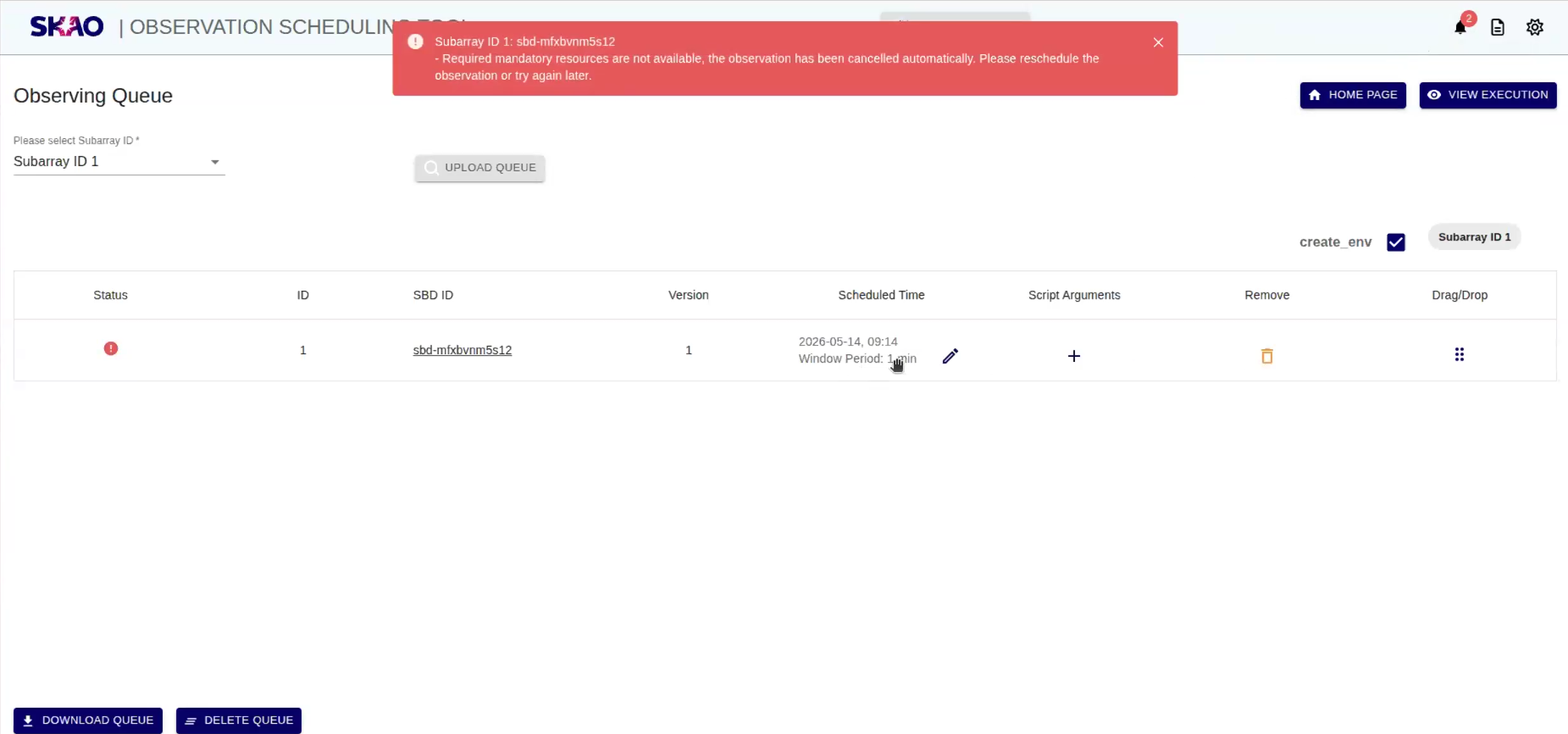
In cases of non-mandatory resource unavailability, users may choose to proceed with the observation by ignoring these constraints. However, this may increase the likelihood of unsuccessful execution of the SBD.
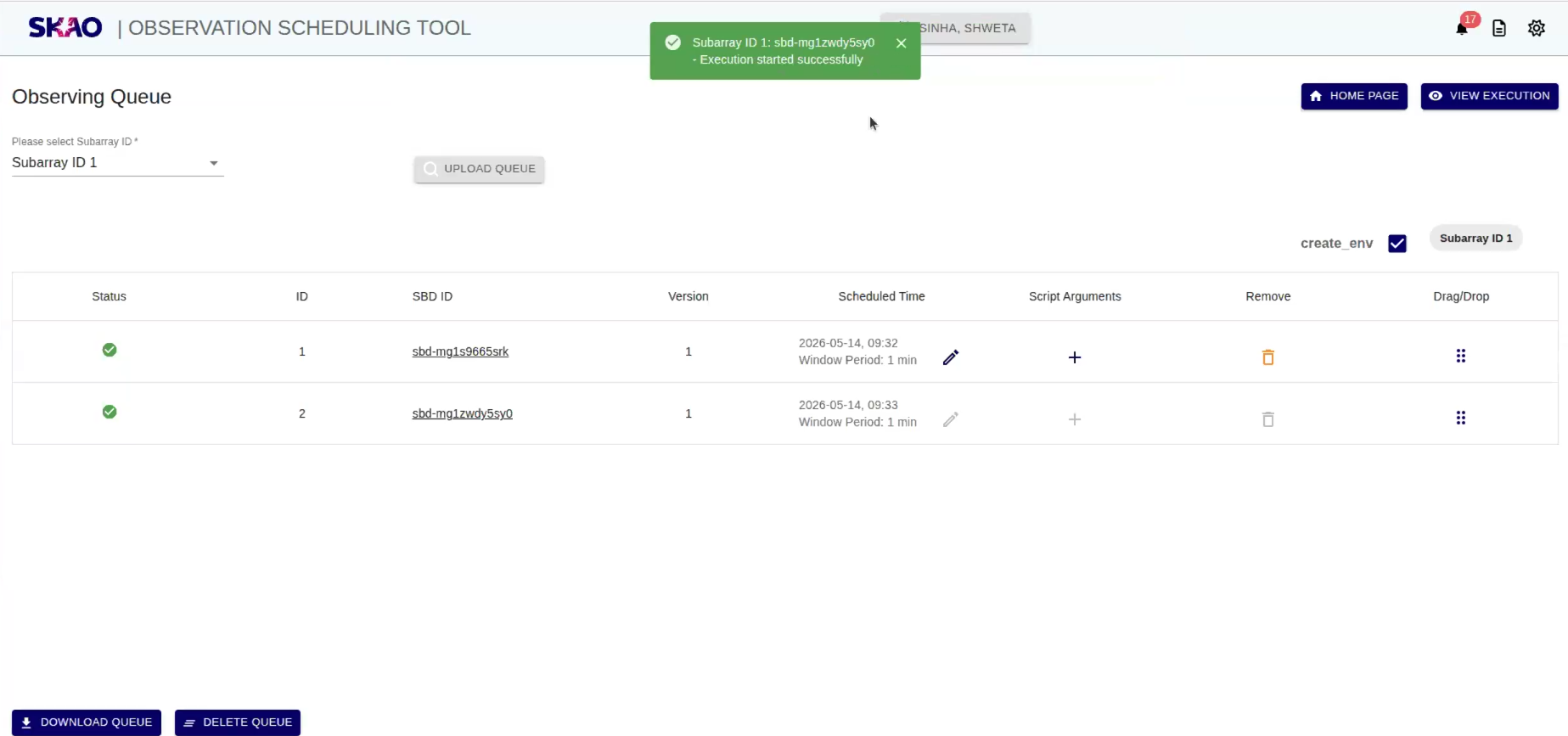
User can execute observing queue for each subarray Id simultaneously supporting concurrent execution of SBDs.
Note
If the user does not respond to the notification within 1 minute, the system will automatically start the execution of the corresponding SBD ID.