Scheduling Block Definition Page
Search SBD by Dates
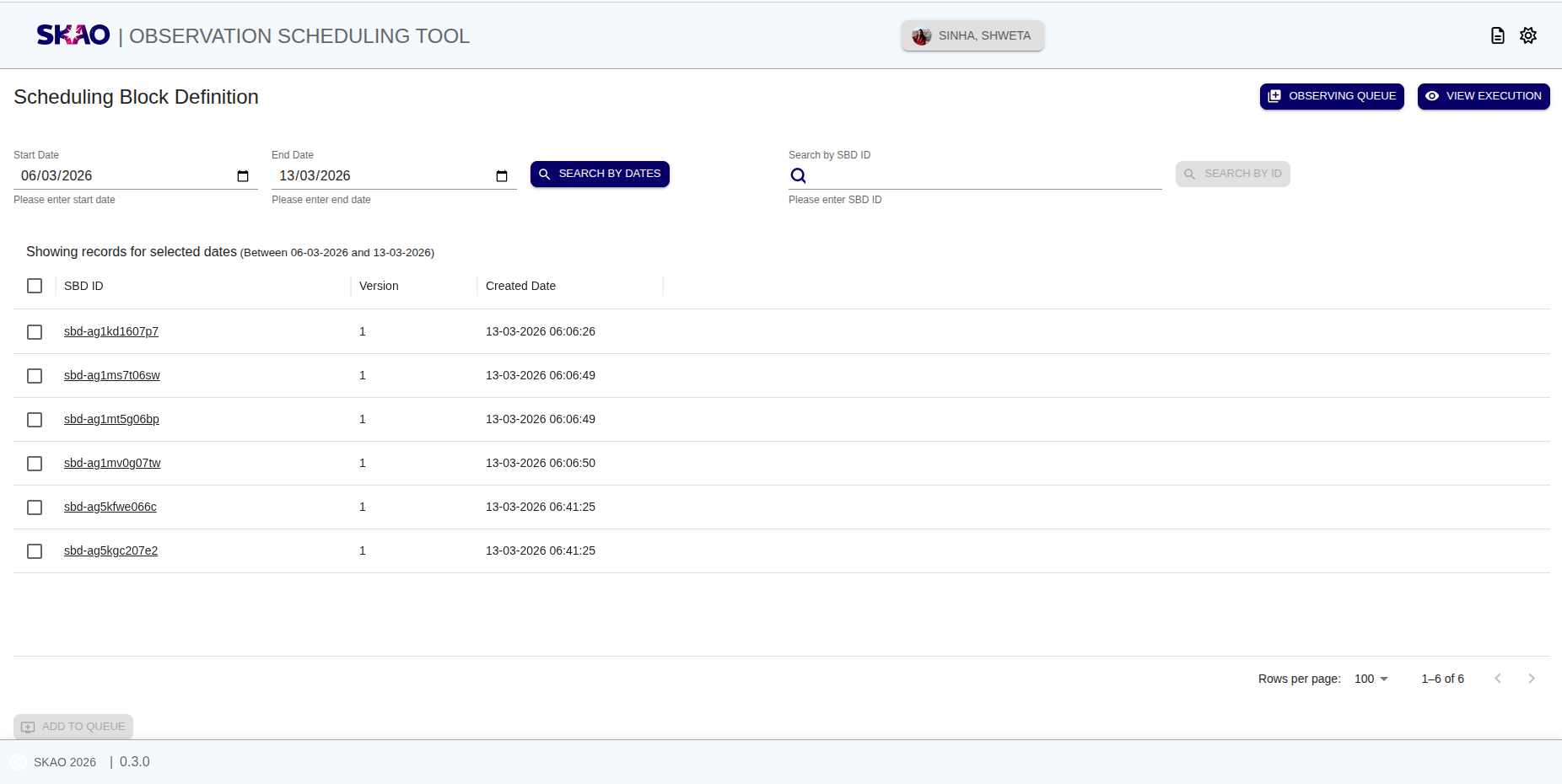
User will be able to enter or select Start Date and End Date from date picker on UI and click on  button to view the SBD’s in tabular format as shown in below image.

Search SBD by ID
User will be able to enter SBD ID in input text field on UI and click on  button to view the results in tabular format.
User can also use fuzzy/pattern string to search for entity records.
button to view the results in tabular format.
User can also use fuzzy/pattern string to search for entity records.

Add SBDs to observing queue
User will be able to select single or multiple Scheduling Block Definition(SBD) by clicking on checkbox of the respective SBD rows in given table as below.
User can add the selected SBDs in observing queue by clicking on button  .
.
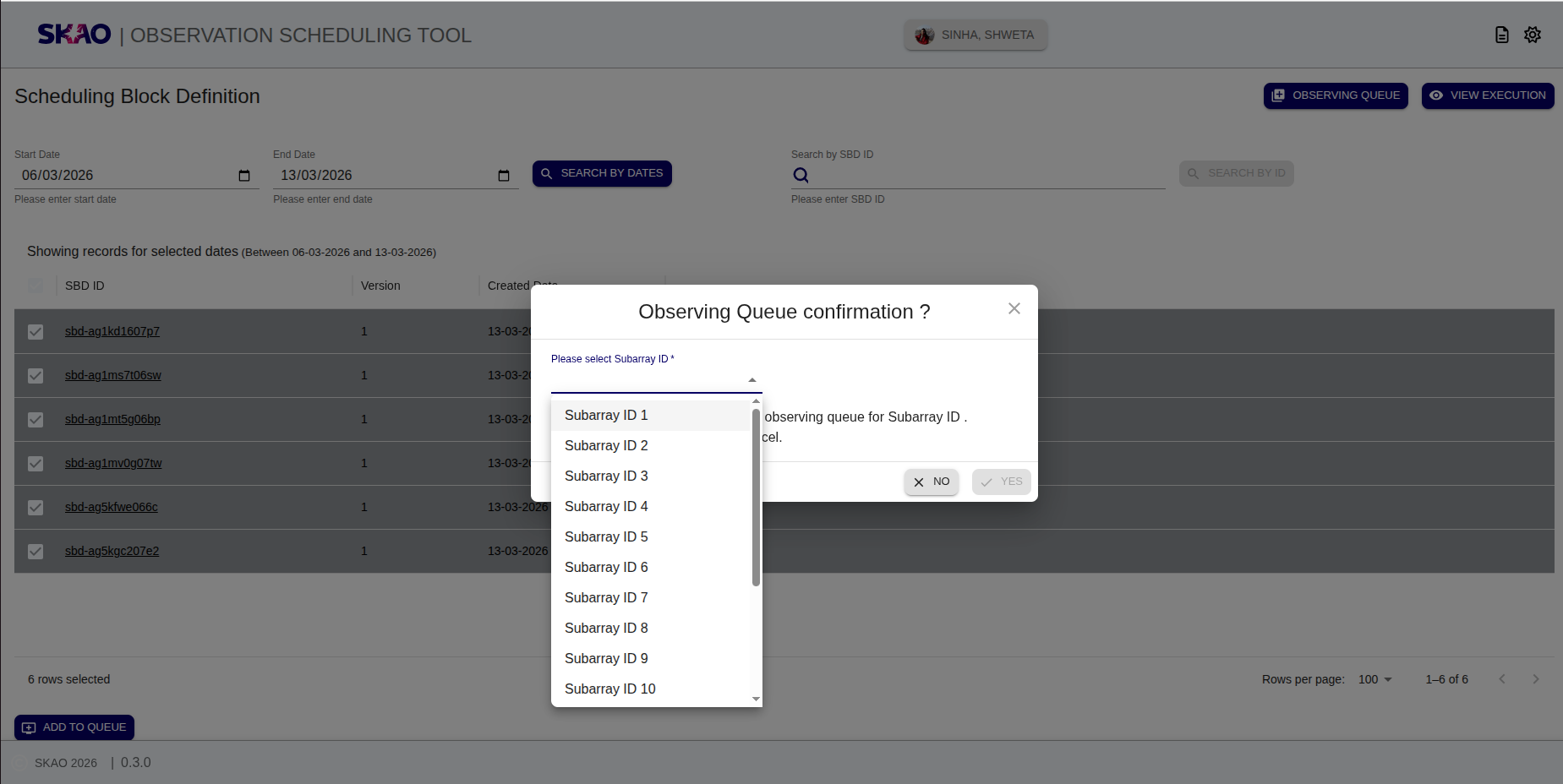
A confirmation window will be displayed to the user where user can select Subarray ID from given dropdown on UI and when clicked on ‘YES’, the selected SBDs will get added to observing queue for selected Subarray ID.
SBD Validations
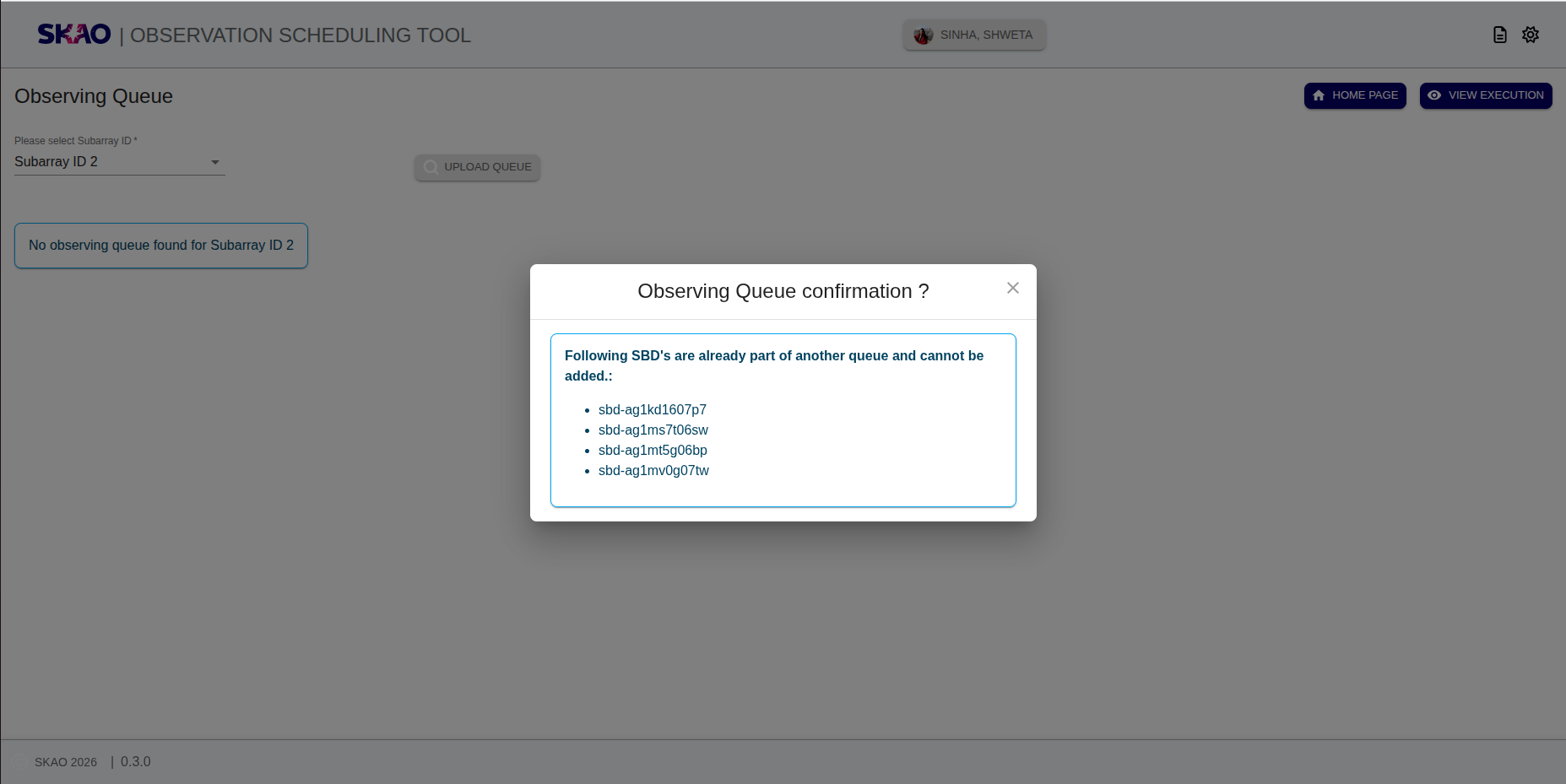
When adding SBD’s to the observing queue user will be able to view if SBD is already in other subarray Id on UI as shown in below image.