Authentication, Authorization and Auditing

The SLT API is secured using the ska-aaa-authhelpers library. This means to use the API, a valid token with the correct role and scopes for the specific API resource must be included in the request. The SLT UI have login functionality and will include the tokens in the requests by default when logged in.

For more information on the general AAA architecture, see Solution Intent

Test AAA on test deployment in real-time using PIPELINE_TESTS_DEPLOYMENT flag

To turn AAA test deployment off/on in real-time user need to update environment variable into helm charts. This will allow user to control semantic validation in real-time.

The purpose of this environment variable, is likely to test AAA on test deployment using fake tokens

But where do we get this token? In a fully-fledged deployed system, the client application will be responsible for creating a login session and obtaining an access token from Entra ID. However, for purposes of development and testing, we can use a script offered by the ska-aaa-authhelpers library:

$ poetry run mint_test_token

Copy-paste the token into the authorization field in the Swagger UI to pretend you’ve logged in. Give it a try and see what happens? HTTP 401: No joy! It turns out life isn’t quite that easy: because Microsoft controls the private keys they use to sign their access tokens, we can’t just issue whatever arbitrary tokens we feel like and have them pass validation. Luckily, ska_aaa_authhelpers offers some tricks that can help us cheat around our own security little bit. Modify your call to Requires() as follows to let it know to expect tokens issued & signed by our phony test authentication provider:

auth: Annotated[AuthContext, Requires(audience=OUR_SERVICE_ID, scopes=["FAKE"], roles=["EXAMPLE"],
                                  keys=TEST_PUBLIC_KEYS, issuer=TEST_ISSUER)]

We’re almost there – now our tokens will be accepted as valid credentials – but we still need to make sure we’re issuing tokens that contain relevant claims for our service. Call –help to see some of the relevant arguments:

poetry run mint_test_token --help

If we want to impersonate a operator like Mrs. John, we might need to generate a token like this:

poetry run mint_test_token --user-id="Mrs. John" --audience "service://slt.api" --roles "MID_TELESCOPE_OPERATOR"

You can copy-paste the tokens into jwt.ms to easily view the claims they contain. It’s important to understand that these access tokens are cryptographically signed, but not encrypted. They are difficult to forge, but anyone can view the information in them, and they are “Bearer” tokens, meaning that anyone who has the token can use it to make requests – there’s no additional verification needed to use a token. Now you can interactively test your authorization rules by generating tokens containing different user_id, scopes, roles etc. values. Note that scopes, roles and groups are space-separated strings.

Steps to add and change the pipeline_test_deployment environment variable in ‘values.yaml’ file:

  • Setting the environment variable:

    The PIPELINE_TESTS_DEPLOYMENT variable enable to test AAA on pipelines Meaning of flag true means you can go with fake token to test your AAA code. .. code:

    if getenv("PIPELINE_TESTS_DEPLOYMENT", "false") == "true":
        Permissions = partial(
            Requires, audience=AUDIENCE, keys=TEST_PUBLIC_KEYS, issuer=TEST_ISSUER
        )
    

How to Register Your Apps on Entra ID

Overview

To register your applications, you need to create separate registrations for:

  • API / Backend application

  • UI Frontend application

Raising an IT New Request Ticket

  1. Navigate to the IT Service Portal Portal link and select:

    • Category: “Logins and Accounts”

    • Sub-category: “Delegated Security Group Creation”

Guidelines for Request Submission

1. Mandatory Fields

1.1. Application Register

  • As per depend on your request type if you are registering new app then select New application registration otherwise select Modify existing one.

1.2. Name of Application

  • Provide name of your application which you want to register. e.g. name same like your repository name.

1.3. Platform Configuration

  • For UI Applications: Select “Single Page Application”.

  • For Backend Applications: Select “Web”.

1.4. Redirect URIs Configuration

  • Common Environment URI: https://k8s.stfc.skao.int (Applies to dev, integration, and staging environments)

  • Local Development URI: Add based on your application

    Example: For Python FastAPI running on port 8000 Use: http://localhost:8000

1.5. Purpose for SSO on Azure?

  • Add purpose like registration of app to enable AAA.

1.6. Who Requires Access

  • Add the list of SKAO user names which you want to provide access to your app.

1.7. Client Secret Needed?

  • Make it as ‘Yes’.

1.8. Additional Options

  • Enable special request options if needed.

New app registration example
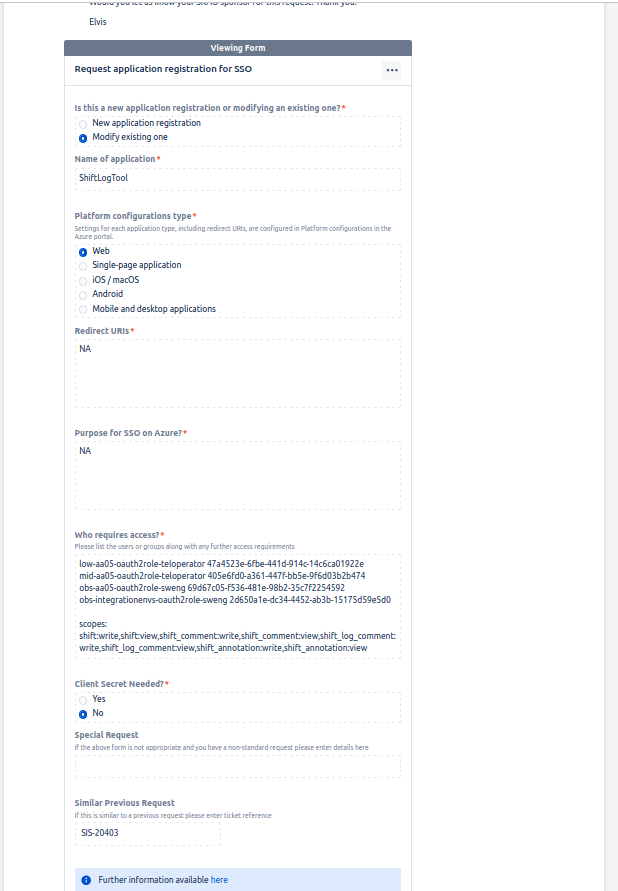
AAA App register

Raising an IT Ticket to update existing registered app.

Follow the same Portal link which used while registration app. Provide NA on fields which you don’t want to update e.g. if you don’t want to update Who requires access list then provide NA. Remember to add previous ticket number in Similar Previous Request

Supported Scopes for SLT

  • In auth.py module Scopes class defines the available scopes for SLT.

Supported Roles for SLT

  • Currently Supported Roles are MID_TELESCOPE_OPERATOR, LOW_TELESCOPE_OPERATOR, SOFTWARE_ENGINEER, OPERATIONS_SCIENTIST.